

Automate your photo and video workflows with Exportlab and Make
Every shoot creates a trail of follow-up work. A gallery goes live — does the client know? A contract gets signed — is the invoice queued? A video finishes processing — has your editor been notified? These steps are easy to forget and time-consuming to manage manually.
The Exportlab Make integration connects your production workflow to the tools your team already uses. When something happens in Exportlab — a gallery is published, a client signs a contract, a video review comes in — Make picks it up automatically and continues the workflow without you having to intervene.
This is especially useful for photographers, videographers, production studios, and agencies who are managing multiple clients and projects simultaneously and cannot afford to drop communication or miss a handoff.
What is Make?
Make, formerly Integromat, is a visual automation platform that lets you connect apps and build workflows called scenarios. Instead of writing code, you drag and drop modules, connect them with arrows, and define the logic visually.
A Make scenario typically starts with a trigger — something that happens — and then executes one or more actions in response: sending an email, creating a task, updating a spreadsheet, posting a Slack message, or anything else your connected apps support.
Make is particularly well suited for multi-step workflows where you want full control over what happens, in what order, and under what conditions.
Why connect Exportlab with Make?
Creative work generates a steady stream of small handoffs. A contract gets signed and someone needs to act on it. A gallery is delivered and the client should be told. A video comes back from render and the editor needs to review it before it goes to the client.
Without automation, these steps rely on people remembering to check, follow up, and communicate — which adds overhead and introduces gaps.
The Exportlab Make integration means your Exportlab workflow events automatically flow into whatever tools your team uses. That could mean:
- A Notion task is created the moment a client submits video feedback
- A HubSpot deal stage updates when a contract is signed
- A Slack message goes out to your team when a gallery is published
- An Airtable record is created when a new client is added to Exportlab
- A project board column moves when a project transitions to a new phase
None of these require manual triggering. They happen because Exportlab told Make something changed, and Make handled the rest.
How to set up the Exportlab Make integration
Step 1 - Generate an API key in Exportlab
Open Exportlab and go to Settings -> Integrations -> API Keys. Generate a new API key. The key starts with sk_ and is shown only once — copy it and store it somewhere safe.
You will also need your workspace slug. This is the subdomain of your Exportlab workspace. If your workspace is at mystudio.exportlab.io, your workspace slug is mystudio.
Step 2 - Open Make and create a new scenario
Go to make.com and create a new scenario. Click the large plus icon to add the first module.
Step 3 - Search for Exportlab
In the module search, type "Exportlab" and select the Exportlab app. Choose one of the available trigger modules.
Step 4 - Add your Exportlab connection
When prompted to connect your Exportlab account, enter:
- API Key — the
sk_...key you generated in step 1 - Workspace Slug — for example,
mystudio
Make will verify the connection before saving it. Once verified, the connection is stored and reusable across all your Exportlab scenarios.
Step 5 - Choose a trigger and connect your actions
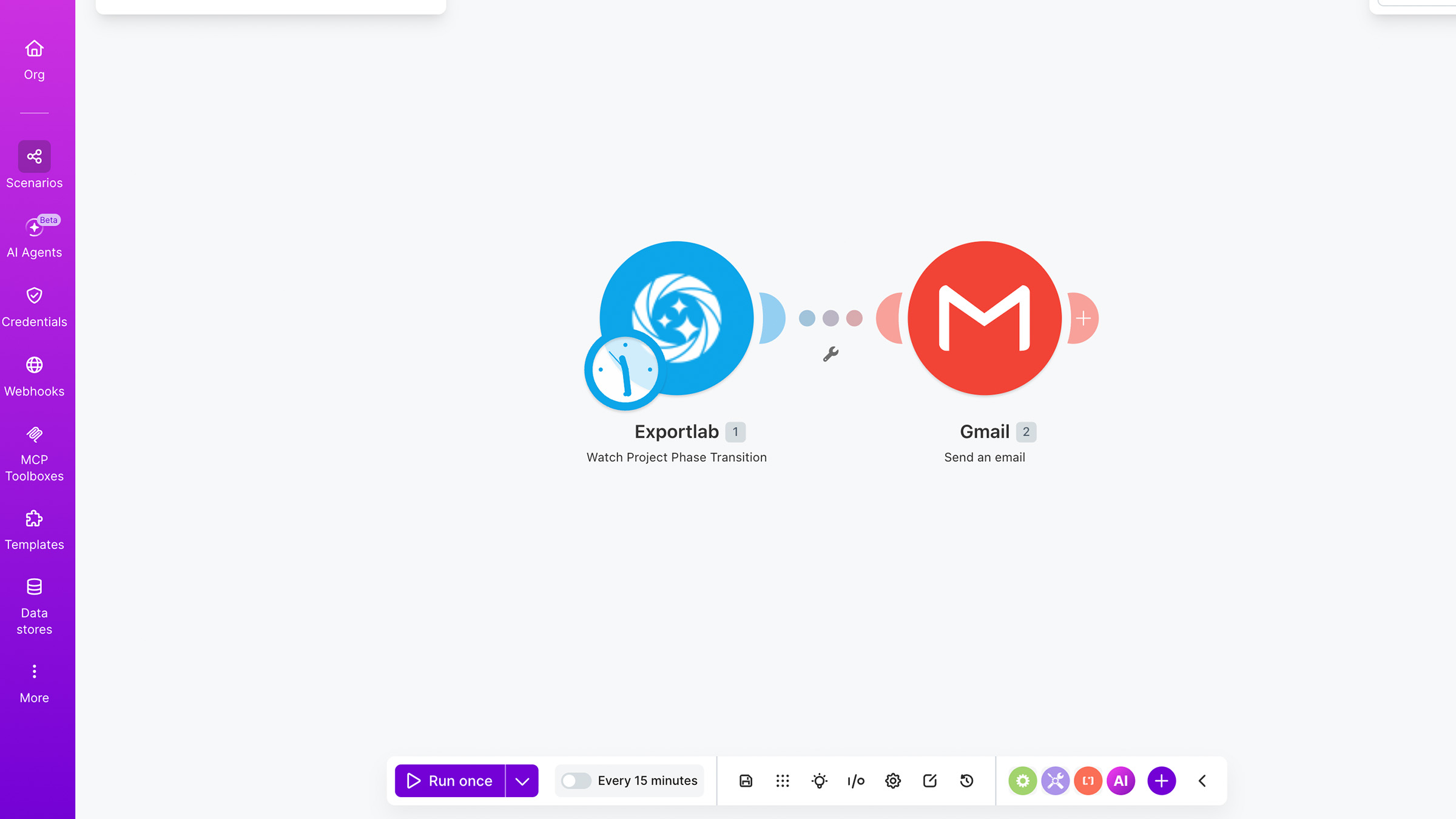
Select which event you want to monitor, for example "Watch Contract Signed". Then add the actions that should follow — a CRM update, a Slack message, an email, a spreadsheet row, or whatever your workflow requires.
Activate the scenario and Make will begin polling Exportlab for new events.
How the integration works
The Exportlab Make integration uses polling. This means Make regularly contacts Exportlab and asks: has anything new happened since the last time I checked?
If something has happened — a gallery was published, a contract was signed, a video finished processing — Make receives the event data and starts the scenario.
Think of it like checking a shared inbox at regular intervals. You do not have to manually check Exportlab. Make does it in the background on a schedule that you control.
You do not need to configure anything in Exportlab to make this work beyond the API key. There are no webhooks to set up, no URLs to enter. The polling is handled entirely by Make.
Available Exportlab triggers for Make
Watch Gallery Published
This trigger fires when a gallery is published or unpublished in Exportlab. The event includes the gallery token, the gallery URL, and whether the gallery is currently published.
Example workflows:
- Gallery published -> send a client notification email
- Gallery published -> post a delivery message in a Slack channel
- Gallery published -> create a delivery record in Airtable
- Gallery unpublished -> notify your team that access has been revoked
Watch Video Review Feedback
This trigger fires when a client submits feedback on a video in Exportlab's video review tool. The event includes the reviewer's name, the review status, an optional note, and individual comments with text and timestamps.
Example workflows:
- Feedback received -> create a task in ClickUp or Asana with the comment list
- Feedback received -> post the comments to a Slack channel for the editor
- Feedback received -> send an internal email summary to the project lead
- Feedback received -> log the review round in a Google Sheet
Watch Video Processing Complete
This trigger fires when a video finishes processing in Exportlab, for example after upload and transcoding are done. The event includes the video ID, the video desk URL, and rendition information.
Example workflows:
- Processing complete -> send the review link to the editor
- Processing complete -> notify the client that the video is ready for review
- Processing complete -> create a quality control task in your project management tool
- Processing complete -> update a project tracker in Notion
Watch Contract Signed
This trigger fires when a client signs a contract in Exportlab. The event includes the contract ID, project ID, client name, and contract title.
Example workflows:
- Contract signed -> create a draft invoice in your accounting tool
- Contract signed -> move the project to the next phase in your production tracker
- Contract signed -> send a confirmation email to the client
- Contract signed -> notify your team in Slack that the project is confirmed
Watch Contract Fully Executed
This trigger fires when all parties have signed a contract, meaning the contract is fully executed and legally binding.
Example workflows:
- Contract fully executed -> trigger the project kickoff sequence in your project tool
- Contract fully executed -> send a welcome email to the client
- Contract fully executed -> update the deal status in your CRM
Watch Client Created
This trigger fires when a new client is added to Exportlab. The event includes the client ID, email address, company name, and status.
Example workflows:
- Client created -> add the contact to your CRM
- Client created -> start an onboarding email sequence
- Client created -> create a new client folder in Google Drive
- Client created -> add a row to a client tracking spreadsheet
Watch Project Phase Transition
This trigger fires when a project moves from one workflow phase to another in Exportlab. The event includes the project ID and the target phase identifier.
Example workflows:
- Phase transition to editing -> notify the editor
- Phase transition to delivery -> prepare the gallery and notify the client team
- Phase transition to any phase -> update the production board in Trello or Asana
- Phase transition -> log the status change in your reporting sheet
Practical workflow examples
Contract to kickoff
A client signs a contract -> Make creates a draft invoice in your accounting tool, moves the Trello card to "Confirmed", and posts a message to your team's Slack channel.
Gallery delivery
A gallery is published in Exportlab -> Make sends the client a personalized delivery email, logs the delivery date in a Google Sheet, and creates a follow-up reminder in Todoist for two weeks later.
Video feedback loop
A client submits video review feedback -> Make creates a task in ClickUp with all comments, assigns it to the editor, and sends a summary to the project Slack channel. When the review is marked closed, a second scenario notifies the client that the revisions are being worked on.
New client onboarding
A new client is created in Exportlab -> Make adds the contact to HubSpot, creates a shared Google Drive folder for that client, and sends a welcome email from your email platform.
When should you use Make versus Zapier?
Both Make and Zapier connect Exportlab to the tools you use, and both support the same set of triggers. The difference is in how they work and who they are for.
Use Make if:
- You want a visual, step-by-step view of your automation
- Your workflow has multiple steps or branching conditions
- You want to transform or filter data before it reaches the next step
- You need detailed control over timing, retries, or error handling
Use Zapier if:
- You want to get started quickly with minimal setup
- You already use Zapier for other automations
- Your workflow is a simple trigger-to-action connection
- You prefer a straightforward interface without a canvas
Neither is better. They serve different workflow styles. If you already use one, start there. If you are new to automation, Zapier is often easier to learn, while Make offers more flexibility once you grow into it.
Current availability
The Exportlab Make integration is currently available through a private Make app while broader public availability is being prepared. If you want access, contact Exportlab support and ask about the Make integration.
Get started
The Exportlab Make integration is built around the events that actually matter in photo and video production, not generic business events. Every trigger maps directly to something that happens in a real creative workflow.
Want to automate a workflow that is not listed here? Tell us what you want to connect. Exportlab integrations are built around real photo and video production workflows, and we are always interested in learning which tools creative teams rely on.