

Track gallery engagement with Google Analytics and Exportlab
When you share a gallery with a client, you rarely know what happens next. Did they open it? How much time did they spend there? Did they come back? Without tracking, gallery delivery is a one-way street.
The Exportlab Google Analytics integration connects your shared galleries to your GA4 property. When a client or viewer opens a gallery, Exportlab sends a page view event to Google Analytics. You can then see that engagement in your GA4 dashboard alongside the rest of your web traffic.
---
What does the integration track?
When the integration is enabled, Exportlab sends page view events to your Google Analytics 4 property whenever someone views a shared gallery. This includes:
- Initial gallery visits
- Return visits
- Traffic from different devices and locations
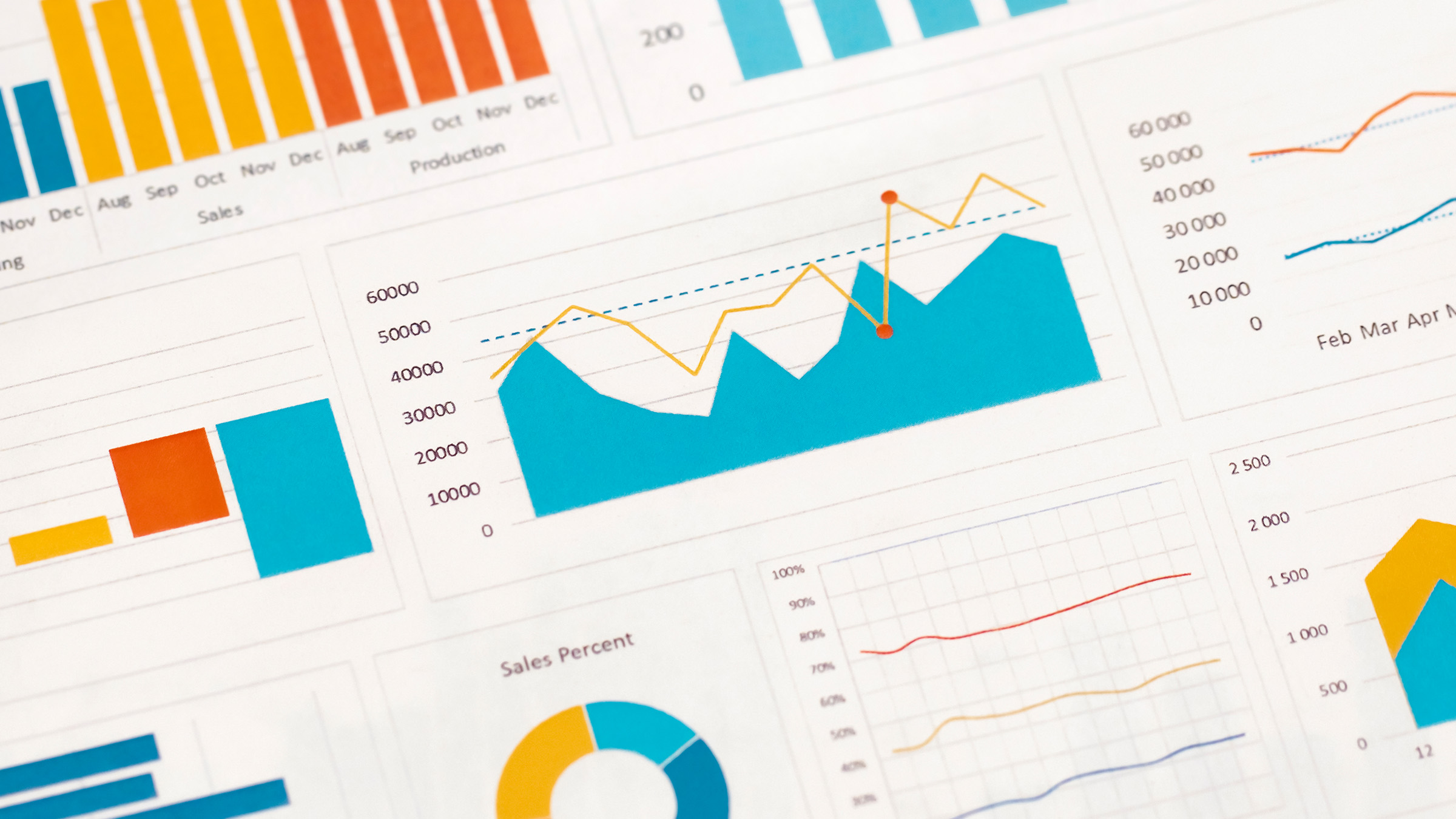
This data appears in your standard GA4 reports — real-time view, engagement reports, and audience summaries. You do not need a separate analytics dashboard. The gallery traffic flows into the property you already use.
---
Why track gallery views?
Knowing that a gallery was delivered is not the same as knowing it was opened. For photographers and videographers who deliver photos to clients, tracking provides real insight into engagement:
- Confirm the client actually opened the gallery — useful before a follow-up call
- See when the gallery was first viewed — know when to expect feedback
- Track return visits — understand if the client is sharing the gallery internally
- Identify high-traffic galleries — see which deliveries generate the most engagement
For studios with multiple active clients and ongoing deliveries, this data helps prioritize follow-ups and understand how clients interact with delivered work.
---
How to set up the integration
Step 1 — Get your GA4 Measurement ID
In Google Analytics, open the property you want to use. Go to Admin → Data Streams, select your web stream, and copy the Measurement ID. It starts with G- followed by a series of letters and numbers (for example, G-XXXXXXXXXX).
Step 2 — Paste it into Exportlab
In Exportlab, go to Settings → Integrations → Google Analytics. Paste your Measurement ID into the field and enable the integration. Click Save.
That is all. There is nothing to install on a website, no code to embed, and no additional configuration in Google Analytics. Exportlab handles the event sending automatically.
---
What you see in Google Analytics
Once connected, gallery traffic appears in your GA4 property like any other page view. You can find it in:
- Realtime — see active gallery sessions immediately after enabling the integration
- Engagement → Pages and screens — gallery URLs appear as individual pages
- Acquisition — see how clients are arriving at the gallery (direct link, email, etc.)
- Audience — device types, locations, and session patterns
Standard GA4 filters and segments apply. You can isolate gallery traffic, compare time periods, or build custom reports around gallery engagement.
---
A practical note
Google Analytics data is useful for directional insight, not forensic tracking. GA4 respects browser privacy settings and does not track users who have opted out. The data gives you a reliable overview of engagement patterns — not a guaranteed record of every single visit.
For most photographers and videographers, that level of insight is more than enough to improve follow-up timing and understand how clients engage with delivered work.
---
Get started
The Exportlab Google Analytics integration is one of the simplest connections available — one Measurement ID, one toggle, and your gallery traffic starts appearing in GA4. If you already use Google Analytics for your website, adding gallery tracking takes under two minutes. Exportlab also reports on gallery activity in its own analytics dashboard, and you can push those events into other tools with Zapier or Make.