

ProRes vs H.264: Which Codec for What (and Why You Need Both)
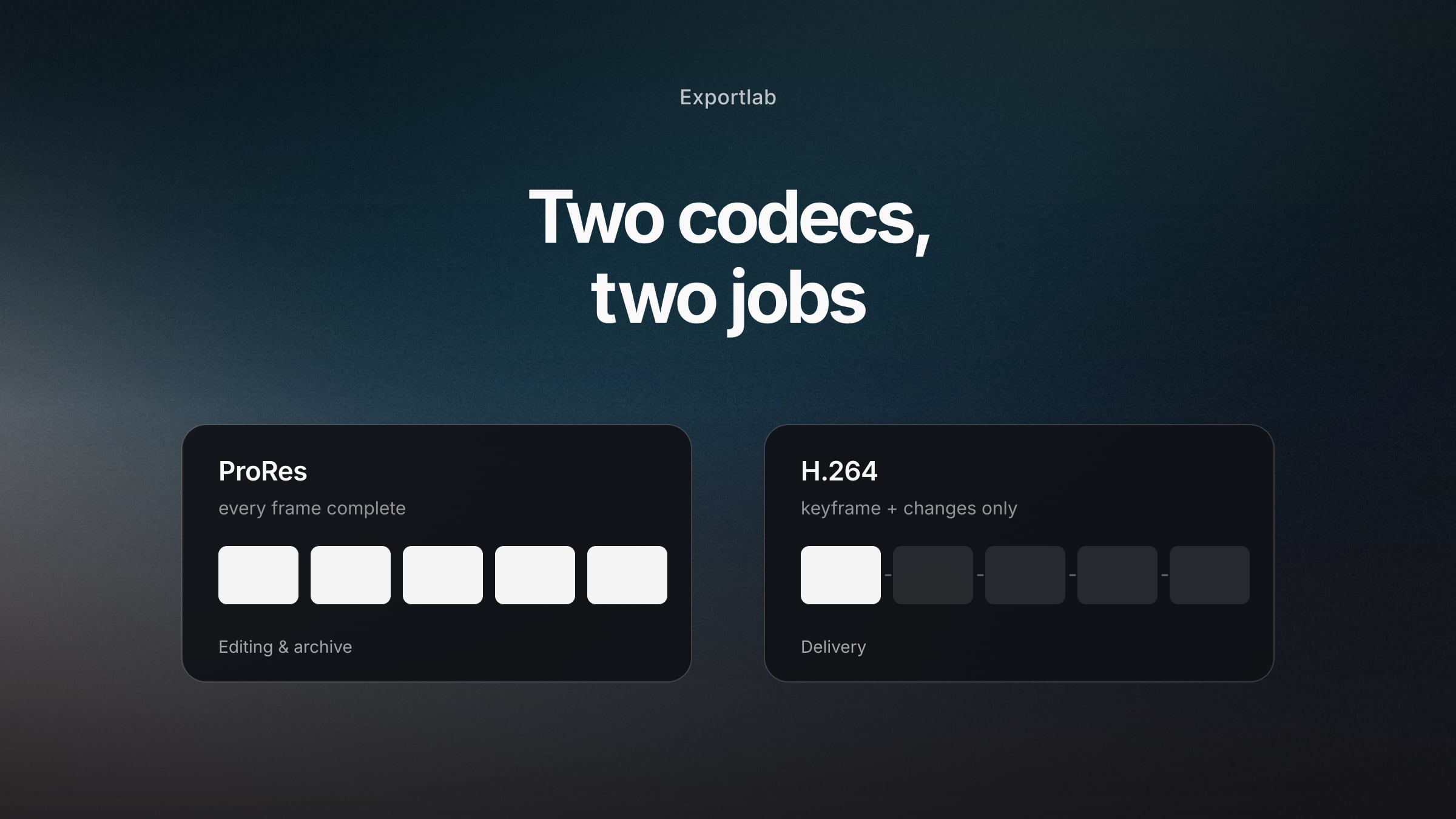
"ProRes or H.264?" is the wrong question. The two codecs are not competitors — they do different jobs. ProRes is built to be edited. H.264 is built to be transported and played back. Use one for the other's job and you get either a stuttering timeline or a 40 GB file no client wants to download.
This article sorts the decision by the three roles in a workflow — editing, delivery, archive — and says what belongs in each.
The real difference: intra-frame vs long-GOP
The technical core takes two sentences, and it explains everything else.
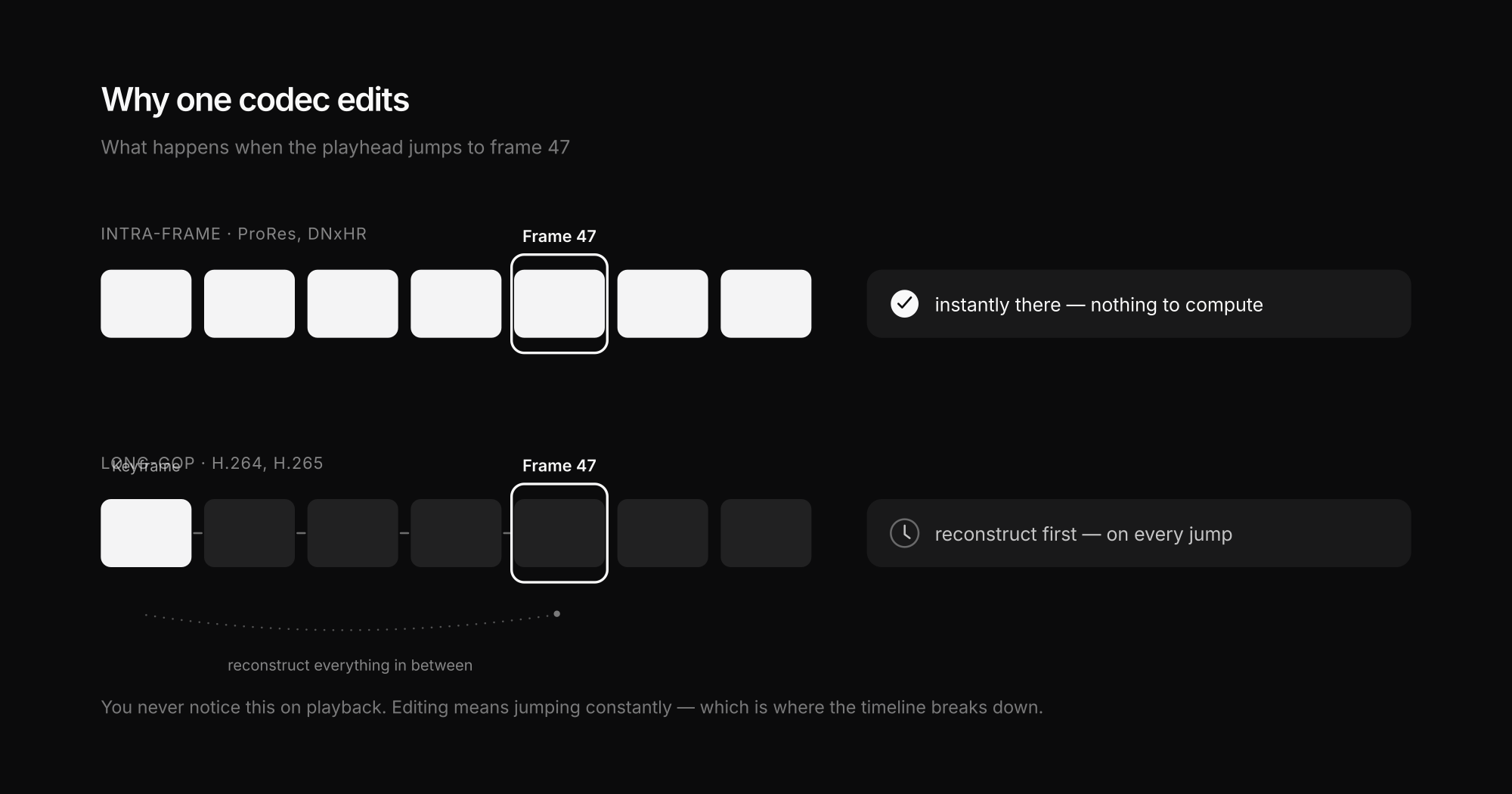
ProRes is an intra-frame codec. Every single frame is stored complete in itself. Jump the playhead anywhere and that frame is immediately available — nothing has to be computed.
H.264 is a long-GOP codec. Only a few frames (keyframes) are complete; all the others store just the change from their neighbour. That saves an enormous amount of space, but it means: to show frame 47, the computer first finds the keyframe and reconstructs everything in between.
Everything else follows from that. During playback the reconstruction runs linearly once and is barely noticeable. While editing you jump around constantly, scrub backwards, set markers — and each time the same work has to be redone. That is exactly where the timeline breaks down.
The three roles in a workflow
1. Editing: ProRes (or proxies)
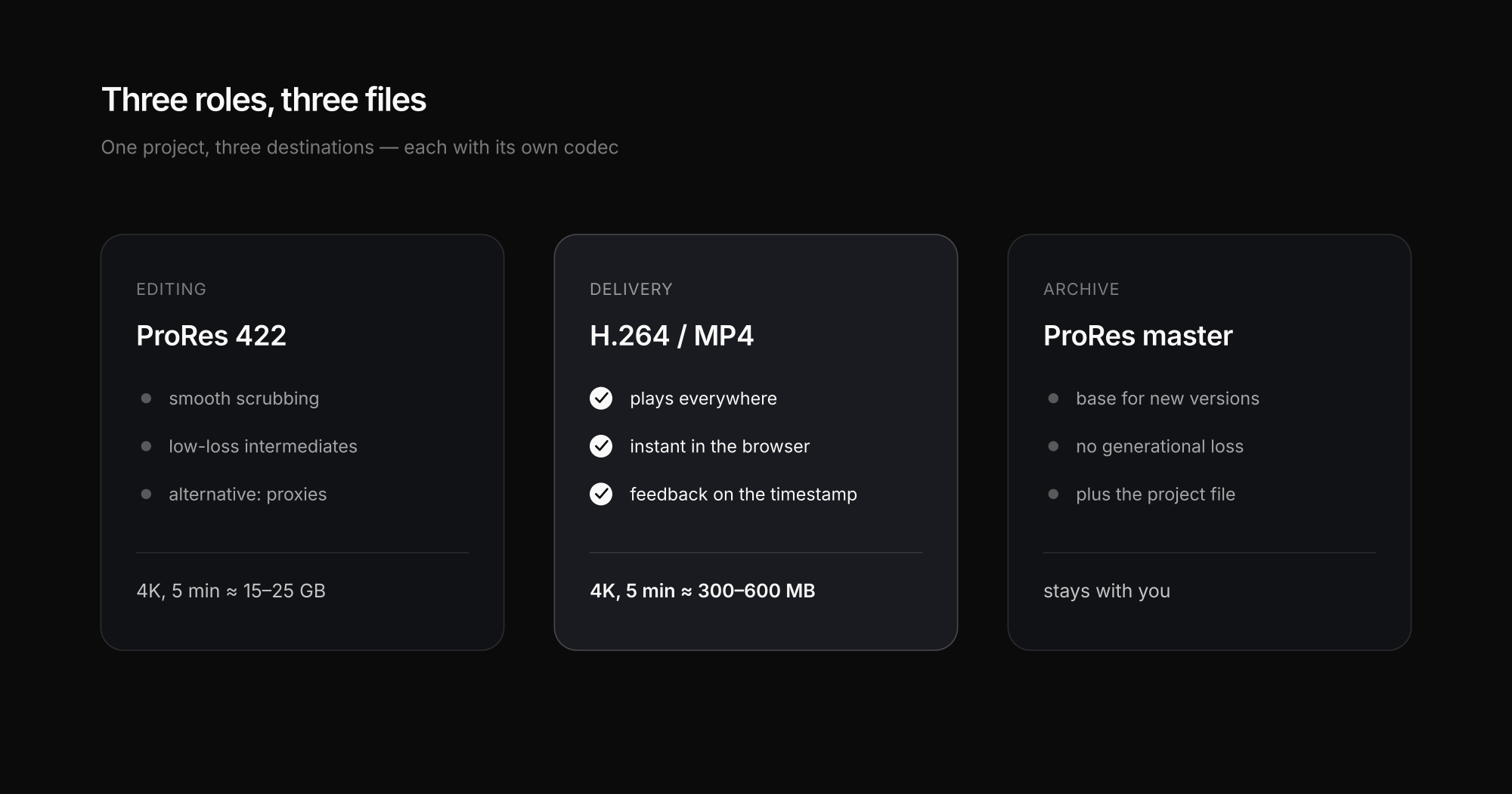
On the timeline, response time matters, not file size. ProRes 422 is the normal choice here: smooth scrubbing, no waiting when you reverse, low-loss intermediate steps.
If you have no ProRes footage — say, straight out of a camera recording H.264 or H.265 — there are two routes: transcode the material to ProRes once, or work with proxies. Proxies are small stand-in files that get swapped back for the originals automatically at export. On modern machines with hardware decoding, editing H.264 directly is now often fine — but multi-track 4K projects still hit the wall quickly.
2. Delivery: H.264
At the client's end exactly the opposite matters: the file has to be small, play everywhere and load fast. H.264 in an MP4 container is the standard every device and browser understands — from a five-year-old Android phone to a meeting-room projector.
A typical order of magnitude: a five-minute 4K film runs to 15–25 GB as ProRes 422 and 300–600 MB as H.264. For client review the choice is therefore obvious — nobody downloads 20 GB to judge a colour correction.
3. Archive: a ProRes master
The archive is the role most often forgotten. Keep only the H.264 delivery and you have a problem in two years: any re-edit — new cut, different length, another aspect ratio for a new platform — then starts from an already heavily compressed file. Compress that again and the losses stack visibly.
So: keep a ProRes master you can render new outputs from at any time, and treat the H.264 versions as disposable.
The ProRes variants, plainly
ProRes is not one format but a family. Four tiers matter in practice:
| Variant | For | Size |
|---|---|---|
| ProRes Proxy | offline editing on weak hardware | smallest |
| ProRes LT | editing when space is tight | roughly half of 422 |
| ProRes 422 | the normal choice for editing and masters | reference |
| ProRes 422 HQ | colour work, broadcast delivery | noticeably larger |
Above those sit 4444 and 4444 XQ — relevant when an alpha channel (transparency) has to travel with the file, as with graphics and VFX elements. For ordinary commissioned work they are overkill.
A practical rule: 422 for everything, HQ only when someone explicitly asks for it. The visible difference between the two is small in practice; the size difference is not.
Common mistakes
Archiving the master as H.264
Saves space once and costs quality on every reuse. New versions then come from already compressed material.
Sending ProRes to the client
A 20 GB file for a review video helps nobody. It uploads slowly, fills inboxes and will not play on many devices.
Converting between codecs repeatedly
Every re-compression of an already compressed file costs quality. One path from master to output, not three.
Trying to edit 4K H.264 directly
Often works on current hardware, but as soon as multiple tracks, effects or 10-bit footage arrive, the proxy detour is faster than the waiting.
What the client should actually receive
In practice the question is rarely "which codec" but "which file goes to whom". Three cases cover almost everything:
- For review / work in progress: H.264 at a moderate bitrate. This is about content and timing, not maximum quality — the file should play instantly in a browser.
- Final delivery: H.264 at the target resolution, cleanly named. If the client processes it further (agency, broadcaster, subtitling), add a high-quality version by arrangement.
- For your archive: the ProRes master plus the project file.
For the work-in-progress stage, success is not decided by quality but by how the feedback comes back. A review link the client opens without an account, where comments attach to the timestamp, removes the "which bit do you mean?" round trip — Exportlab transcodes the uploaded file for streaming automatically, so the client downloads nothing.
Two honest limitations: Exportlab accepts MP4, MOV, AVI, MKV and WebM — so ProRes inside a MOV container works, ProRes-in-MXF does not, and neither do R3D or BRAW. There are also per-plan size caps. Which concrete values apply to which purpose is covered in video export settings. For the review path H.264 is the right choice anyway; the ProRes master stays with you, or goes out via Easy Transfer as a plain file transfer when someone genuinely needs it.
FAQ: ProRes and H.264
Is ProRes better than H.264?
Not better, built for something different. ProRes stores every frame in full and is therefore edit-friendly and low-loss. H.264 compresses across multiple frames and is therefore small and playable everywhere. For editing ProRes wins; for delivery H.264 does.
Can I edit H.264 directly?
On current hardware with hardware decoding this works well for simple projects. As soon as several 4K tracks, effects or graded 10-bit material are involved it turns sluggish — then proxies or a transcode to ProRes are the faster route.
Which ProRes variant should I use?
ProRes 422 is the normal choice for editing and masters. Use 422 HQ only when a broadcaster or client explicitly requires it, or when heavy colour work is coming. LT and Proxy are for offline editing when storage is tight; 4444 only for material with an alpha channel.
Why is my ProRes file so large?
Because every single frame is stored complete — that is the point of the format. A five-minute 4K video can easily occupy 15–25 GB as ProRes 422, while the same sequence lands at a few hundred megabytes as H.264. For delivery, always export H.264.
What about H.265 (HEVC)?
H.265 compresses harder than H.264 at the same quality, so files are smaller still. The downside is compatibility: older devices, some browsers and a few editing applications struggle with it. For client delivery H.264 therefore remains the safer choice; H.265 pays off with very large files and a known target environment.
Do I need ProRes on Windows?
Not necessarily. DNxHD and DNxHR do the same job: intra-frame, edit-optimised, suitable as a master. The logic in this article applies unchanged — only the name of the editing codec differs.
Conclusion
ProRes and H.264 are not alternatives but two stations on the same route. You edit and archive in an intra-frame codec and deliver in H.264 — separate those cleanly and you get neither stuttering timelines nor clients defeated by a 20 GB download.
The one decision with real consequences is the archive question. Keep only the delivery file and you pay for it at the first reuse. A ProRes master costs storage — considerably less than re-creating a project that no longer exists in good quality.