
Assign photos to people: give everyone their own pictures
Assigning photos to people becomes a job of its own when you photograph 50 employees, several models or an entire sports club in one day. The lighting is ready, the appointments run smoothly and the pictures look good. Afterwards come the questions: who was in front of the camera, which files belong together and who gets which link?
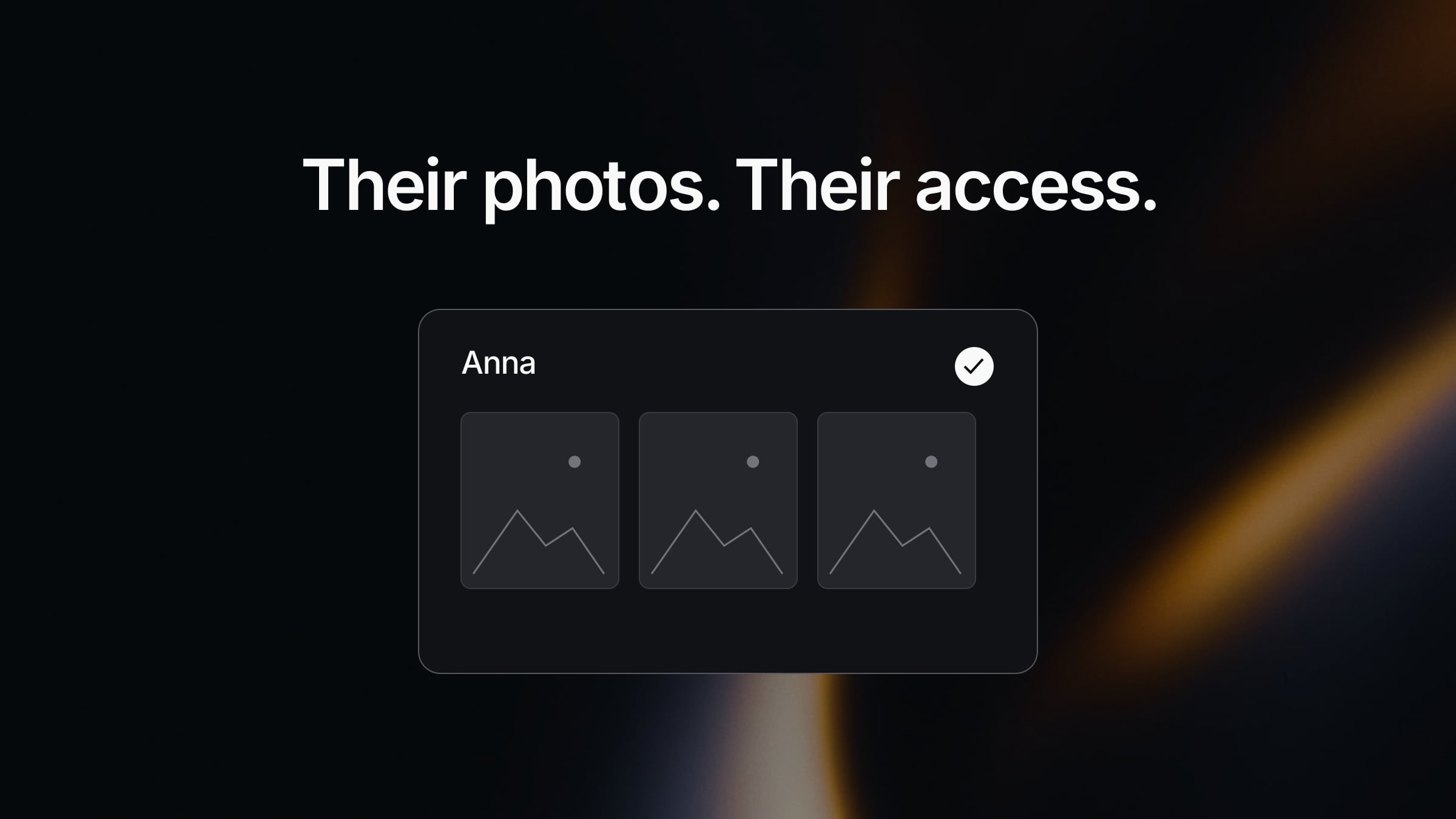
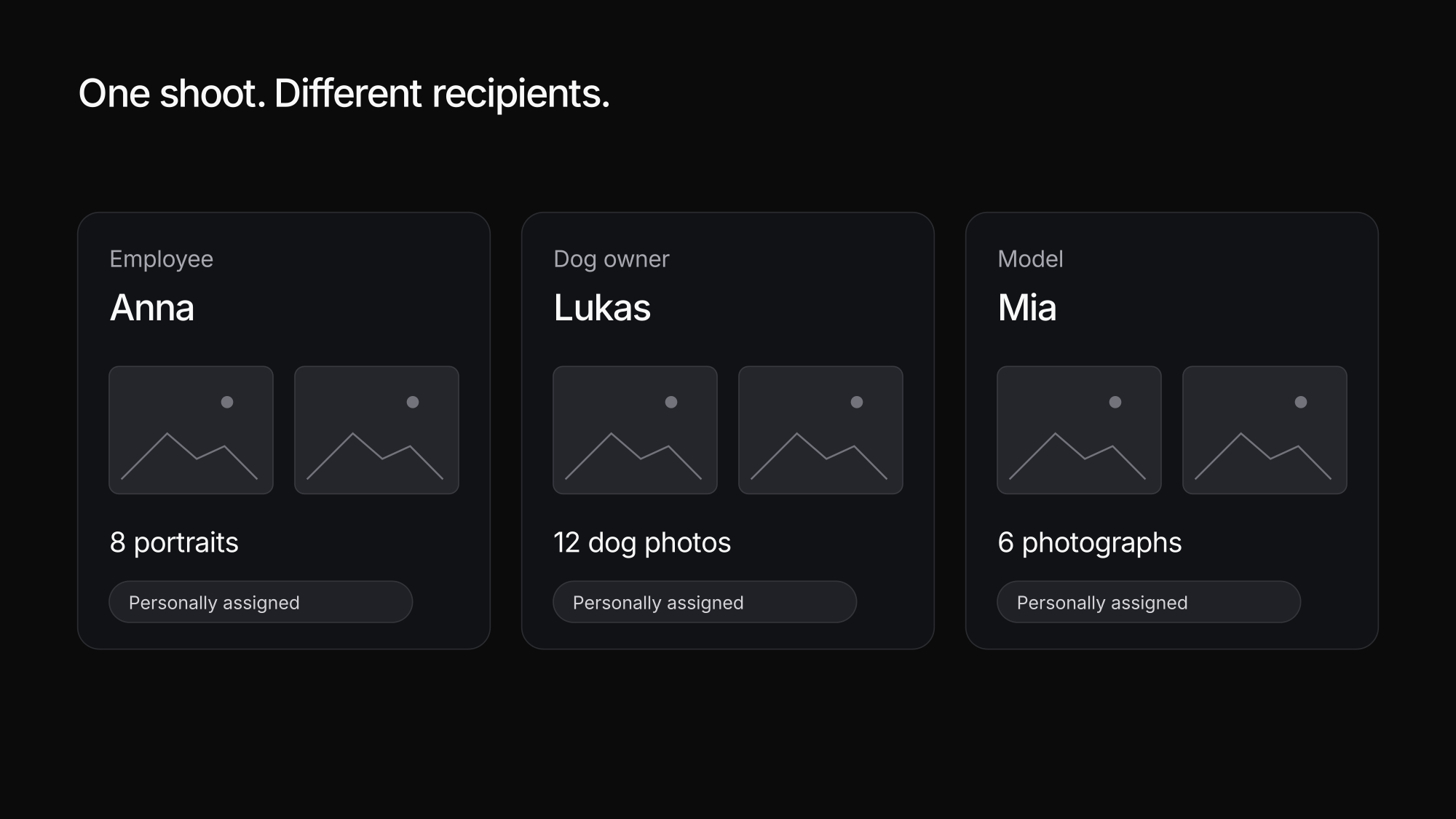
The answer starts with planning your recipients before the shoot. In Exportlab, the relevant gallery mode is Group Shoot. That does not mean arranging everybody for a single group portrait. It means managing multiple recipients within one gallery, with each personal access code showing only the photos assigned to that person.
When do you need personal photo access?
The number of recipients matters more than the number of files. A couple might receive a complete wedding story. At a portrait day, many different people need separate selections and deliveries, even when one organisation commissioned everything.
Corporate headshots and professional portrait days
A company needs new portraits for 80 employees. Each employee should browse their own photographs and choose favourites without scrolling through colleagues' pictures. Names, email addresses and, where useful, employee IDs help you organise the handover. If the shoot spans several days, the selected appointment also matters.
Professional headshot days follow the same pattern: short appointments, different people and a small selection for each. Personal access codes save you from creating a separate gallery and composing a different delivery message for every appointment that evening.
Dog photography and mini sessions
Imagine photographing twelve dogs and their owners over a weekend. The owner is the recipient: create a person record for them and assign their dog's pictures manually. This workflow does not require automatic animal recognition.
The same approach suits family portraits, Christmas sessions and other mini sessions. Decide whether one person or an entire household should share an access code. That determines how you register participants and assign the photographs later. A useful record represents the delivery recipient, not necessarily every subject appearing in a picture.
Sports clubs, schools and nurseries
A sports shoot might include individual portraits, action photographs and a team picture. Each athlete's personal selection differs. Decide deliberately which recipients should also receive shared photographs instead of treating every image as suitable for everyone.
For school and nursery photography, parents or guardians are the contacts. Plan registration, information and image access accordingly. A shared class gallery does not replace the decision about who should be able to view each child's individual portraits.
Several models and one commissioning client
On a production with multiple models, each model may need their own photographs while the client needs a broader selection. Treat these as separate delivery requirements: which images go to a model, and which go to the agency or commissioning business?
In an assignment-based workflow, the client can also be treated as an additional recipient and assigned the approved photographs intended for them. If they need the complete production, that assignment covers the full approved set. It is a deliberate permission decision, not a reason to send every participant the same unrestricted link.
Why folders are different from personal access
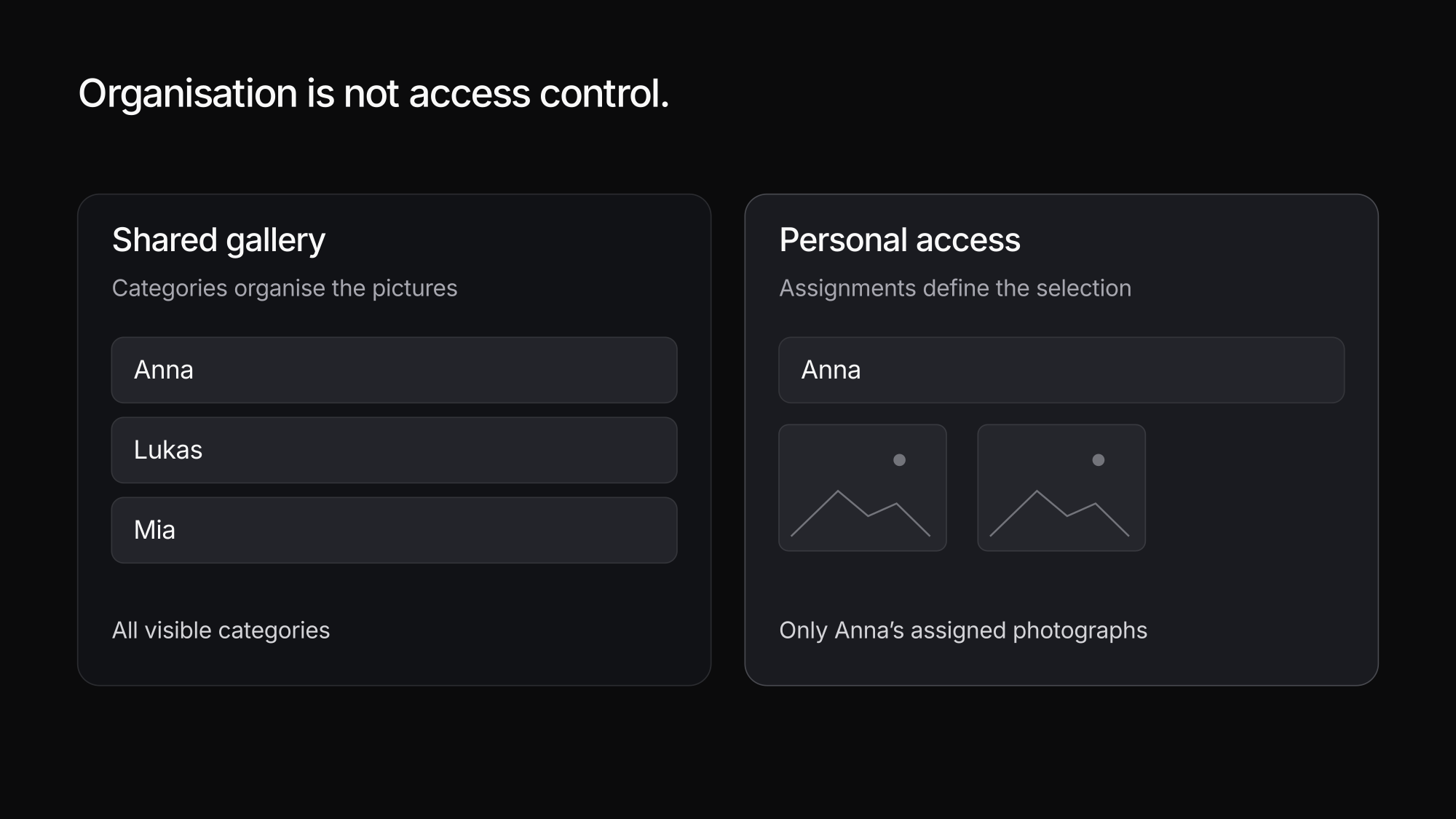
You could organise one gallery into categories called “Anna”, “Lukas” and “Team”. When everyone is supposed to see everything, that can work perfectly well. However, a category primarily organises content. It does not automatically determine who may open it.
| Workflow | What it solves | What to check |
|---|---|---|
| One shared gallery with categories | Organisation within a production | Anyone with full access can browse visible categories |
| A separate gallery for each recipient | Separate deliveries | More galleries and links to maintain |
| One Group Shoot gallery with personal codes | Central organisation with individual selections | Pictures must be assigned to the correct recipients |
A shared gallery is not automatically unlawful. Its purpose, legal basis and intended audience matter. The European Commission explains data minimisation, purpose limitation and confidentiality. For your workflow, agree who needs access before delivery. A personal code does not replace that agreement or the need to check assignments.
Assigning photos in Exportlab: watch the workflow
This German-language video demonstrates the process in the workspace, from creating a Group Shoot gallery to checking what one participant can see. The written walkthrough below covers the workflow in English.
This video is loaded from YouTube. Nothing is sent to Google until you allow it.
Useful timestamps: 00:46 participants and check-in, 03:19 uploads and manual assignment, 06:06 multiple shooting days, 08:03 CSV import and 13:00 face matching. Plan and trial statements reflect the recording date; consult the current pricing page for availability.
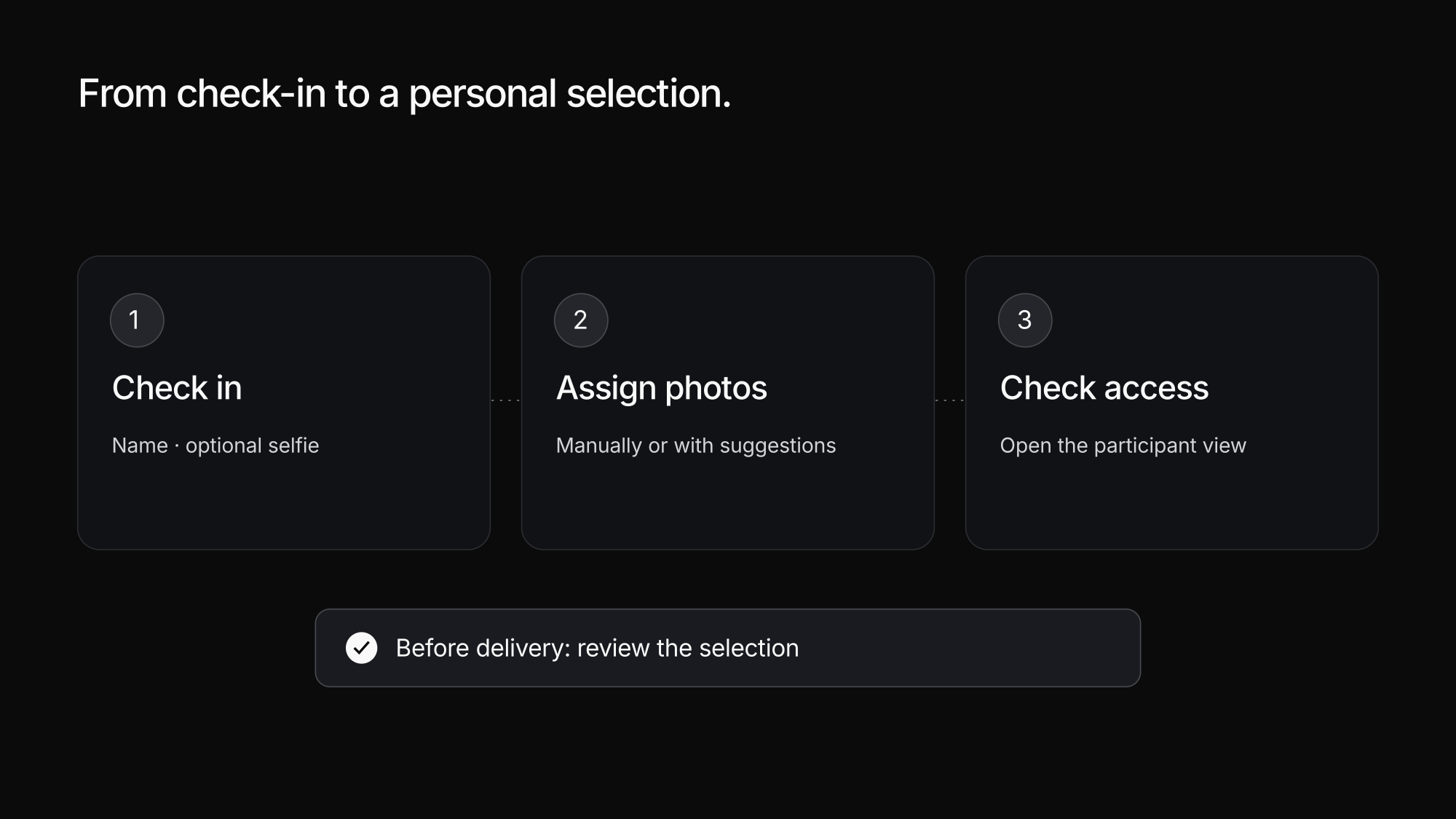
1. Prepare the gallery and participants
For a corporate headshot day, create a gallery in Group Shoot mode and give it a clear name. Add people manually, import an existing CSV list or let participants register through the check-in link.
Collect only the fields you need. A name and email address may be sufficient; an employee ID helps distinguish identical names. For a multi-day job, create shooting days with time windows and capacity limits so registration reflects the actual schedule.
2. Offer check-in on arrival
Share the link beforehand or display its QR code at the entrance. An optional check-in selfie helps you connect a name to a face later. Face matching needs an enrolled selfie for the relevant person.
Here, the QR code opens the registration form. You do not need to photograph it before each portrait sequence. The Exportlab iPhone app also provides QR scanning for on-site check-in.
3. Photograph, edit and upload
Shoot and edit as usual, then upload the selected photographs. Lightroom Classic users can follow the export route shown in the video through the Exportlab Lightroom integration, including the Group Shoot workflow.
Adobe documents the general mechanism behind these extensions in its Lightroom Classic export plug-in guide. Sending files from your editor and approving them for recipients remain separate steps.
4. Assign pictures and check the result
Select a person's pictures and assign them to that person. For small sets, manual assignment is often the simplest choice. On larger portrait jobs, enabled face recognition can suggest assignments using participants' selfies. It requires AI-token indexing; review and accept the suggestions.
Open the participant view afterwards. Are the correct images present? Is anything missing? Has somebody else's portrait slipped into the selection? Check especially carefully when names are similar or several people appear together.
5. Publish and deliver personal access
Publish the gallery when the selection is ready and send participants their personal access codes. Each recipient sees the photographs assigned to their record. Enable favourites if they should identify preferred pictures, for example before final retouching.
What else can you organise?
For recurring portrait days, embed the check-in form on your website. Import existing participant lists through CSV and separate appointments with shooting days. These options are useful when details would otherwise be spread across messages, paper notes and spreadsheets.
Package selection and payment are optional additions, not prerequisites for personal delivery. If you need them, read about selling photography packages. Online payments through Stripe Connect are a separate beta feature requiring seller onboarding.
FAQ
Do I need a separate gallery for every person?
No. A Group Shoot gallery can contain multiple participants and their assigned photographs. Each personal access code displays the selection assigned to its recipient.
Can I assign photos without face recognition?
Yes. Select photographs and assign them manually. Face recognition is optional, needs an enrolled selfie and AI indexing, and provides suggestions that you should check.
Does this workflow work for dog photographers?
Yes. Create the owner as the recipient and manually assign their dog's photographs. Automatic dog recognition is not required.
Are subfolders enough to keep everyone's photos separate?
Only if the system also enforces suitable access permissions. Folders and categories organise a gallery; they do not automatically restrict visibility for each recipient.
Do I have to sell packages to use Group Shoot?
No. Participant organisation, assignment and personal delivery are useful without package sales, including when a company commissions the entire shoot.
Conclusion
Assign photos to people by planning the recipients before the first frame, keeping their records clear and checking assignments before delivery. Employees, models, athletes and dog owners have different needs, but personal access turns one large production into a manageable selection for each recipient.
Explore Exportlab photo galleries and prepare the workflow from the video for your next shoot day.