

Upload photos to Exportlab directly from Lightroom Classic
After culling and editing a shoot in Lightroom Classic, the usual workflow is to export to a folder, then upload that folder to your gallery platform. It is an extra step that adds time and creates intermediate files you have to manage.
The Exportlab Lightroom Classic plugin removes that step. You select the photos you want to deliver, choose your target gallery in Exportlab, and export. The files go directly from Lightroom to Exportlab — no folder in between, no manual upload.
---
What the plugin does
The Exportlab plugin integrates into Lightroom Classic's export dialog. It adds Exportlab as an export destination alongside your existing options.
When you export with the plugin:
- Photos are sent directly to the Exportlab gallery you select
- You can target an existing gallery or create a new one during export
- You configure export settings (resolution, format, file naming) as part of the export dialog
- Photos appear in Exportlab immediately after the export completes, ready to share with the client
There is no intermediate export folder and no second upload step.
---
How to install and set up the plugin
Step 1 — Generate an API key
In Exportlab, go to Settings → Integrations → API Keys and generate a new key. Copy it — it is only shown once.
You will also need your workspace slug. If your Exportlab workspace is at mystudio.exportlab.io, your slug is mystudio.
Step 2 — Download the plugin
[Download the Exportlab Lightroom Plugin](#)
The download is a .lrplugin.zip file. Unzip it before the next step.
Step 3 — Open Plugin Manager
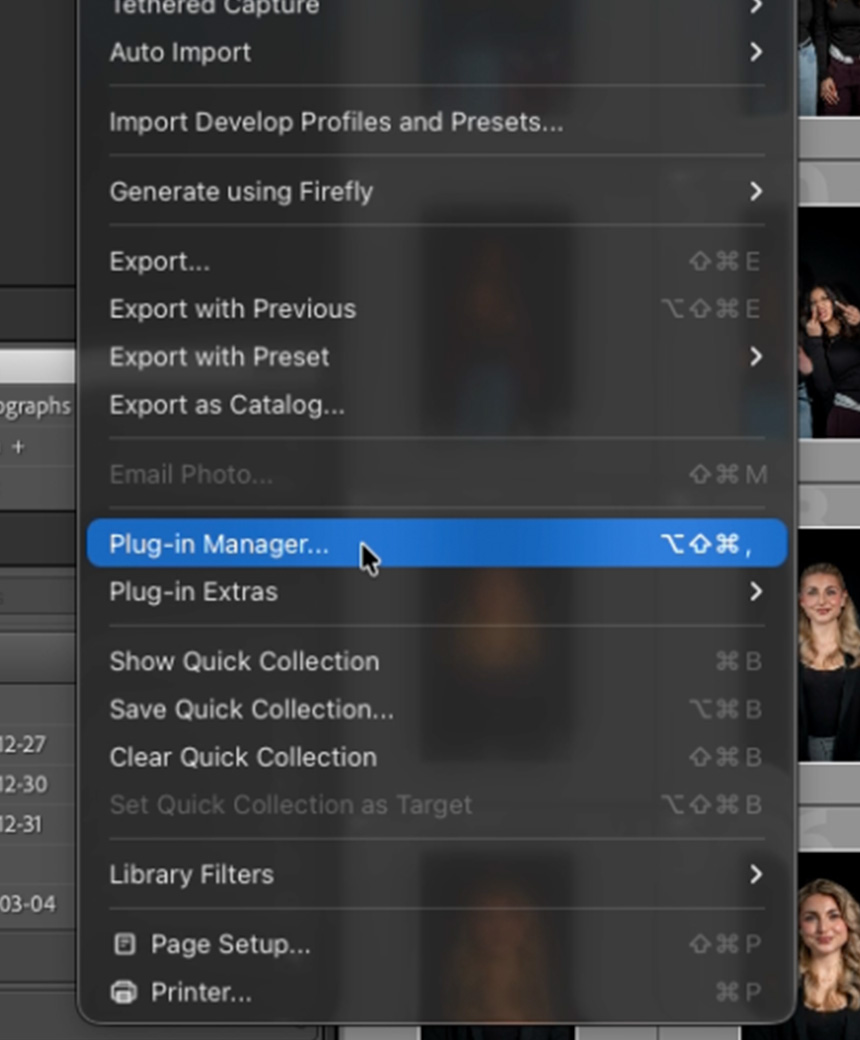
Open Lightroom Classic, go to File → Plug-in Manager and click Add to install the downloaded Exportlab plugin.
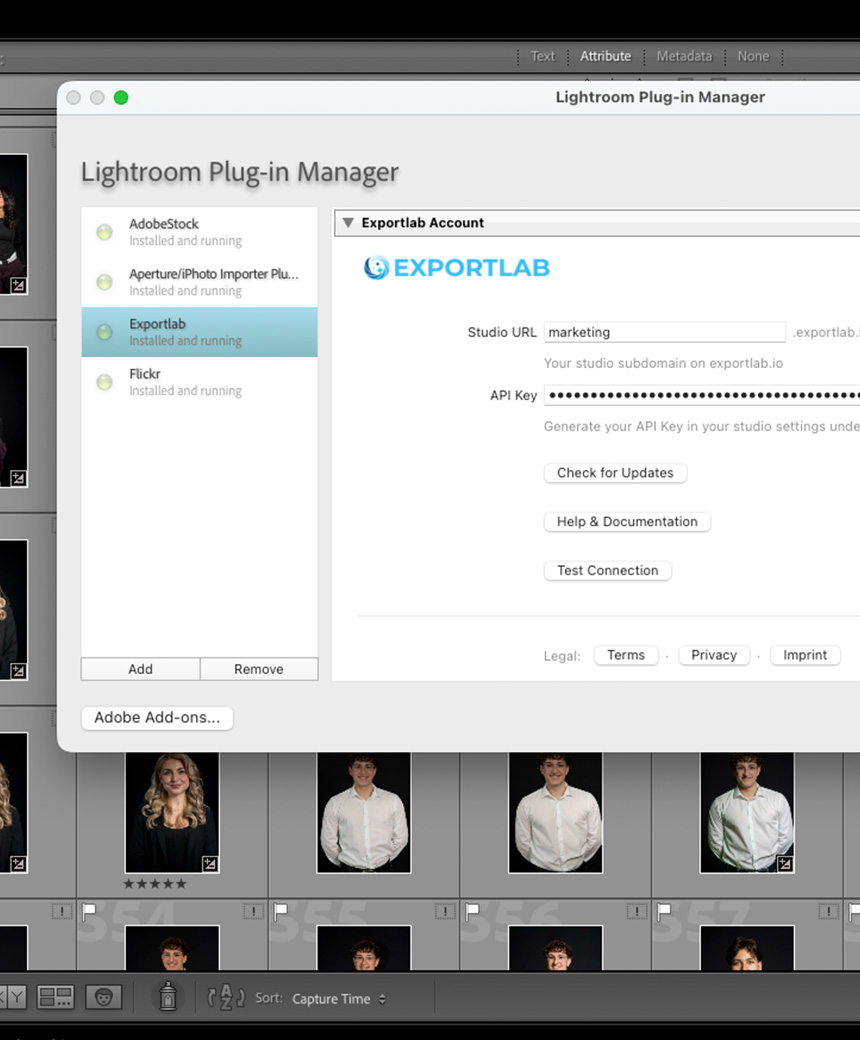
Step 4 — Enter your Studio URL and API Key
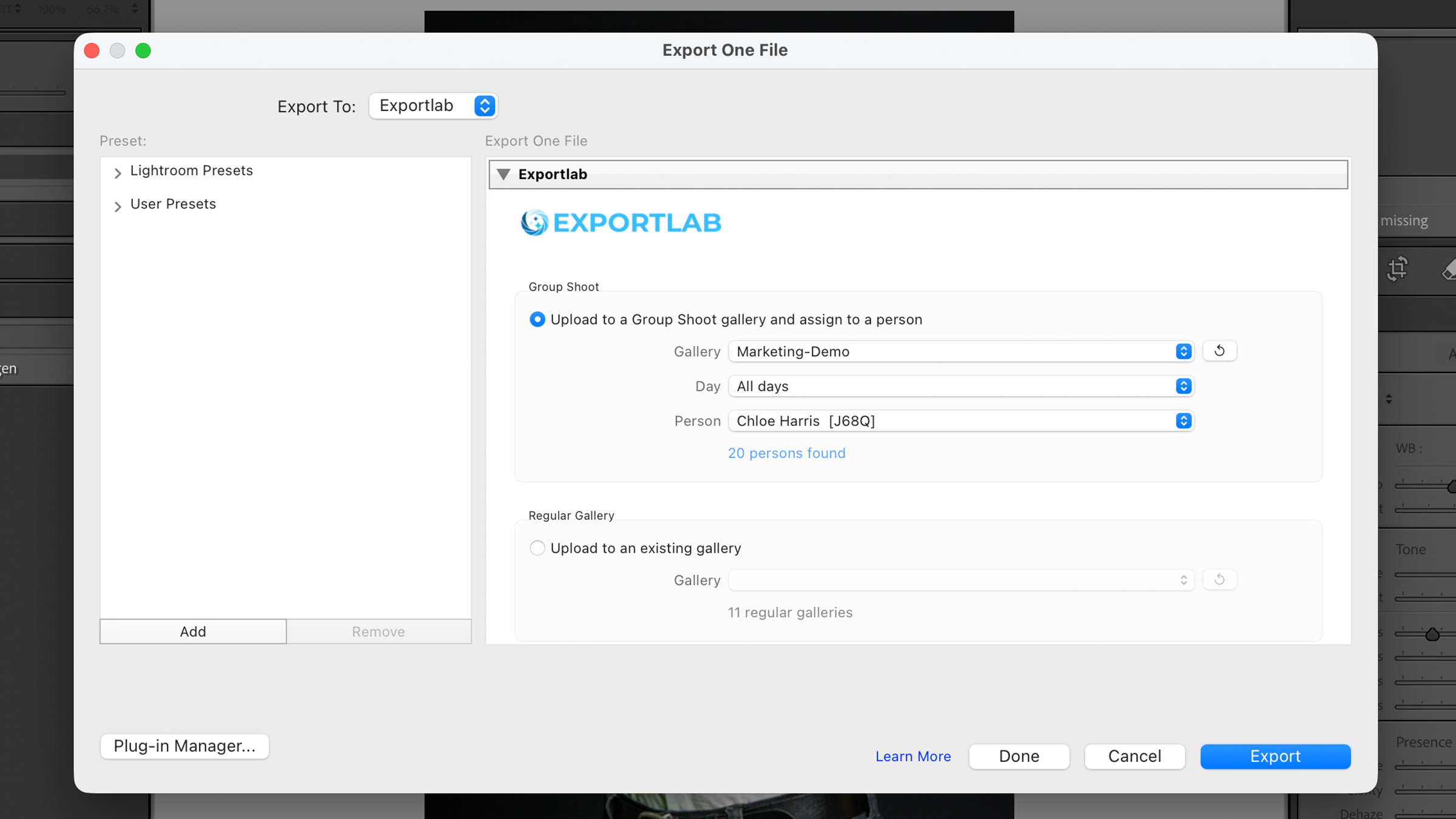
Enter your Studio URL and API Key. You can find your API key in Exportlab under Integrations → API Keys.
Step 5 — Select and export your photos
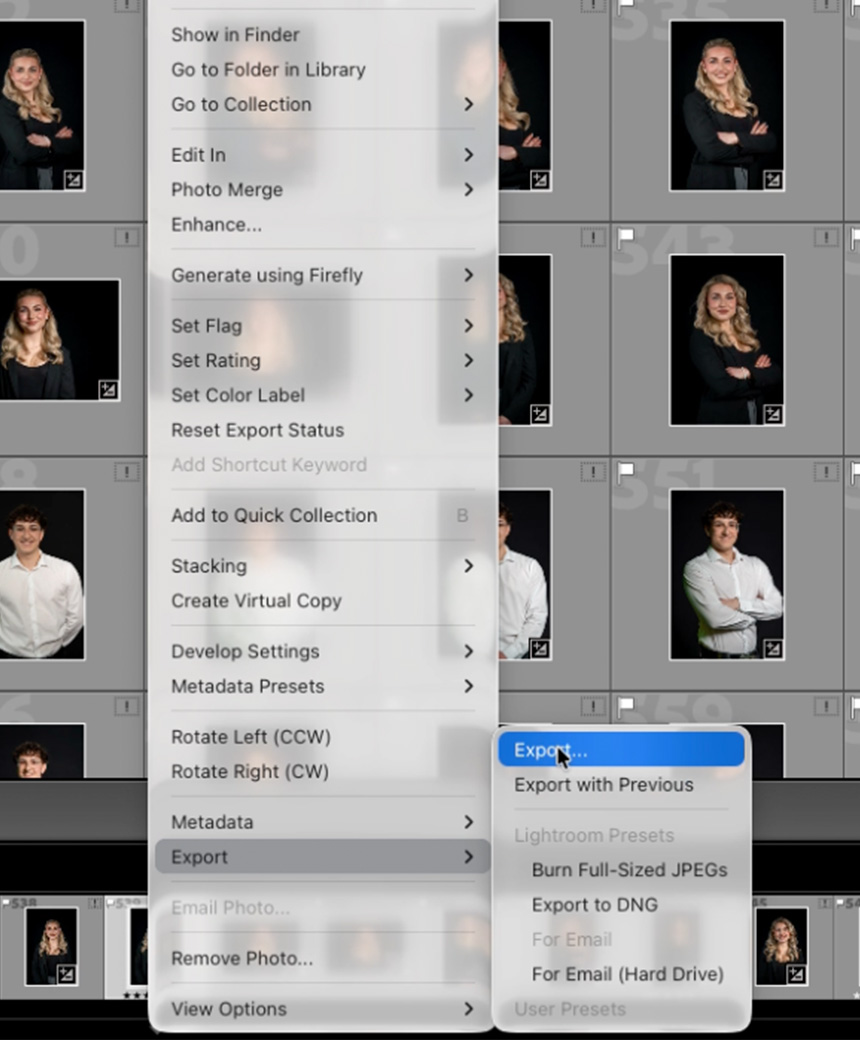
Select the photos you want to export in Lightroom, right-click and choose Export → Export.
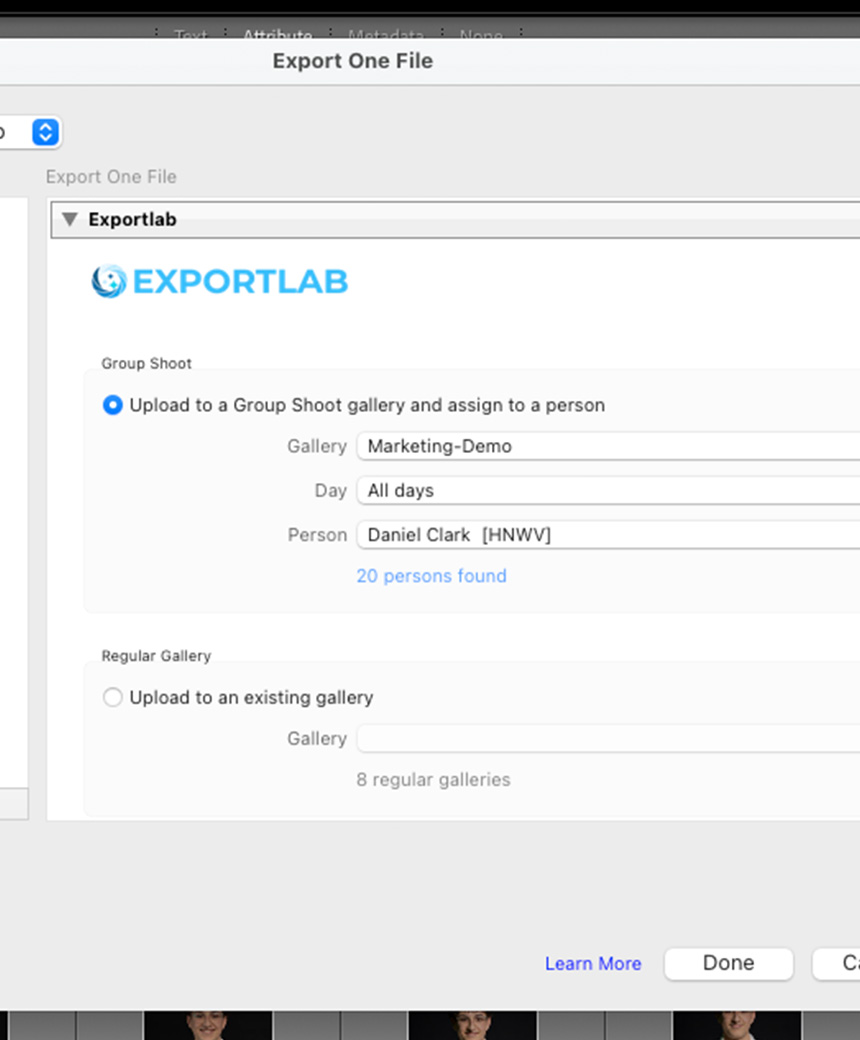
Step 6 — Choose your gallery
Export directly into an existing gallery, create a new one, or send photos to a Group Shoot gallery.
---
Practical workflow
A photographer finishes editing a portrait session in Lightroom. They select the final delivery set — say 80 images — and go to File → Export → Export with Exportlab. They choose the client's existing gallery in the dialog and click Export. Two minutes later, the photos are live in Exportlab and the client can be notified.
No export folder. No file manager. No second upload. From there the usual steps continue: the client marks their favorites in the gallery, and you deliver the finished set without a detour through WeTransfer.
---
Troubleshooting
If an upload fails, check that:
- Your internet connection is active
- The target gallery exists in Exportlab and is not archived
- Your API key is valid (you can regenerate one in Settings → Integrations → API Keys if needed)
---
Get started
The Exportlab Lightroom Classic plugin fits into the way photographers already work. Culling, editing, and delivering in Lightroom is a natural flow — the plugin makes Exportlab a direct part of it. See what else Exportlab does for photographers.
[Download the Lightroom Plugin](#)