

Client Photo Selection: Online Proofing Instead of WhatsApp Chaos
After the shoot there are 300 images on your drive — and the client is supposed to pick 30. What happens next in many photographers' inboxes: screenshots via WhatsApp, a spreadsheet full of filenames, and three rounds of "I meant the other one from the pier." The selection step between shoot and delivery is the most improvised part of the workflow — and the easiest one to clean up.
This post walks through the four-step process for letting clients select their photos online — unambiguous, in one place, and without you deciphering filenames afterwards. (If you're comparing gallery tools in general, our PicDrop alternative post covers that — this one is about the selection step itself.)
Why selection via WhatsApp and filenames fails
- Filenames aren't unique.
IMG_2847.jpgmight be calledwedding-final-114.jpgafter your export. The client's list now points at images that no longer exist under that name. - Feedback scatters. Selection via WhatsApp, retouching requests by email, one correction by phone — when you sit down to work, there's no single authoritative list.
- Nobody sees the status. How many images has the client picked? Are five still missing? You only know once you ask.
Step 1: Share a gallery for selection
Upload your pre-selection to a client gallery — not all 900 frames, just the images you want to show. Curate the order too: the strongest images first set the tone for the whole selection. Protect the gallery with a PIN when people are recognizable, and share a single link. Important: the client needs no account. Every registration hurdle costs response rate.
Step 2: The client marks favorites
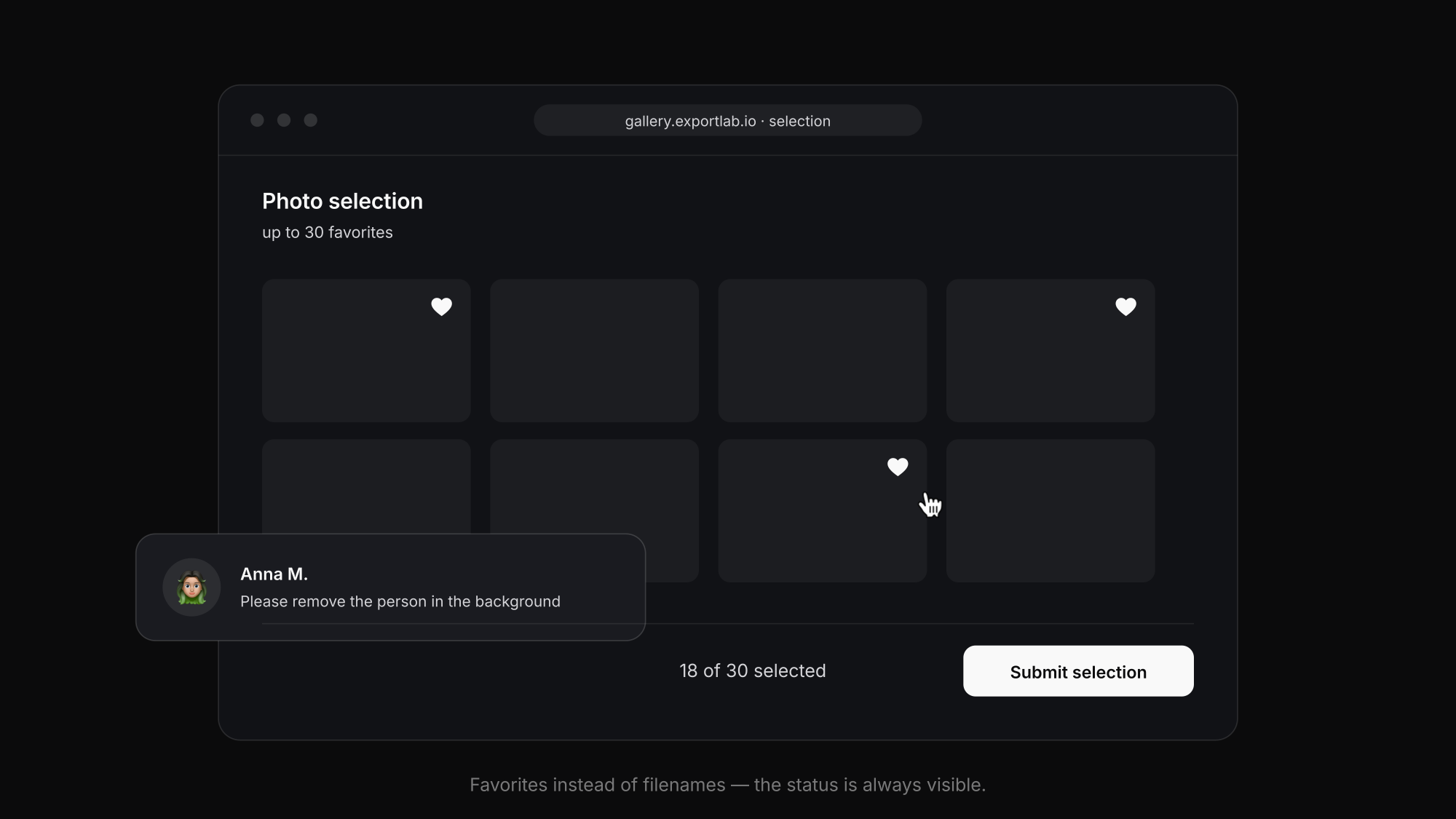
Instead of typing out filenames, the client taps the heart — on a laptop, tablet, or phone. Progress is preserved: whoever starts on their phone at lunch continues on the laptop in the evening. A counter shows both sides where things stand ("18 of 30 selected"). If you've set a selection limit, the "it somehow became 74" discussion is off the table before it starts.
Step 3: Comments directly on the image
Retouching requests belong on the image, not in a collective email: "Please remove the person in the background" sits as a comment on exactly the photo it refers to. You see all notes as one list and work through them — no matching puzzles.
Step 4: Take over the selection and deliver
The client's favorites arrive as a finished selection: no spreadsheet, no reconciliation, no transcription errors. You edit exactly these images and deliver them through the same gallery — our post on delivering photos to clients shows how that handover works cleanly.
And if the client absolutely wants more than the limit? That's not a problem — it's a sales moment: additional images can be offered cleanly as a package upgrade instead of quietly thrown in. The limit makes your work visible — and turns over-selection into extra revenue.
How many images should you show in the first place?
More choice feels generous — and paralyzes. Consumer research calls it overchoice: past a certain volume, the willingness to decide drops instead of rising. In the famous jam experiment, customers at the stand with six flavors bought roughly ten times as often as at the stand with 24 (Harvard Business Review: "More Isn't Always Better"). For photo proofing, that translates to:
- Show two to three times the selection limit. If the client is picking 30 images, 60–90 shown images is a good corridor — enough choice without overwhelming.
- Sort into sets. Grouped by location, outfit, or scene, decisions come easier than in one endless grid.
- Cut the near-duplicates. Of five almost identical frames, the best one belongs in the gallery — not all five. Culling is your job as the photographer, not the client's.
Three rules for a stress-free photo selection
- Set a limit. "Pick your 30 favorites" works. "Choose whatever you like" ends with 110 marked images.
- Give it a deadline. One week is a good default — then one friendly reminder. Without a date, the selection becomes a permanent construction site.
- Agree on one feedback round. Selection plus comments in one pass, then editing. Late additions should be the exception, not the process.
Frequently asked questions about online photo selection
Does my client need an account or an app?
No. The client opens the gallery link in the browser and can immediately mark favorites and comment — on any device, without registration.
Can I limit how many images the client selects?
Yes. You set a selection limit (for example, 30 images in the package). The client sees the counter while selecting and can swap favorites at any time until the selection is submitted.
Can the client change the selection afterwards?
Until submitting, favorites can be swapped freely. After that, the selection counts as binding — that's exactly its value: a documented basis for editing and delivery. If a late request does come in, it's a conscious exception, not a creeping process.
What if the client simply doesn't select?
Set a deadline when you share the gallery and remind once — more is rarely needed. If the selection still sits untouched, you can see it in the gallery status and follow up specifically instead of emailing into the void.
Conclusion: the selection step decides the workload after it
When you let clients select their photos, the tool decides how much rework follows: WhatsApp and filenames produce matching work — a gallery with favorites, a limit, and comments produces a finished list. Exactly this selection workflow is part of the Exportlab client portal and the complete flow for photographers.