Ask your studio anything.
In the chat.
Connect Exportlab to ChatGPT or Claude and get instant answers across your projects, clients, galleries, videos, contracts, feedback, and more. The connector can access only the data and actions that you request and authorize.
29 actions · 16 read, 13 write · only once you allow themAsk your studio anything…
An example conversation: you ask a question, the Exportlab connector calls actions such as get_daily_brief, and answers with data from your workspace. The same 29 actions are available in ChatGPT and in Claude.
Here's what that looks like.
Recorded in Claude. It works the same in ChatGPT — same questions, same actions.
One workspace. One conversation.
Projects, clients, galleries, videos, feedback, contracts, guest uploads, group shoots, and reports — all reachable from a single conversation.

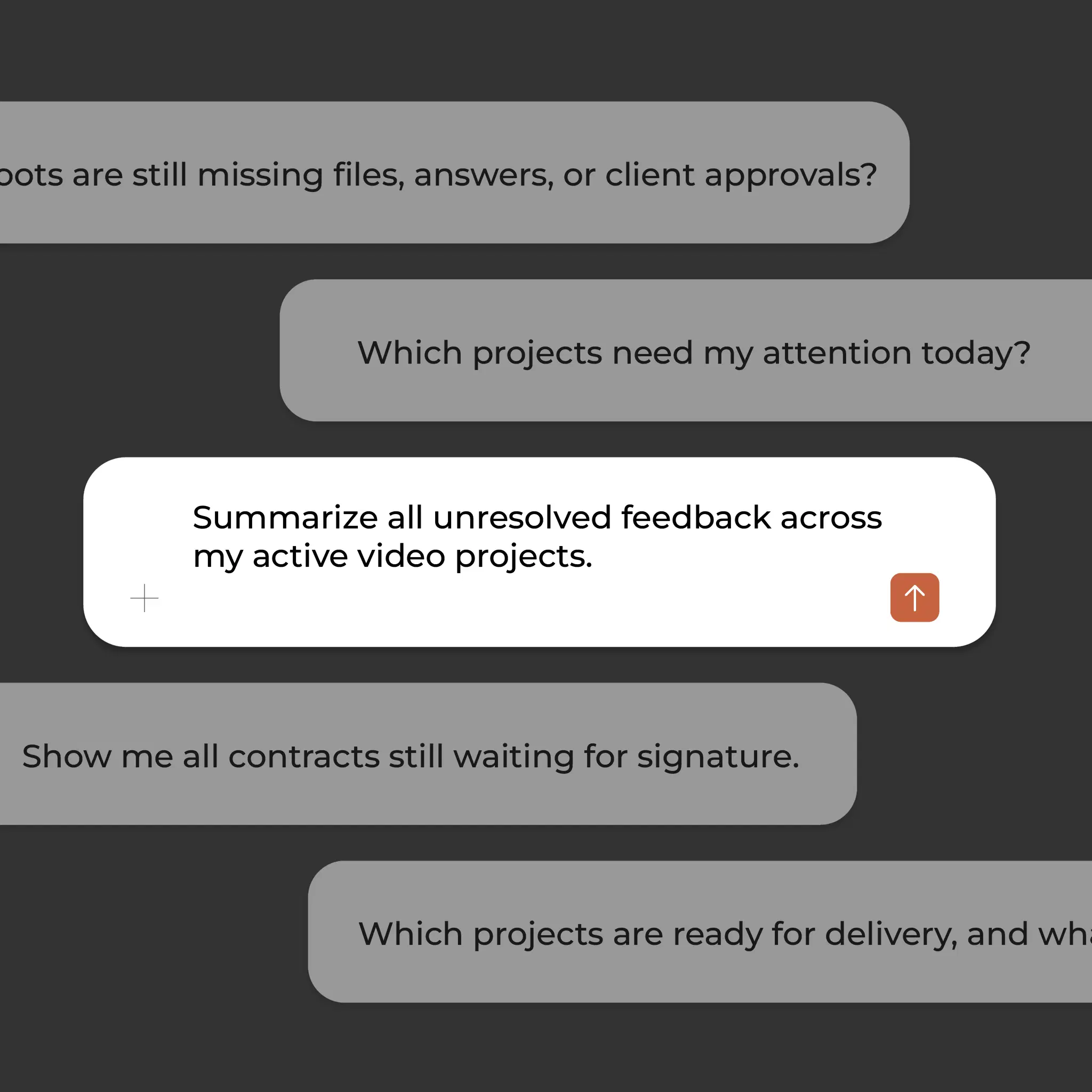
Ask questions like:
- Which projects need my attention today?
- Show me all contracts still waiting for signature.
- Summarize unresolved feedback across my active video projects.
- Which upcoming shoots are still missing files or approvals?
- Which projects are ready for delivery?
You ask. Exportlab does it.
Four situations from an ordinary week.
What matters today?
What your AI chat is allowed to touch.
29 actions. This is everything the connector can do — and everything it can't.
| Action | Area | Access | Name |
|---|---|---|---|
| Show what's due today | Overview | Read | get_daily_brief |
| Search projects, clients, galleries and videos | Overview | Read | search_workspace |
| List what's unread | Overview | Read | list_notifications |
| Show projects with client, phase and date | Projects | Read | list_projects |
| Show one project in detail | Projects | Read | get_project |
| Create a project and link it to an existing client | Projects | Write | create_project |
| Append a dated note without overwriting anything | Projects | Write | append_project_note |
| Write progress to the status page | Projects | Write | post_status_update |
| Show clients with tags and last contact | Clients | Read | list_clients |
| Show enquiries from the public profile | Clients | Read | list_contact_enquiries |
Your data stays under your control.
Exportlab MCP follows your existing workspace permissions. Reading happens any time; writing only where you allow it — nothing is sent or deleted without you.
Your permissions
The connector follows your existing workspace rights, with no special access.
Reading any time
16 of the 29 actions only read. They change nothing in your workspace.
Writing once allowed
13 actions write, and only where you explicitly allow it.
Nothing without you
Nothing is sent or deleted unless you confirm it.
Connect in ChatGPT or Claude.
Two paths, one connector: in ChatGPT, Exportlab is an official app; in Claude it's a custom connector. The 29 actions are identical in both.
ChatGPT
Exportlab is available as an official app. Open it in ChatGPT, sign in to Exportlab, and you're set.
Open the ChatGPT appClaude
Exportlab is added as a custom connector. One click opens the dialog with the name and URL already filled in.
Add to ClaudeOr connect manually:
Copy the MCP URL
Open your connector settings
Connectors → Add custom connector. Name it Exportlab and paste the URL.
Connect and authorize
Sign in to your Exportlab account and your AI chat is ready to go.
Questions about MCP.
What is MCP?
An open standard that lets AI chats reach external tools. Exportlab exposes 29 actions through it.
Which chats support it?
ChatGPT as an official app, and Claude as a connector.
Can the chat delete or send data?
No. The connector follows your workspace permissions. Reading happens any time, writing only where you allow it.
How many actions are there?
29: 16 read, 13 write.
Do I need a particular plan?
No, the connector belongs to your workspace. What it may see follows your own permissions.
Stop searching. Start asking.
Connect Exportlab to ChatGPT or Claude in just a few steps.