
DPI vs PPI: Why 72 DPI Doesn't Mean What You Think It Means
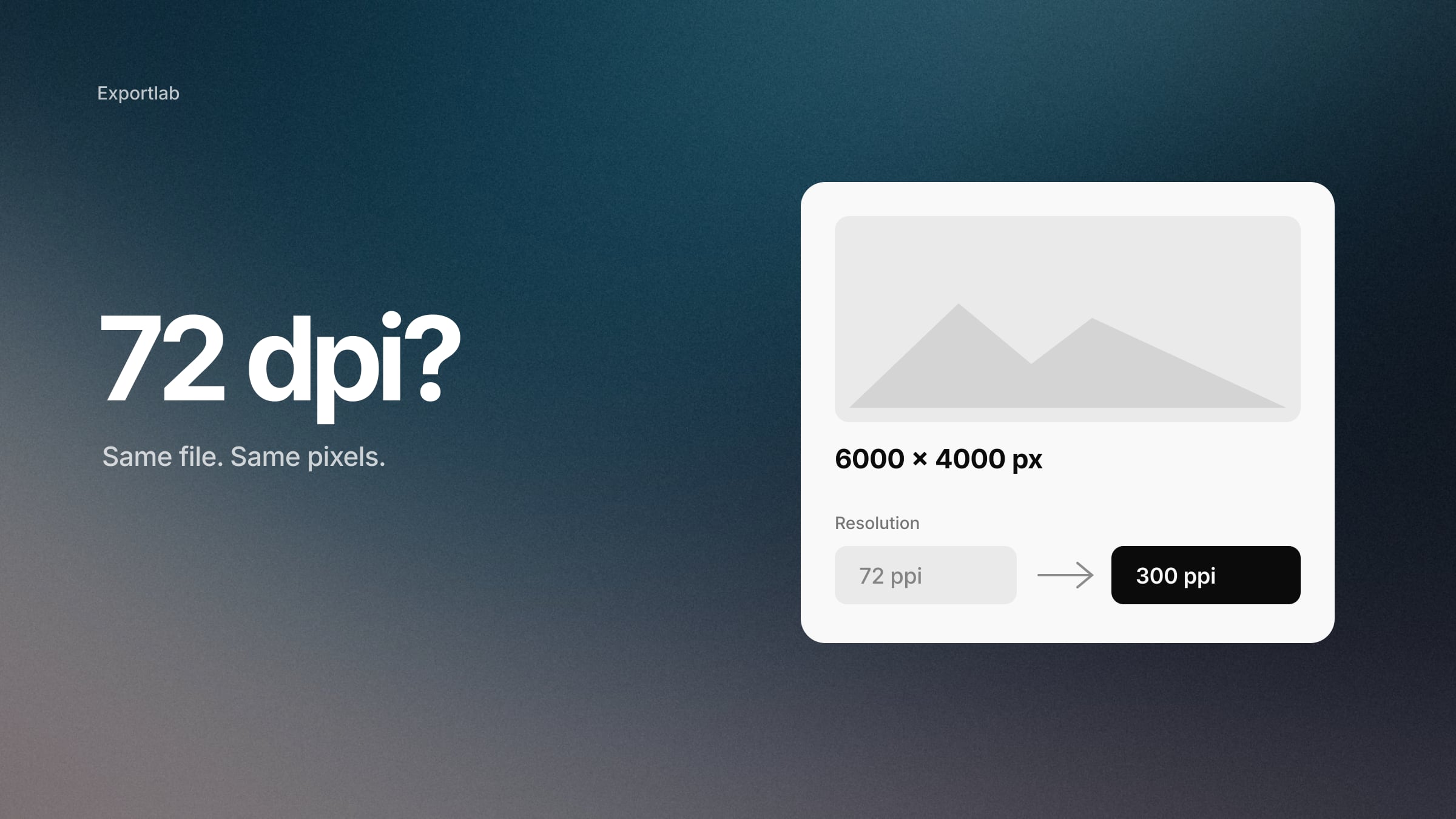
A client emails: "The file you sent is only 72 dpi — can you send the high-resolution version?" You look at the file. It is 6000 × 4000 pixels. Nothing about it is low resolution. The confusion behind that email — DPI vs PPI, and what either number actually controls — is one of the most persistent in photography.
The short version: for anything shown on a screen, the dpi value in your file does nothing at all. For print, it is one half of a simple calculation. This guide explains both, shows the maths with real numbers, and lists what to say to that client.
DPI and PPI are not the same thing
PPI — pixels per inch — describes a digital image. It tells software how many of the image's pixels should be placed in each inch when the image is printed or laid out at a physical size. Change the ppi value and you change the intended print size; the pixels themselves stay exactly the same. The overview of pixel density covers the term in more depth.
DPI — dots per inch — strictly describes an output device. An inkjet printer lays down tiny dots of ink, many of them per pixel, to build up each colour. A printer's dpi rating is a property of the printer, not of your file. See dots per inch for the hardware side.
In everyday use the two terms are mixed up constantly. Labs, clients and even software dialogs say "300 dpi" when they mean 300 ppi. That is fine as long as everyone understands that, for a photo file, the question is always really about ppi.
The 72 DPI myth
72 dpi comes from early Macintosh screens, which happened to display 72 pixels per inch. It has stuck around as a supposed "web resolution" ever since — Lightroom's built-in email export preset still writes 72 into the file.
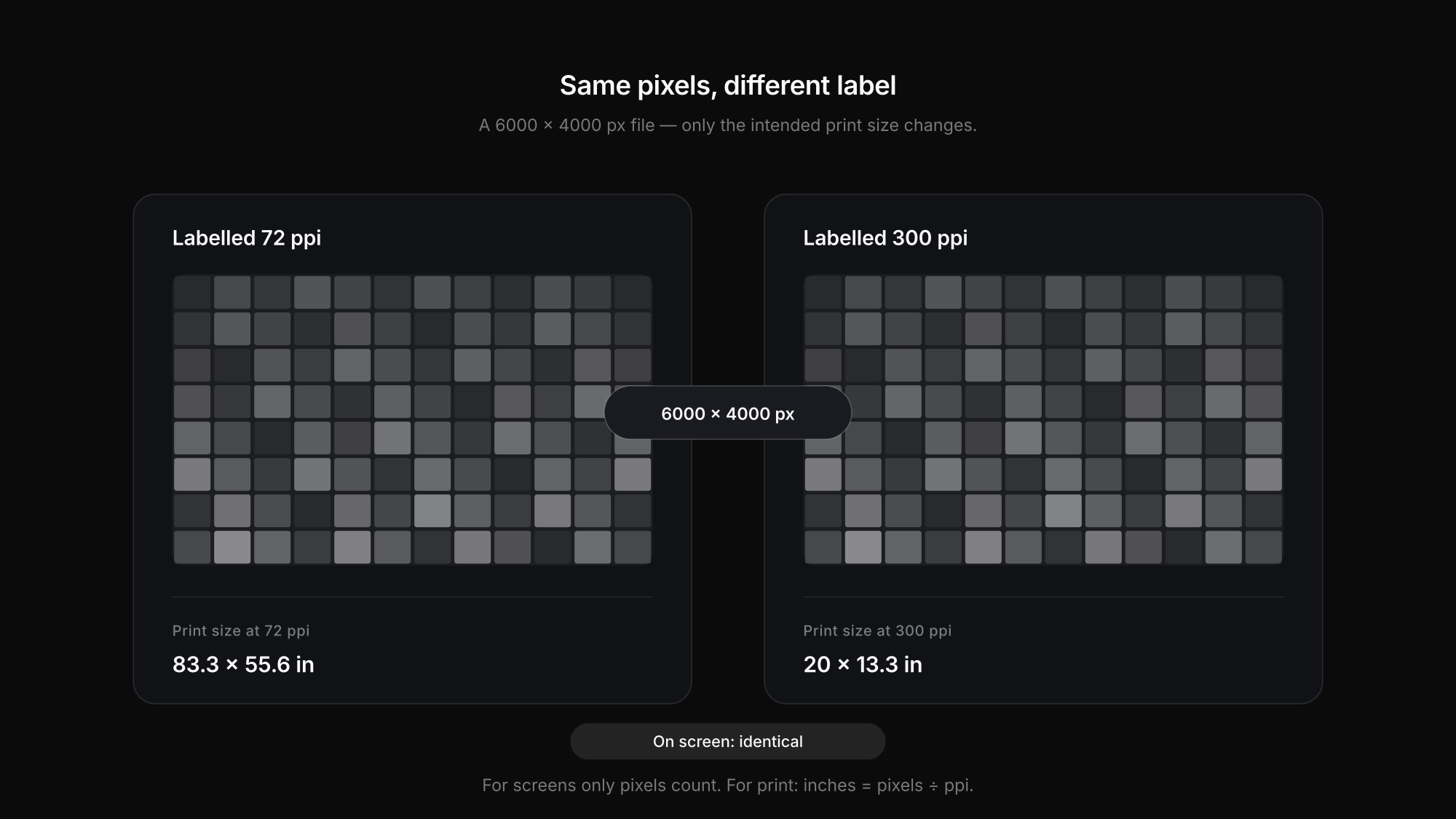
But here is the key fact: a 3000 × 2000 pixel image is 3000 × 2000 pixels whether the metadata says 72, 96, 240 or 300. Browsers, phones, Instagram and every other screen ignore the ppi field entirely. They display pixels. A 1080 × 1350 JPEG does not get sharper on Instagram because you typed 300 instead of 72, and it does not get worse the other way round.
For the web, the only numbers that matter are the pixel dimensions and the compression. If a client says your file is "only 72 dpi", what they need to hear is its pixel size — and, if it is genuinely large, that the 72 is a label that changes nothing.
How to calculate the real print size
For print, ppi finally matters, because it connects pixels to inches. The formula is one line:
Print size in inches = pixels ÷ ppi
A 24-megapixel file of 6000 × 4000 pixels gives you, without adding any pixels:
| Output resolution | Maximum print size | In centimetres |
|---|---|---|
| 300 ppi | 20 × 13.3 in | 50.8 × 33.9 cm |
| 240 ppi | 25 × 16.7 in | 63.5 × 42.3 cm |
| 200 ppi | 30 × 20 in | 76.2 × 50.8 cm |
A lower ppi value does not reveal more detail. It spreads the same pixels across a larger area — which may be perfectly acceptable, depending on how far away people will stand.
Working the other way round, here is how many pixels you need for common print sizes at 300 ppi:
| Print size | Pixels needed at 300 ppi |
|---|---|
| 4 × 6 in | 1200 × 1800 |
| 5 × 7 in | 1500 × 2100 |
| 8 × 10 in | 2400 × 3000 |
| 11 × 14 in | 3300 × 4200 |
| 16 × 20 in | 4800 × 6000 |
| 20 × 30 in | 6000 × 9000 |
300 ppi is a good reference, not a law
300 ppi is a sensible target for high-quality prints that people hold in their hands or view from close up. It is not a universal minimum. Adobe's own Lightroom Classic guidance gives a range of roughly 180 to 480 ppi as useful for inkjet output, and tells you to check your print service's requirements for lab and offset work.
What actually determines print quality:
- Viewing distance. A large canvas on a wall is seen from metres away. Fewer pixels per inch are fine; billboards get by with very little.
- The source. A sharp, well-exposed frame at 200 ppi beats a soft one at 300.
- The print process and paper. Fine-art inkjet, photographic paper and offset printing each have their own sweet spot.
- The lab's specification. If your lab publishes a recommended resolution, colour space and file format, that is the number to use. More on colour spaces for print in our guide to sRGB vs Adobe RGB.
What happens if you change 72 to 300?
There are two very different operations hiding behind that one number:
- Without resampling. You change only the ppi value. The pixel count stays the same, the file content is identical, and only the intended print size changes. A 6000 × 4000 file switched from 72 to 300 ppi simply becomes "a 20 × 13.3 inch print at 300 ppi". This is what you usually want.
- With resampling. The software creates or removes pixels by interpolation. Upscaling makes the file bigger but cannot reconstruct detail the camera never recorded. It can help a print look smoother at large sizes; it does not turn a small file into a high-resolution one.
So the sentence "this file is only 72 dpi, so it's too small to print" means nothing without the pixel dimensions. A 6000 × 4000 file labelled 72 ppi is a perfectly good basis for a print of around 20 × 13 inches at 300 ppi.
What to deliver to clients
For most deliveries you do not need to think about ppi at all: deliver full-resolution files, and the pixels determine how large the client can print. If you want to avoid the "72 dpi" email entirely, set the resolution field in your export preset to 300 — it changes nothing about the image but reassures anyone who checks.
What does matter is that the full-resolution files actually reach the client. Email attachments and messengers often compress or shrink images. With Exportlab for photographers you deliver in original quality and decide per gallery which resolution clients can download — web-size for sharing, full-size for printing. Our guide to delivering photos to clients covers the rest of the handover.
FAQ: DPI vs PPI
Is 72 dpi or 300 dpi better for the web?
Neither. Screens ignore the dpi value and display pixels. For the web, choose the right pixel dimensions and sensible compression; the dpi field can say anything.
Is 300 dpi required for printing?
No. 300 ppi is a good reference for high-quality prints viewed up close. Many prints look excellent at 200–240 ppi, large prints viewed from a distance need even less, and your lab's specification always takes priority.
How do I check a photo's real resolution?
Look at the pixel dimensions, for example 6000 × 4000. Divide by your target ppi to get the maximum print size in inches. The dpi or ppi number alone tells you nothing.
Conclusion
The DPI vs PPI confusion disappears once you separate screen from print. On screen, only pixels count, and 72 dpi is a harmless label. In print, ppi connects pixels to inches — 300 ppi is a good reference, not a rule, and the lab's spec beats both. When in doubt, ask for the print size and check the pixels.
Want clients to receive the full-resolution files you exported? Start with Exportlab and deliver in original quality.