
Lightroom Export Settings for Instagram (2026): Sizes, Quality and the 3:4 Format
Most guides to Lightroom export settings for Instagram were written when 4:5 was the tallest format the feed allowed. That has changed: Instagram now accepts photos from 1.91:1 landscape up to 3:4 portrait. If your preset still crops everything to 4:5, you are leaving screen space unused — and if you followed advice to export "1440 pixels wide", you have been sending files Instagram immediately shrinks.
This guide gives you the current sizes, explains each export setting and shows how to build one Lightroom Classic preset that handles every aspect ratio correctly.
Instagram photo sizes in 2026
According to Instagram's help centre, photos are displayed at a width of up to 1080 pixels, and supported aspect ratios range from 1.91:1 to 3:4. Images wider than 1080 pixels are scaled down; images outside the supported range are cropped. That gives four useful feed sizes:
| Format | Aspect ratio | Export size |
|---|---|---|
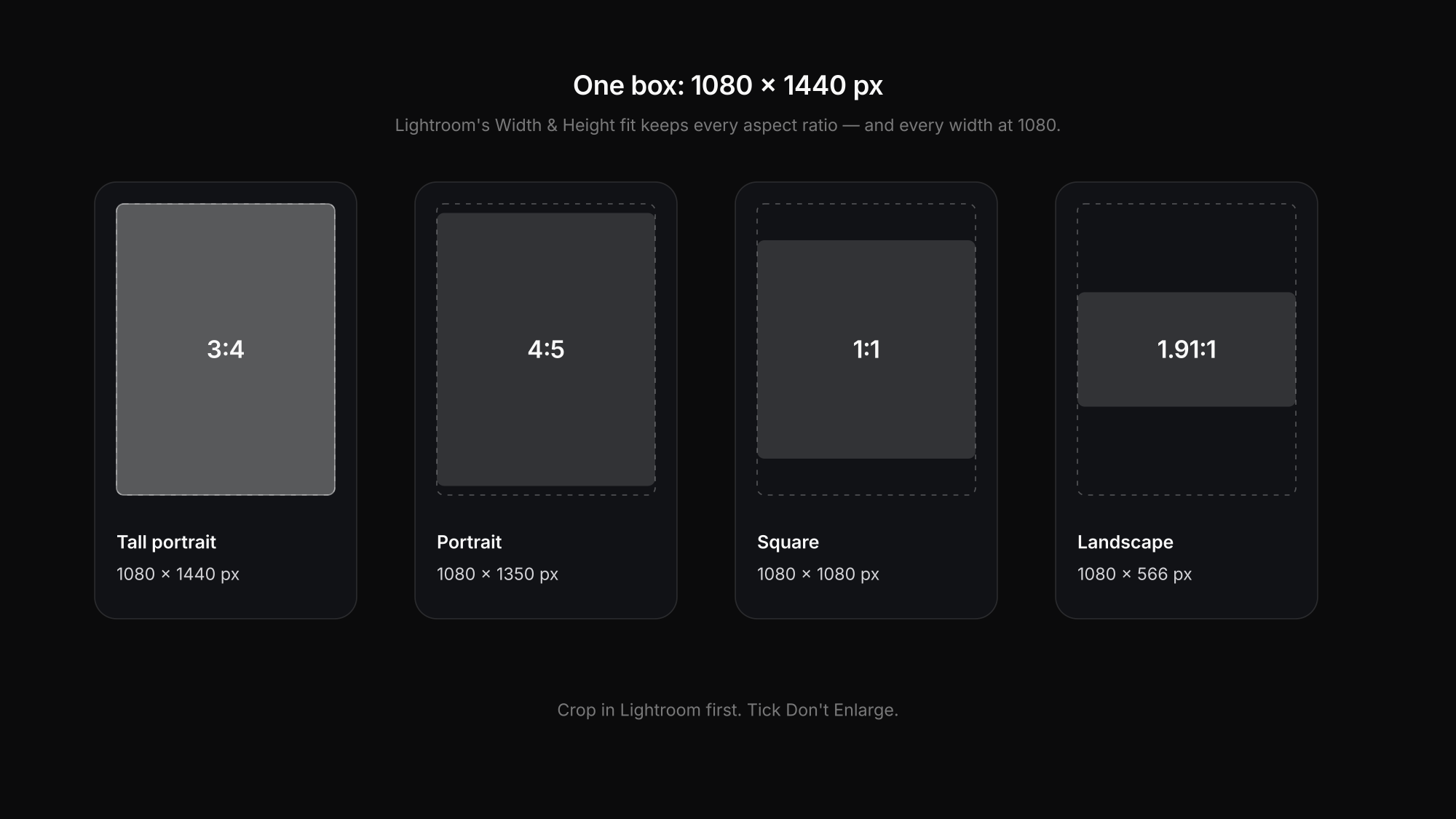
| Tall portrait (maximum) | 3:4 | 1080 × 1440 px |
| Classic portrait | 4:5 | 1080 × 1350 px |
| Square | 1:1 | 1080 × 1080 px |
| Landscape | 1.91:1 | 1080 × 566 px |
Stories and Reels use the full-screen 9:16 format, 1080 × 1920 px.
The correction: 1440 is the height, not the width
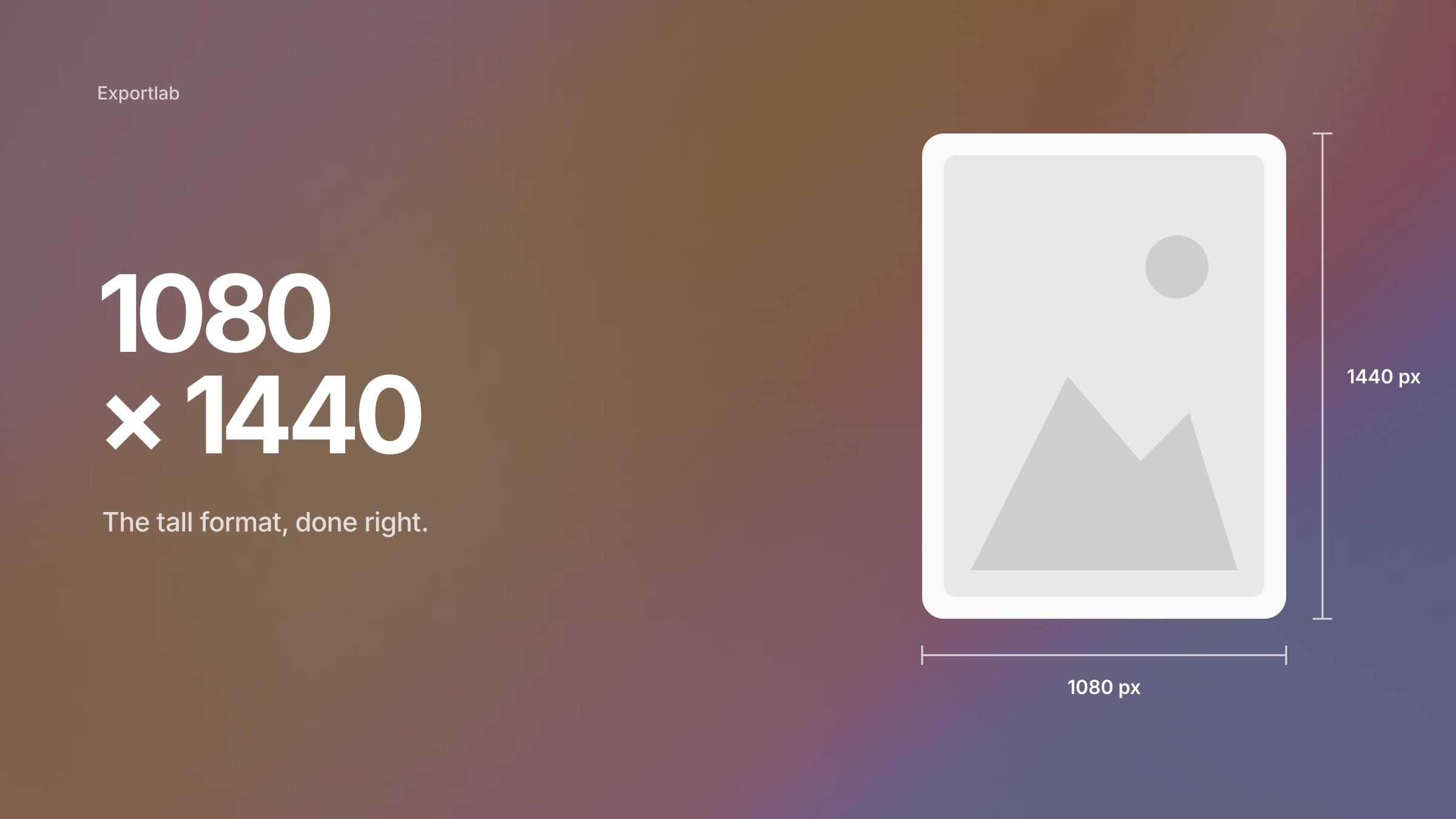
A 3:4 portrait at Instagram's width of 1080 pixels is 1080 wide and 1440 tall. Exporting images 1440 pixels *wide* does not give you more detail on Instagram — the platform scales them back down to 1080, and you have handed the resizing to Instagram rather than doing it yourself with proper sharpening.
Step by step: the Lightroom Classic preset
1. Crop to a supported ratio first
Decide the composition in Lightroom, not on Instagram. Use the Crop tool with 3:4 for maximum screen height, 4:5 if you want a safe classic portrait, or 1:1. Anything outside 1.91:1 to 3:4 will be cropped by the app, and it rarely crops where you would.
For carousels, remember that the first image sets the aspect ratio for the whole post — crop every image in a carousel to the same ratio.
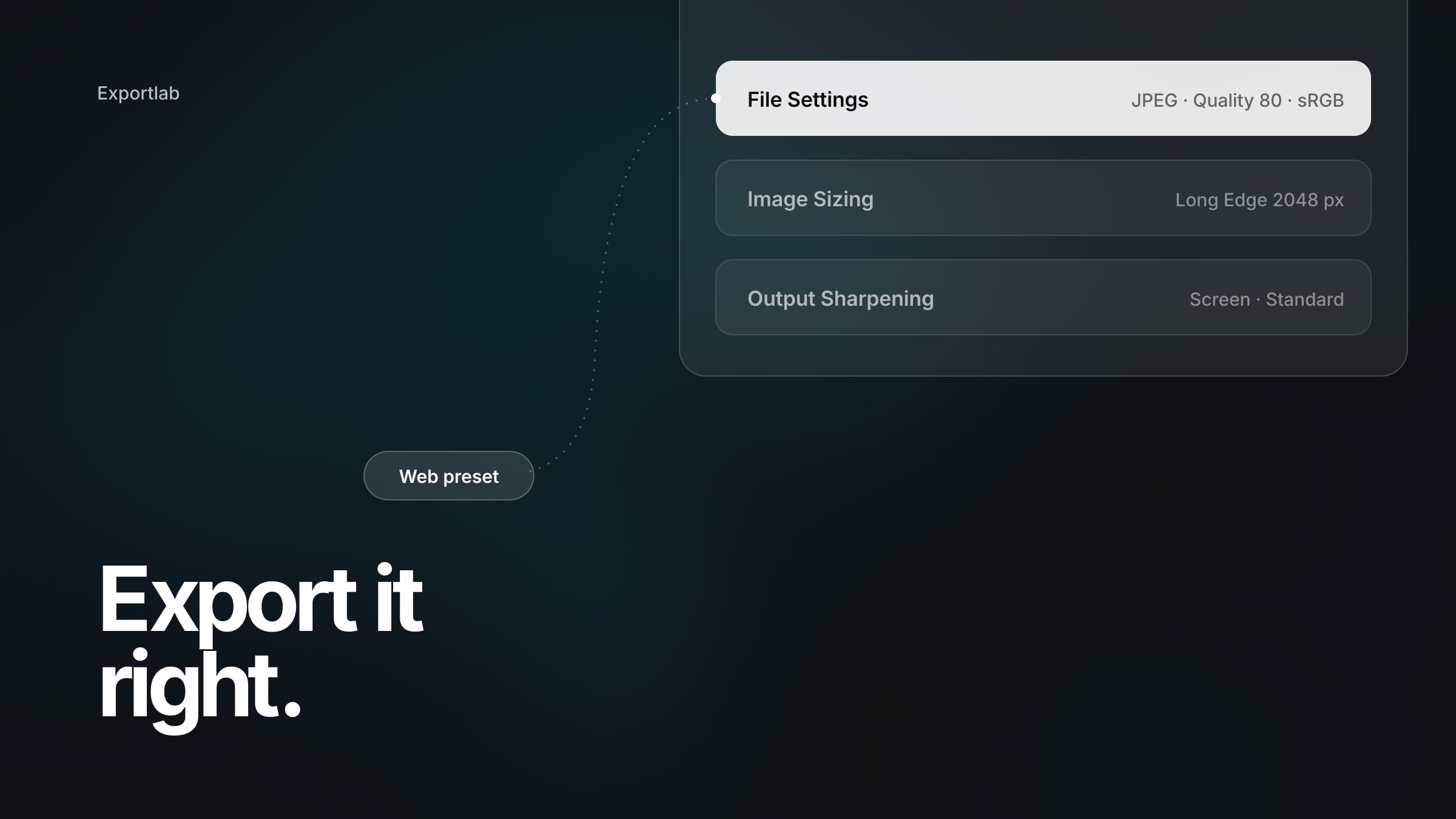
2. File Settings
- Image Format: JPEG
- Color Space: sRGB
- Quality: 80–90 as a starting point
Why sRGB? Not because phones cannot display anything else, but because sRGB is the most predictable input for a platform that re-processes your file. The details are in our guide to sRGB vs Adobe RGB.
Why 80–90? Instagram does not publish a JPEG quality value, so any blog claiming "Instagram recommends 85" is guessing. 80–90 is high enough not to throw away detail before Instagram compresses the file again, without the large size jump of quality 100.
3. Image Sizing: one box for every ratio
- Resize to Fit: Width & Height
- W: 1080 px, H: 1440 px
- Don't Enlarge: ticked
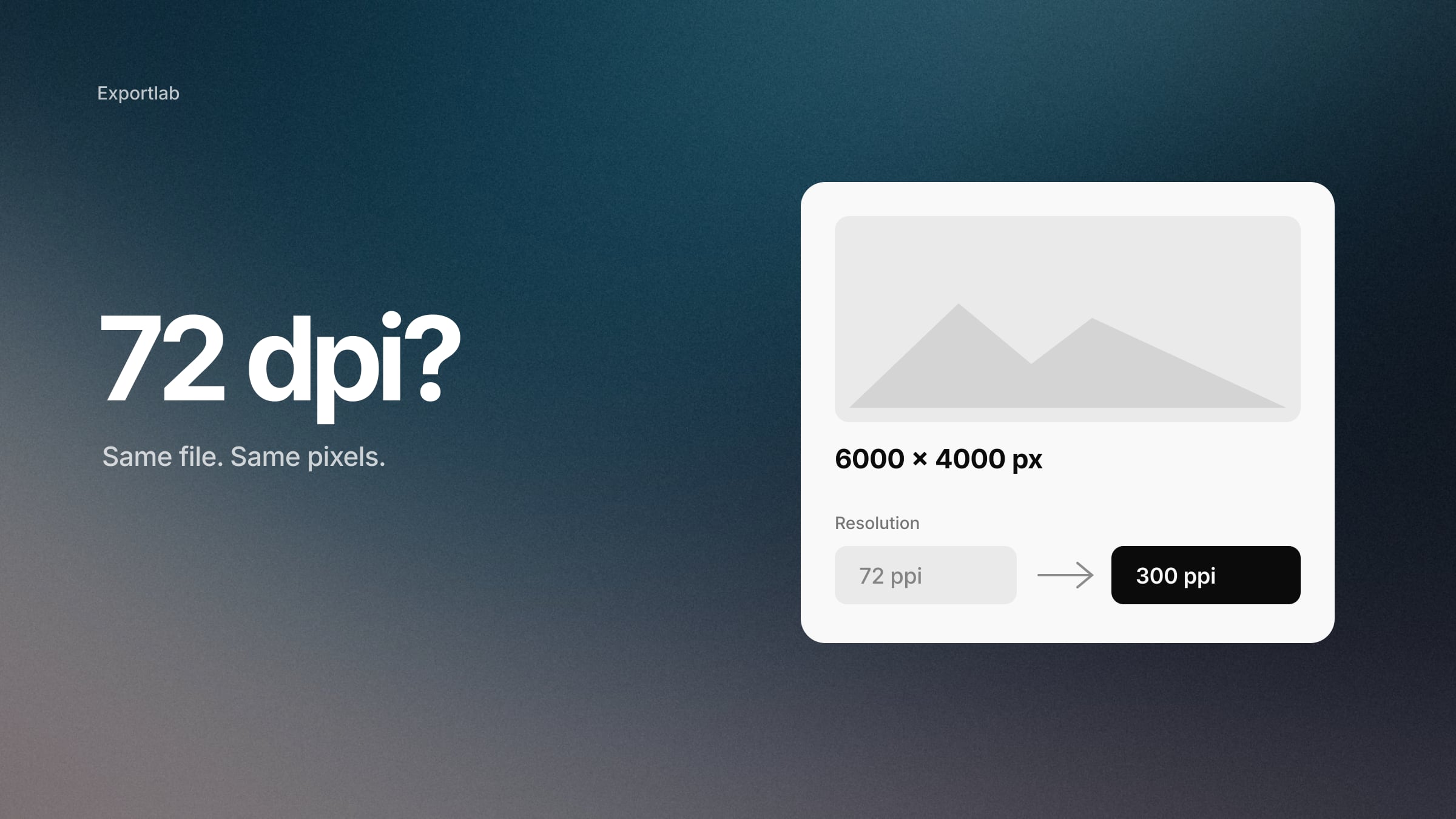
- Resolution: whatever you like — it does nothing on screen
Width & Height fits each image inside a 1080 × 1440 box while keeping its own aspect ratio. A 3:4 crop becomes 1080 × 1440, a 4:5 crop becomes 1080 × 1350, a square becomes 1080 × 1080 and a landscape becomes 1080 wide. One preset, every format. Why the resolution field is irrelevant is explained in DPI vs PPI.
4. Output Sharpening
- Sharpen For: Screen
- Amount: Standard
Downsizing a 24- or 45-megapixel file to 1080 pixels softens fine edges. Output sharpening compensates for exactly that, after resizing and in addition to your Develop sharpening.
5. Metadata
- Include: Copyright Only, or Copyright & Contact Info
- Remove Location Info: ticked
Save the dialog as a preset named "Instagram 3:4 box" and you are done.
The upload: what you can and cannot control
Once the file leaves Lightroom, Instagram processes it. You cannot switch that off. What you can do:
- Upload the exact export. Do not send the file through a messenger or cloud preview first — those often recompress.
- Use the app's quality setting. If your version of the Instagram app offers an "Upload at highest quality" option in its media quality settings, enable it. The menu location changes between app versions, and it does not override Instagram's 1080-pixel processing.
- Avoid exporting at a lower quality "to beat compression". Starting from a heavily compressed file gives Instagram less detail to work with, not more.
If your images still look soft after following all of this, our guide to why Instagram makes photos blurry goes through the remaining causes one by one.
What does not help
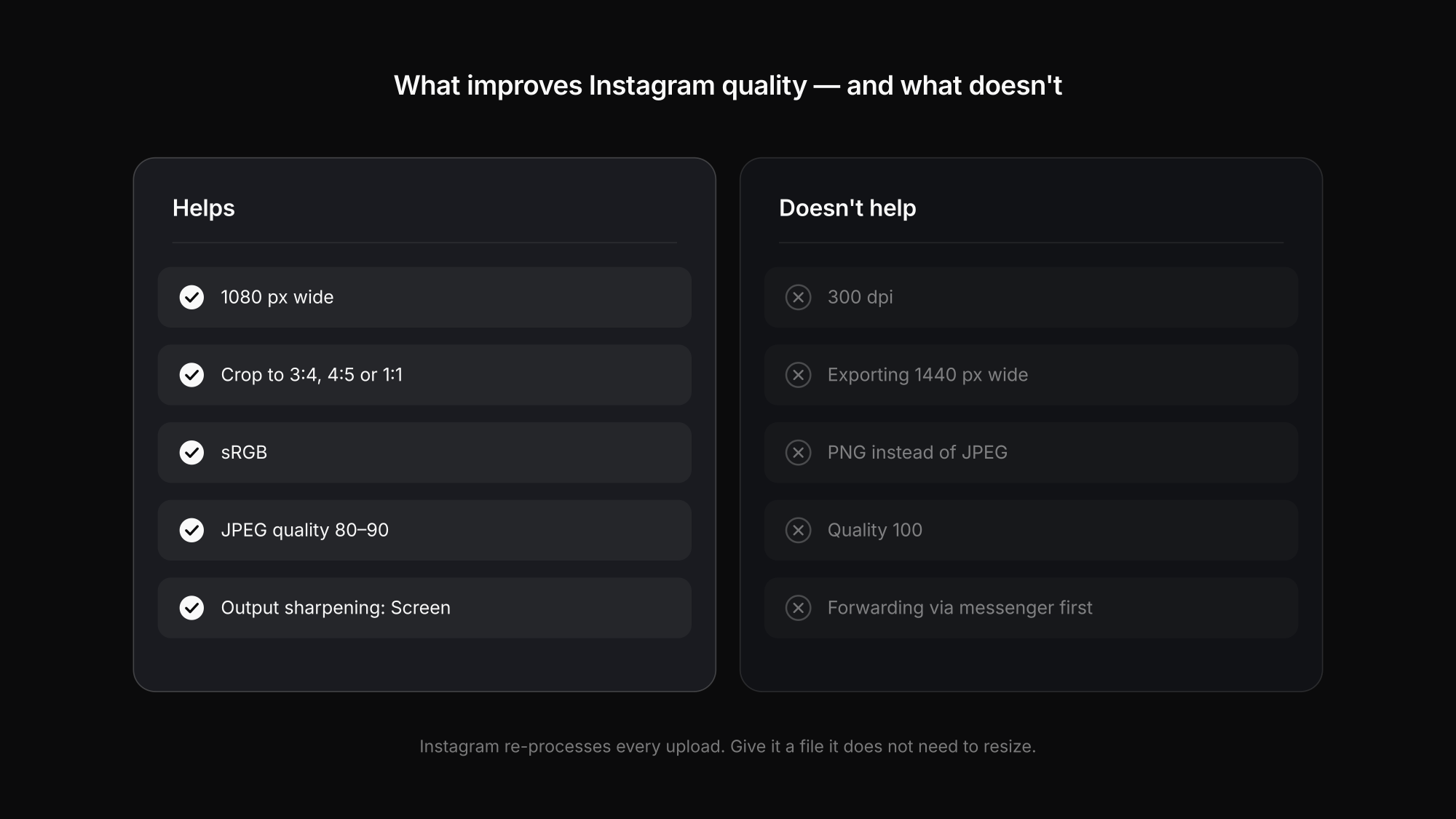
- 300 dpi. The ppi value is ignored on screen; a 1080 × 1440 file is the same at 72 or 300.
- Exporting 1440 or 2048 pixels wide. Instagram resizes to 1080 anyway.
- PNG instead of JPEG. Instagram converts uploads; a PNG does not escape processing, it just uploads more slowly.
- Quality 100. The file gets much bigger without a visible gain after Instagram's processing.
This preset is one of four in our complete guide to Lightroom export settings, alongside web, client delivery and print. Instagram is for reach; when the client gets the actual images, deliver full-resolution files instead — with Exportlab for photographers in original quality, in a gallery under your own name.
FAQ: Lightroom export settings for Instagram
What is the best size to export from Lightroom for Instagram?
1080 × 1440 px for a 3:4 portrait, 1080 × 1350 px for 4:5, 1080 × 1080 px for square and 1080 px wide for landscape. A Width & Height box of 1080 × 1440 in Lightroom handles all of them automatically.
Should I export for Instagram at 1080 or 1440 pixels wide?
1080 wide. Instagram displays feed photos at a width of up to 1080 pixels and scales larger files down. 1440 is the height of a 3:4 portrait, not the width.
What JPEG quality should I use for Instagram?
80–90 is a practical starting point. Instagram does not publish a recommended value. Quality 100 mainly increases file size; much lower values remove detail before Instagram compresses the image again.
Does Instagram still crop photos to 4:5?
No. Instagram now supports aspect ratios from 1.91:1 to 3:4, so 3:4 portraits at 1080 × 1440 px are displayed without cropping.
Conclusion
The right Lightroom export settings for Instagram come down to one preset: JPEG, sRGB, quality 80–90, a Width & Height box of 1080 × 1440 px with Don't Enlarge, Screen sharpening and location data removed. Crop to 3:4 for maximum height, keep carousels consistent, and let Instagram receive a file it does not need to resize.
Delivering the full-resolution versions to clients? Start with Exportlab and hand them over in original quality.