
An AI Assistant for Photographers: Connecting Exportlab to Claude via MCP
An AI assistant for photographers has always failed at one simple thing: it doesn't know your studio. You can ask Claude or ChatGPT about exposure times, contract wording or shoot ideas — but not which client still hasn't signed after three weeks. That answer lives in your workspace, and until now the AI couldn't reach it.
That is exactly what the Exportlab MCP server solves. It attaches your Exportlab workspace to Claude, so you can ask about real projects, clients, galleries, videos and contracts in conversation — and have Claude carry out certain tasks directly. This guide covers what MCP is, how to set the connector up in three steps, which 29 actions it offers, and what that looks like in practice.
Through the connector, Claude can access only the data and actions that you request and authorize.
What MCP is — and why it matters for your studio
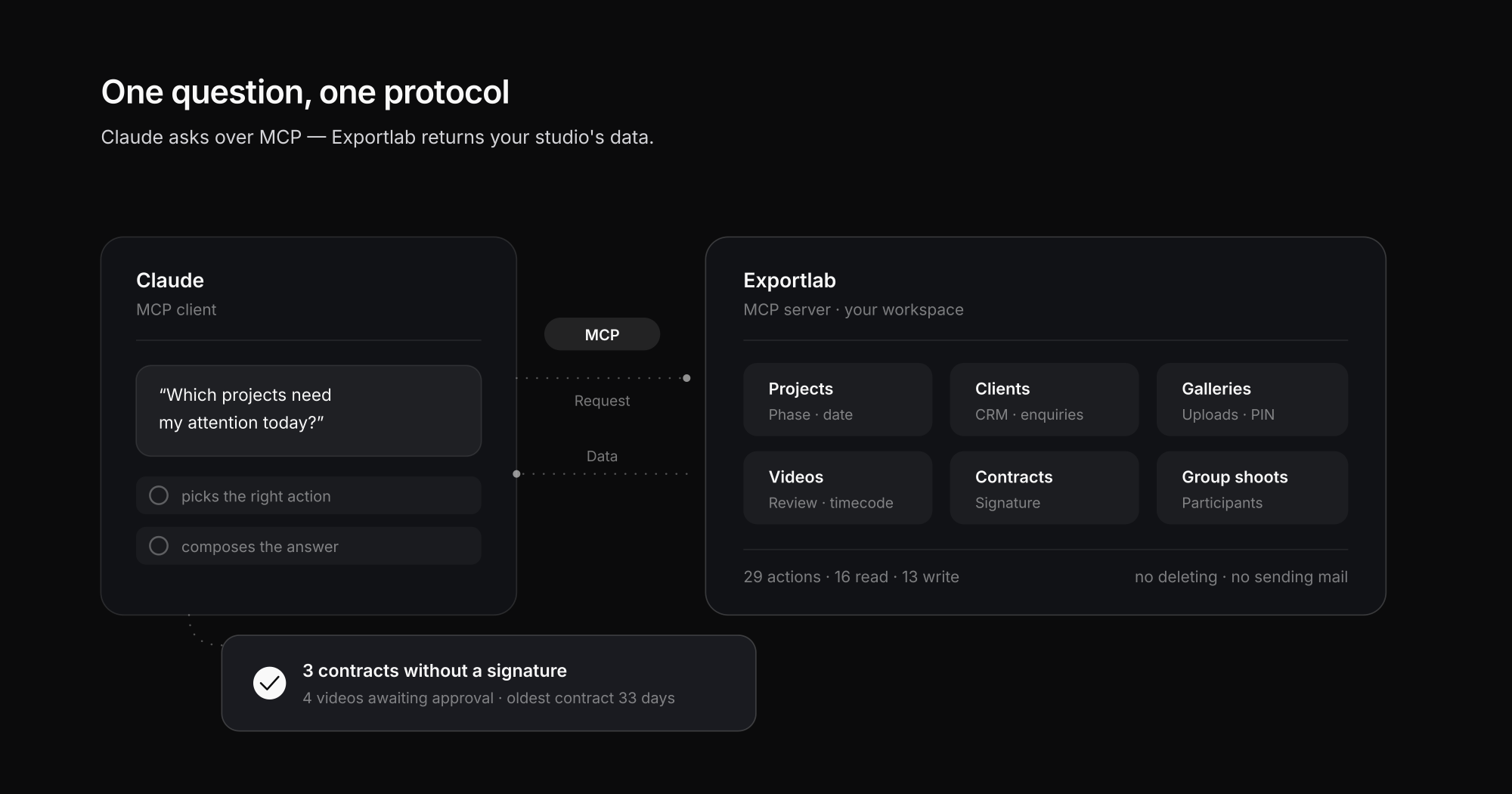
MCP stands for Model Context Protocol, an open standard Anthropic published in 2024. The usual comparison is a USB-C port for AI: one shared interface through which AI applications talk to any data source or service. Instead of building a custom bridge for every combination of AI tool and software, there is one protocol both sides understand. The technical details live in the official MCP documentation.
An MCP server is the side that provides data and actions — Exportlab, in this case. The MCP client is the AI application that uses them — Claude. Connect the two and you get something photo and video studios have essentially never had: an assistant that knows your actual workload.
The difference from classic automation matters here. A Zapier automation or a Slack notification follows a fixed rule: when X happens, do Y. The MCP connector works the other way around — you phrase the question freely, and Claude decides which data it needs. For everything that won't compress into a fixed rule, that is the better fit.
Setup in three steps
The Exportlab MCP server is a remote server. There is nothing to install, no terminal to open and no config file to edit — a URL is enough.
Step 1 — Copy the MCP URL
The connector address is:
https://mcp.exportlab.io/mcpStep 2 — Add the connector in Claude
Open Claude's settings and go to Connectors → Add custom connector. Name it Exportlab and paste the URL. Custom connectors are available on Anthropic's paid Claude plans; which plan includes them and to what extent is documented in the Claude help center.
Step 3 — Connect and authorise
The first time you connect, you'll be redirected to Exportlab and sign in with your existing account. Authorisation runs through OAuth, so you never hand Claude a password — you grant a permission you can revoke. After that the connector is live.
A good first test is: *"Which projects need my attention today?"* If the answer comes back with real project names, the connection is working.
All 29 actions at a glance
The connector does exactly 29 things: 16 read actions that retrieve data, and 13 write actions that change something. This list is complete — if it isn't here, Claude cannot do it through Exportlab.
| Area | Action | Type |
|---|---|---|
| Overview | Show what's due today | read |
| Overview | Search projects, clients, galleries and videos | read |
| Overview | List what's unread | read |
| Projects | Show projects with client, phase and date | read |
| Projects | Show one project in detail | read |
| Projects | Create a project and link it to an existing client | write |
| Projects | Append a dated note without overwriting anything | write |
| Projects | Write progress to the status page | write |
| Clients | Show clients with tags and last contact | read |
| Clients | Show enquiries from the public profile | read |
| Clients | Create a new client in the CRM | write |
| Clients | Maintain address, tags, notes and status | write |
| Galleries | Show galleries with image count, PIN status and link | read |
| Galleries | Show guest uploads with upload counts | read |
| Galleries | Create a new gallery | write |
| Galleries | Rename a gallery and assign a client | write |
| Videos | Show videos with review status and versions | read |
| Videos | Fetch client comments by timecode | read |
| Videos | Mark a comment as done | write |
| Group shoots | Create participants from a list (max. 200) | write |
| Group shoots | Correct a participant, change the shoot day | write |
| Contracts | See which signature is still missing | read |
| Contracts | Check requested documents and what came back | read |
| Contracts | Show available contract templates and placeholders | read |
| Contracts | Show available model release templates and placeholders | read |
| Contracts | Create a contract draft from a template without sending it | write |
| Contracts | Stage a model release with its signing page switched off | write |
| Profile | View profile text, gear and status | read |
| Profile | Edit and publish the profile text | write |
What's missing is just as telling. There is no delete action — not for projects, clients, galleries or videos. There is no action that emails your clients. And there is no way to read out a gallery PIN.
That holds all the way into the paperwork: Claude can draft a contract from a template and stage a model release — but the draft never goes out, and the model release keeps its signing page switched off until you turn it on. That isn't an oversight, it's the shape of the thing: the connector is built for asking and preparing, not for acting unsupervised.
Four situations from an ordinary week
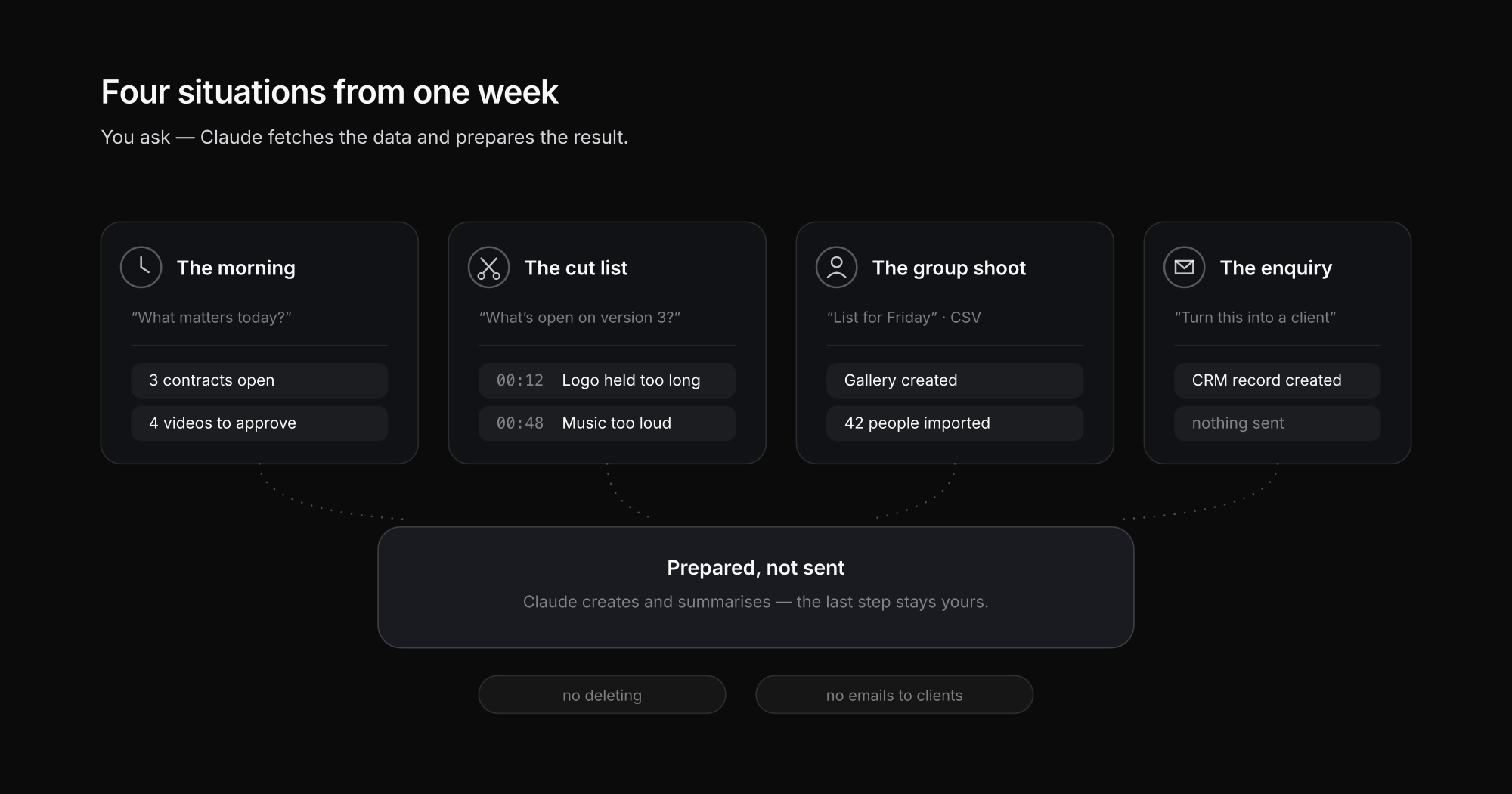
The action list says little about how this feels day to day. Four typical cases:
The morning overview. You ask *"What matters today?"*. Claude gathers contracts, videos, projects and notifications and answers roughly like this: three contracts without a client signature, the oldest 33 days out; four videos awaiting approval, one of them with six open comments; twenty unread notifications. The point isn't that any of this is new — it all sits in Exportlab already. The point is that you'd otherwise click through four views to assemble it.
The cut list. You ask *"What's still open on version 3 of the brand film?"*. Claude finds the video, pulls the comments by timecode and sorts them: 00:12 logo held too long, 00:48 music too loud under the interview, 01:15 drop the warehouse shot, 02:03 subtitles missing, and so on — grouped into picture, sound and text. Tell it which ones you've handled and it marks them resolved. How video feedback with timecodes works in general is covered in its own post.
The group shoot. You attach a CSV of participants and write *"Here's the list for Friday."*. Claude reads the file, creates the gallery, imports every person and assigns them to the shoot day. For 42 staff portraits that's the difference between a minute and half an hour of typing. The ceiling is 200 people per import.
The enquiry. You say *"Turn yesterday's enquiry into a client."*. Claude pulls enquiries from your public profile, creates the CRM record and carries the details across. Nothing is sent — that stays your move.
What happens to your data
An AI assistant that can see client data raises fair questions — particularly under the GDPR, where you as the studio remain the responsible party.
Three things matter. First, the connector follows your existing workspace permissions: it sees what your account sees, no more. Second, authorisation is revocable at any time — remove the connector in Claude or withdraw the grant in Exportlab. Third, the action surface is hard-limited: deleting, sending mail and reading PINs simply don't exist as actions, so they can't happen by accident either.
What you should weigh yourself: content Claude reads from your workspace is transmitted to Anthropic and processed there. Whether that is permissible for your client data depends on your contracts, your privacy policy and the nature of the data — with processor arrangements and especially sensitive shoots it's worth checking case by case, and taking legal advice if in doubt. Anthropic's data handling is documented in its Trust Center.
When the connector earns its place — and when it doesn't
Fairly stated: the MCP connector doesn't replace Exportlab, it's a second door into the same workspace.
It pays off when you run many parallel projects and want status questions answered in passing; when you regularly import larger lists; when you're working inside Claude all day anyway. It pays off less when you have three projects running — then a glance at the client portal beats composing a question. And it doesn't replace a fixed automation: if you want a reliable alert on every upload, Slack or Zapier serve you better, because a rule fires there instead of a request.
FAQ
What is an MCP server?
An MCP server is software that exposes data and actions through the Model Context Protocol so AI applications can reach them. The protocol is an open standard from Anthropic. The Exportlab MCP server exposes your studio workspace — projects, clients, galleries, videos, contracts — and Claude accesses it as a client.
Do I need coding skills to set it up?
No. The Exportlab MCP server is a remote server: copy the URL https://mcp.exportlab.io/mcp, add a custom connector under Connectors in Claude's settings, and sign in to Exportlab. There is nothing to install and no config file to edit.
Can Claude delete data by accident?
No. The connector exposes no delete action at all — not for projects, clients, galleries or videos. It also cannot email your clients or read gallery PINs. Of the 29 actions, thirteen are write actions, and those create or update rather than remove.
Does the connector work with ChatGPT or other AI tools?
MCP is an open standard and a growing number of AI applications support it. The Exportlab connector is currently aimed at Claude and tested there. Whether it runs well in other MCP-capable clients depends on how completely those clients support remote servers with OAuth.
What does the MCP connector cost?
The connector is part of your Exportlab account and costs nothing extra. What you need is a Claude plan that supports custom connectors — Anthropic's paid tiers.
Conclusion
An AI assistant for photographers only becomes useful once it knows your own data, and that is precisely the gap the Exportlab MCP server closes. Setup takes three steps, the surface is deliberately kept to 29 actions, and the risky operations were never built in the first place.
The honest benefit is less spectacular than mundane: no more clicking through four views to see what's due. No more typing 42 names. No more hunting for which signature is missing.
Connect Exportlab to Claude — or first take a look at how Exportlab works as a client portal for the rest of your studio.