
How to Format an SD Card for Your Camera — and When It's Safe to Do It
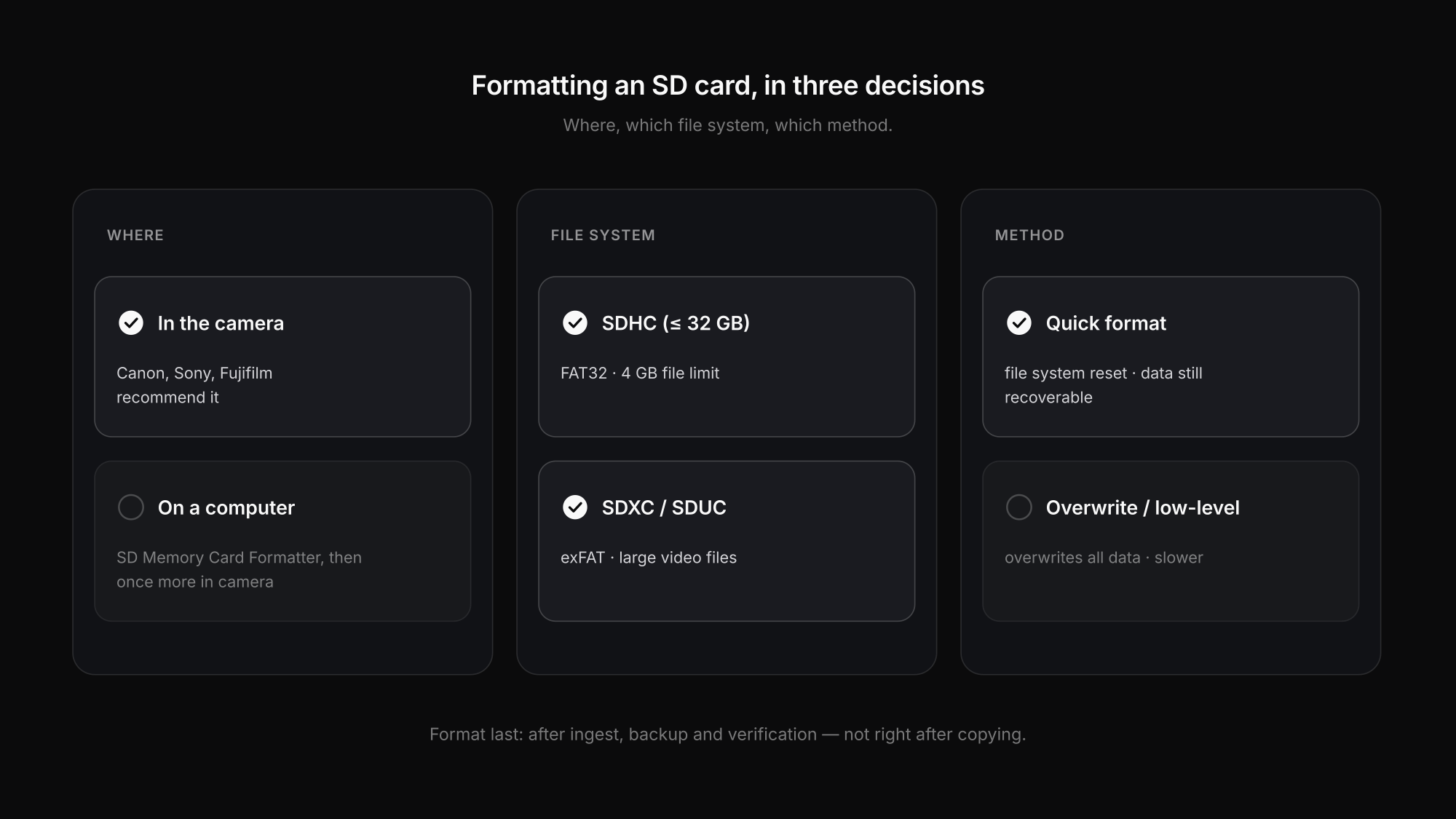
"Should I format my SD card?" sounds like a beginner question, but it hides three decisions that matter to working photographers: when it is safe after a shoot, where to do it — in the camera or on a computer — and which kind of format to use. Get the first one wrong and you lose a job. Get the others wrong and you get slow writes, file-size limits on video or a card your camera refuses to read.
This guide answers all three with what the camera manufacturers and the SD Association actually document, plus what to do when a card throws an error or was formatted by accident.
When is it safe to format the card after a shoot?
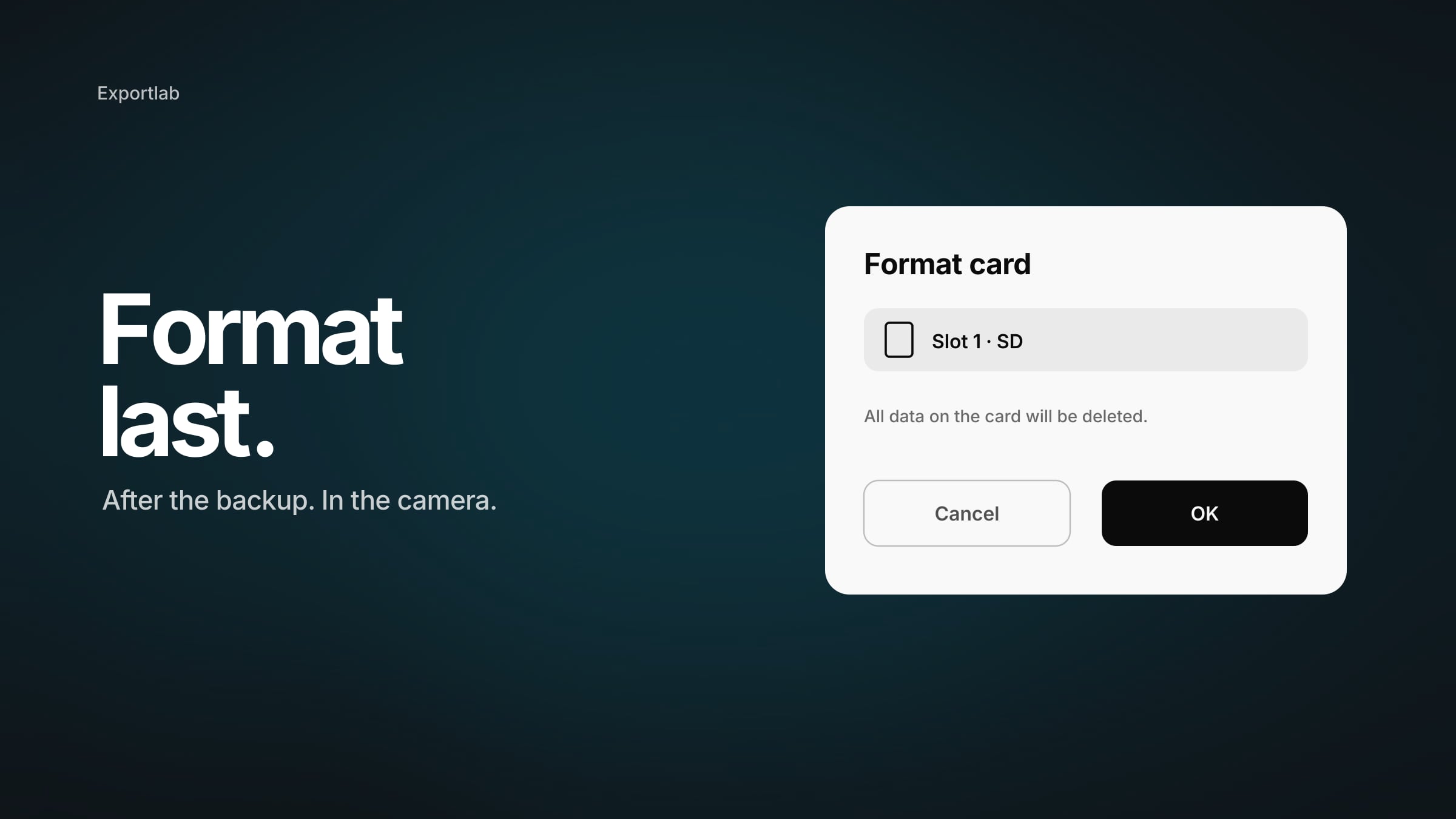
Not right after copying. Format a card only when the files have been checked on your working drive and at least one independent second copy exists. For weddings, commercial jobs and anything that cannot be repeated, wait until your off-site copy is complete as well. The full order — ingest, second copy, verify, off-site, test restore — is in our guide to the 3-2-1 backup rule for photographers.
A practical rule for professionals: format before the next job, in the camera, after ingest and backup are confirmed. That is a sensible workflow habit, not a manufacturer requirement — no manual says "format after every shoot".
In the camera or on the computer?
For a card you will use in a camera, format it in the camera. The camera creates exactly the file system and folder structure it expects.
| Manufacturer | What the documentation says |
|---|---|
| Canon | Format new cards, and cards formatted in another camera or a computer, in this camera |
| Sony | Format in the camera on first use for more stable performance |
| Fujifilm | Format before first use and again after the card was used in a computer or another device |
| Nikon | Provides an in-camera format function; a general "always format in camera" statement as explicit as the others was not found in current manuals |
If you have to format on a computer — for example to reset a card that the camera cannot read — use the free SD Memory Card Formatter from the SD Association rather than the built-in tools of Windows or macOS. The SDA recommends it because generic tools are designed for all kinds of storage and do not necessarily apply the SD-specific format parameters, which can cost performance. That does not mean a card formatted in Windows is broken — it means the SDA tool is the safer default. Afterwards, format it in the camera once more.
How to format in the camera
- Copy, back up and verify the files from the card.
- Insert the card into the camera you will use it in.
- Open the setup menu and choose Format card (the wording varies by brand).
- Select the correct slot on dual-slot bodies — the most common mistake.
- Confirm, and wait until the camera reports completion.
exFAT vs FAT32: which file system?
The SD Association defines the file system by card class:
| Card class | Capacity | Standard file system |
|---|---|---|
| SD | up to 2 GB | FAT12/FAT16 |
| SDHC | over 2 to 32 GB | FAT32 |
| SDXC | over 32 GB to 2 TB | exFAT |
| SDUC | over 2 TB to 128 TB | exFAT |
NTFS and APFS are not standard file systems for SD cards. Your computer may let you choose them, but cameras may not read the card, and the SDA explicitly warns against non-standard file systems because they break compatibility between devices.
The difference matters for video: FAT32 cannot store a single file of 4 GB or more, so long clips on SDHC cards are split into several files. On exFAT (SDXC), a single movie file can be larger than 4 GB.
Quick format, overwrite format and "low-level" format
The terms get mixed up constantly. The SD Association's formatter defines two of them clearly:
| Method | What happens | Use it for |
|---|---|---|
| Quick format | resets the file system and the file and folder entries; the old data is not deliberately overwritten | normal re-initialisation |
| Overwrite format | additionally overwrites the entire user data area | deleting data properly, deeper reset |
| Canon "Low-level format" | formats all writable sectors; much slower | when reading or writing becomes noticeably slow, or to erase data completely |
"Low-level format" is a camera-specific menu name, not a universal technical term. It can help with file-system and performance problems; it does not repair worn-out flash memory.
Card errors: what to check first
| Problem | Check first | Then |
|---|---|---|
| "Card locked" / write-protected | the lock switch on the card or adapter | try another reader; replace a faulty adapter |
| "Card cannot be read" | test in the camera and a separate reader | back up what you can, then format in the camera |
| Video stops, buffer clears slowly | required video speed class, card health, temperature | format; retire a card that keeps failing |
| Performance suddenly much slower | same test in another reader or device | Canon suggests a low-level format; replace if it repeats |
| Errors in one camera only | firmware, slot, the manufacturer's compatibility list | do not assume the card is the cause |
Deleting single images in the camera does not "damage" a card. Fragmentation can build up over time and slow writes, which is one reason Canon lists formatting for slow performance — but occasional deletions are not dangerous.
Formatted by accident? Do this now
- Stop shooting immediately. Every new file can overwrite data that is still recoverable.
- Do not format again, repair or test-write the card.
- If the images matter commercially, have a sector-by-sector image made or go to a professional recovery service, and work on the copy.
- Chances are better after a quick format, which does not overwrite the data, than after an overwrite or full format. Recovery is never guaranteed — flash controllers manage data in ways you cannot see.
When should you replace a card?
There is no honest rule like "after two years" or "after 10,000 photos". Flash memory wears out, but controllers, memory type and workload vary too much for a universal number. The professional rule: take a card out of paid work as soon as it repeatedly shows unexplained read or write errors, corrupt files, dropouts despite an adequate speed class, or suddenly becomes read-only — once you have ruled out the camera and the reader.
FAQ: formatting SD cards
Should I format my SD card in the camera or on my computer?
In the camera, if you use the card in a camera. Canon, Sony and Fujifilm recommend this in their manuals. If you need to format on a computer, use the SD Association's SD Memory Card Formatter and then format once more in the camera.
Should I format my SD card after every shoot?
Format before the next job, after the files are backed up and verified — not straight after copying. It is a good workflow habit, not a manufacturer requirement.
Should I format my SD card as exFAT or FAT32?
Use the standard for the card class: FAT32 for SDHC (up to 32 GB), exFAT for SDXC and larger. Formatting in the camera chooses the right one automatically.
Can I recover photos after formatting an SD card?
Often, after a quick format, if nothing new was written to the card. Stop using it immediately and use recovery software or a professional service on a copy of the card. After an overwrite or full format, chances are much lower.
Conclusion
To format an SD card safely: back up and verify first, format in the camera you will use it in, let the camera choose FAT32 or exFAT, and keep the SD Association's formatter for cards that need a reset on the computer. Treat a quick format as reversible, an overwrite as final — and retire any card that keeps failing.
Once the images are safe and edited, deliver them properly: with Exportlab your clients get a gallery in original quality. The step before that is in RAW vs JPEG — what you shoot decides how fast your cards fill up.