
The Complete Photography Workflow: From SD Card to Client Delivery
Most photographers do not lose time in the edit. They lose it in the gaps between steps: the evening spent searching for last month's folder, the card formatted before the backup finished, the forty emails about which images the client actually wanted, the re-export because the first one was in the wrong colour space.
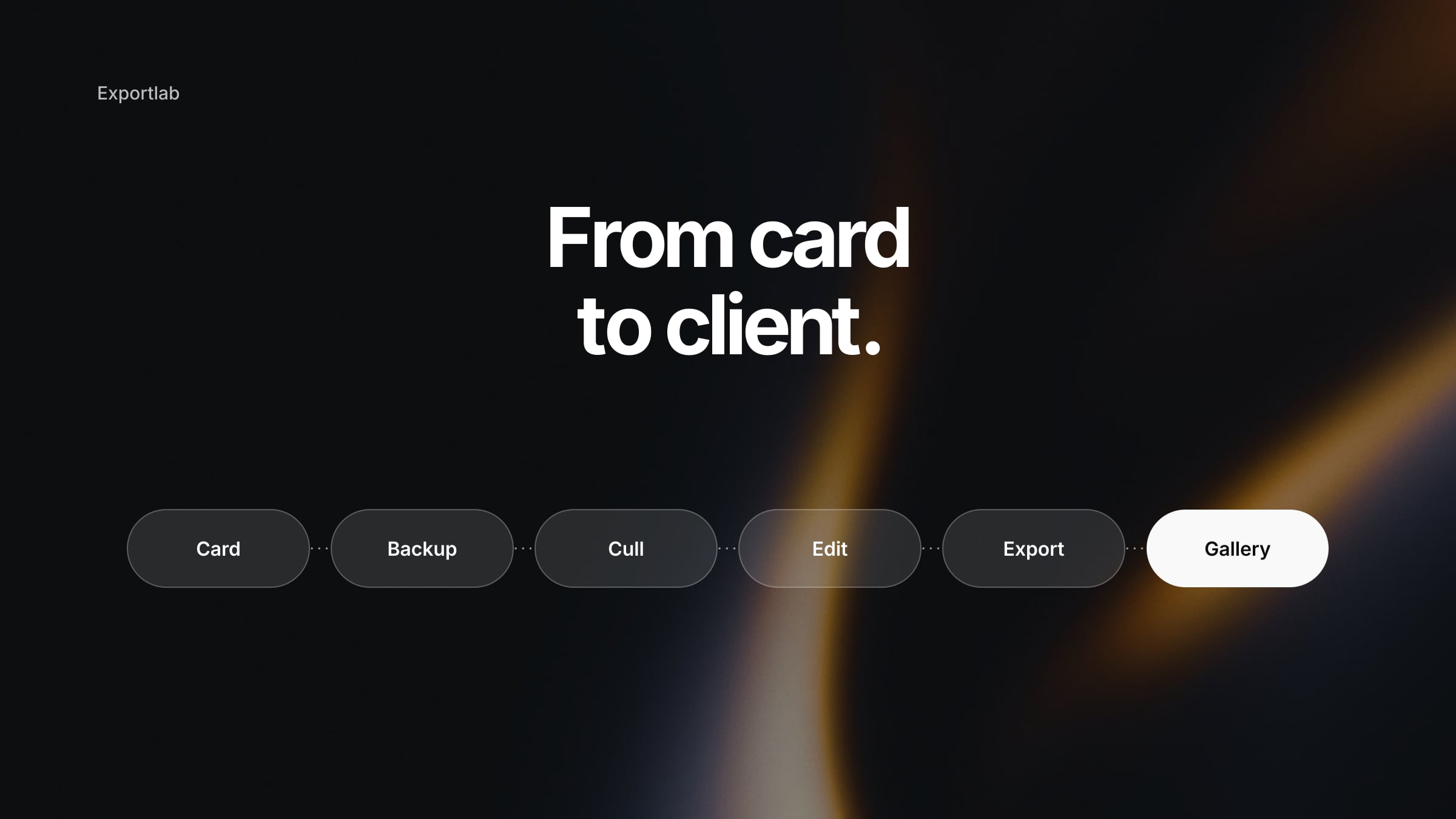
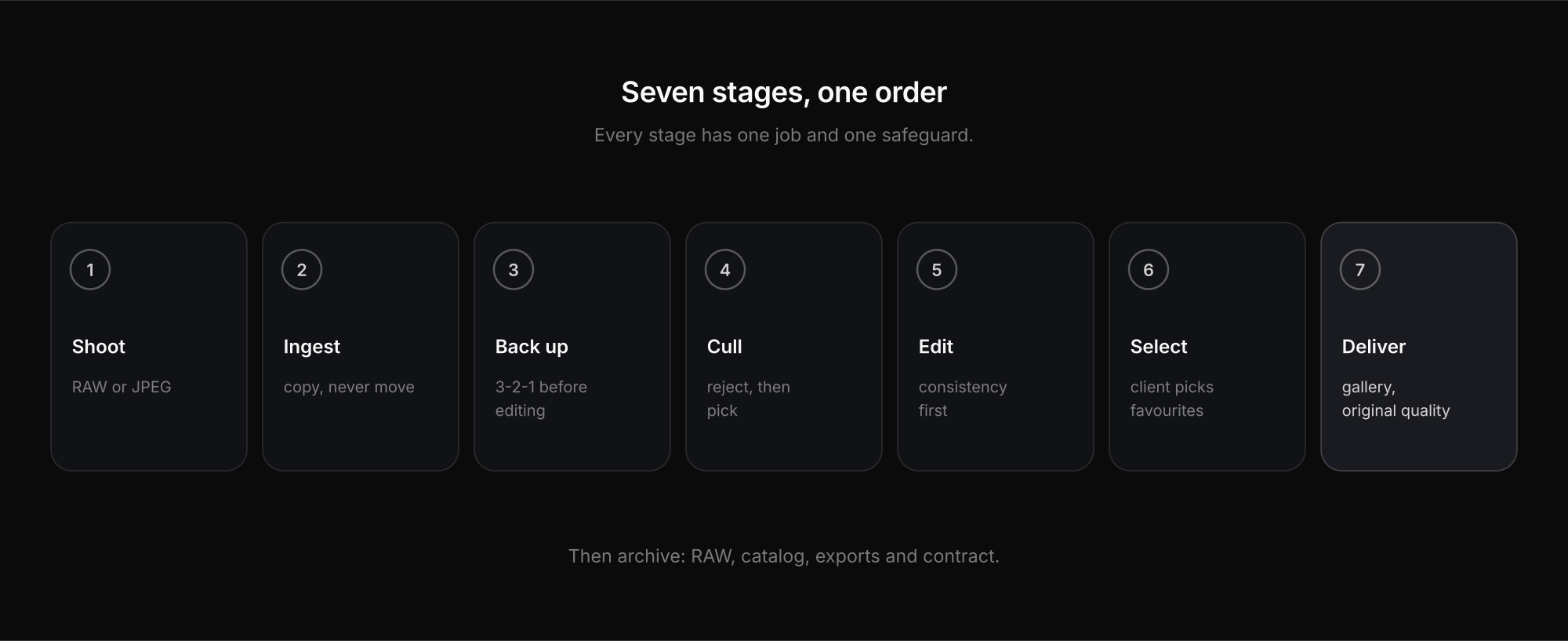
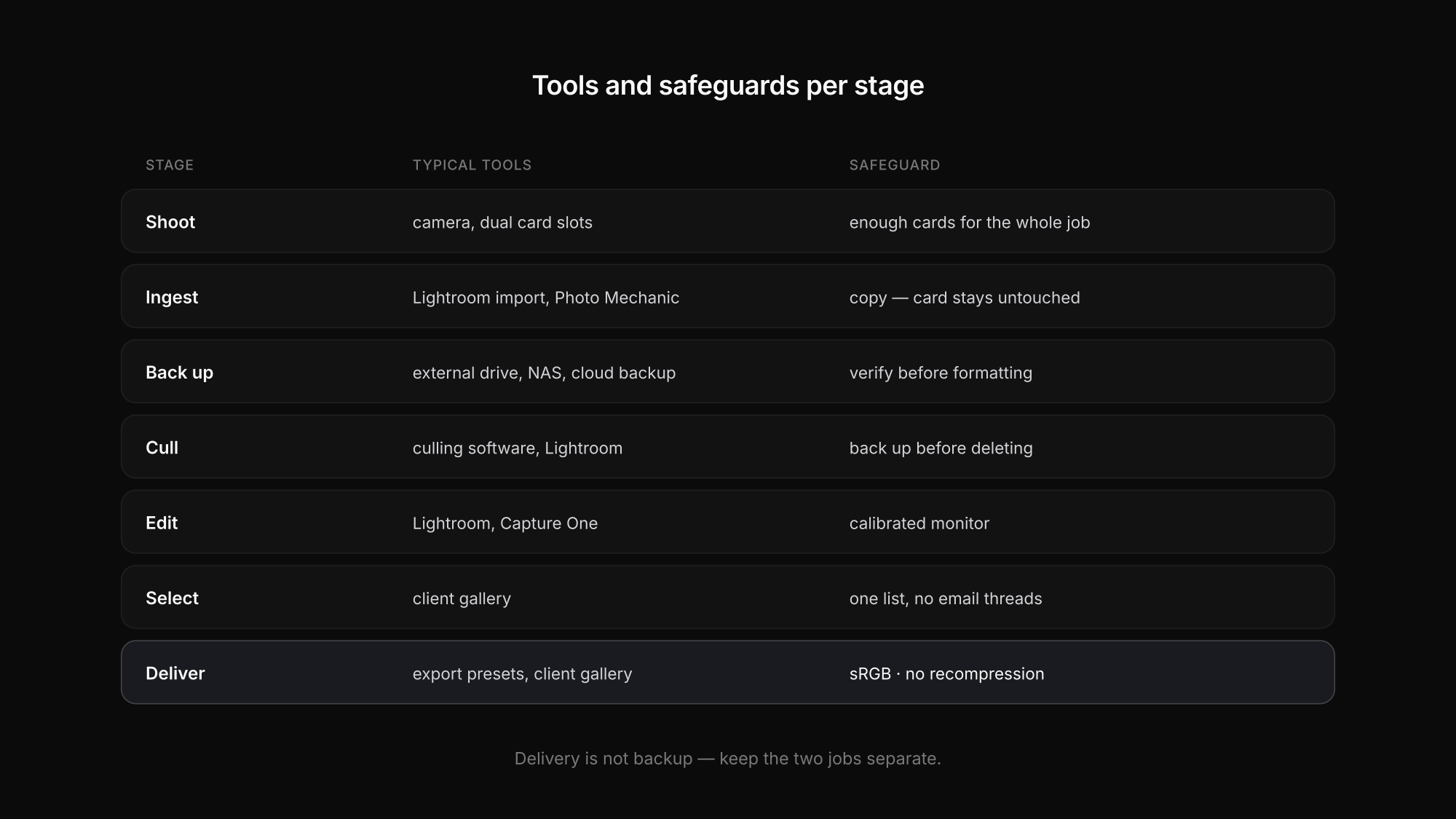
A photography workflow is the order and the rules that close those gaps. This one has seven stages, from the memory card to the client's download, and it links to a detailed guide for each step. Adapt the tools to your setup; keep the order.
| Stage | Goal | Typical tools | Detailed guide |
|---|---|---|---|
| 1. Shoot | the right file format, enough cards | camera, dual slots | RAW vs JPEG |
| 2. Ingest | files on the working drive, card untouched | Lightroom import, Photo Mechanic | — |
| 3. Back up | three copies, one off-site | external drive, NAS, cloud backup | 3-2-1 backup rule |
| 4. Cull | from thousands of frames to the keepers | culling software, Lightroom | photo culling software |
| 5. Edit | a consistent look | Lightroom, Capture One, Photoshop | — |
| 6. Client selection | the client picks favourites | client gallery | client photo selection |
| 7. Export and deliver | the right file in the right place | export presets, client gallery | Lightroom export settings, delivering photos |
1. Shoot: decide the format before the job
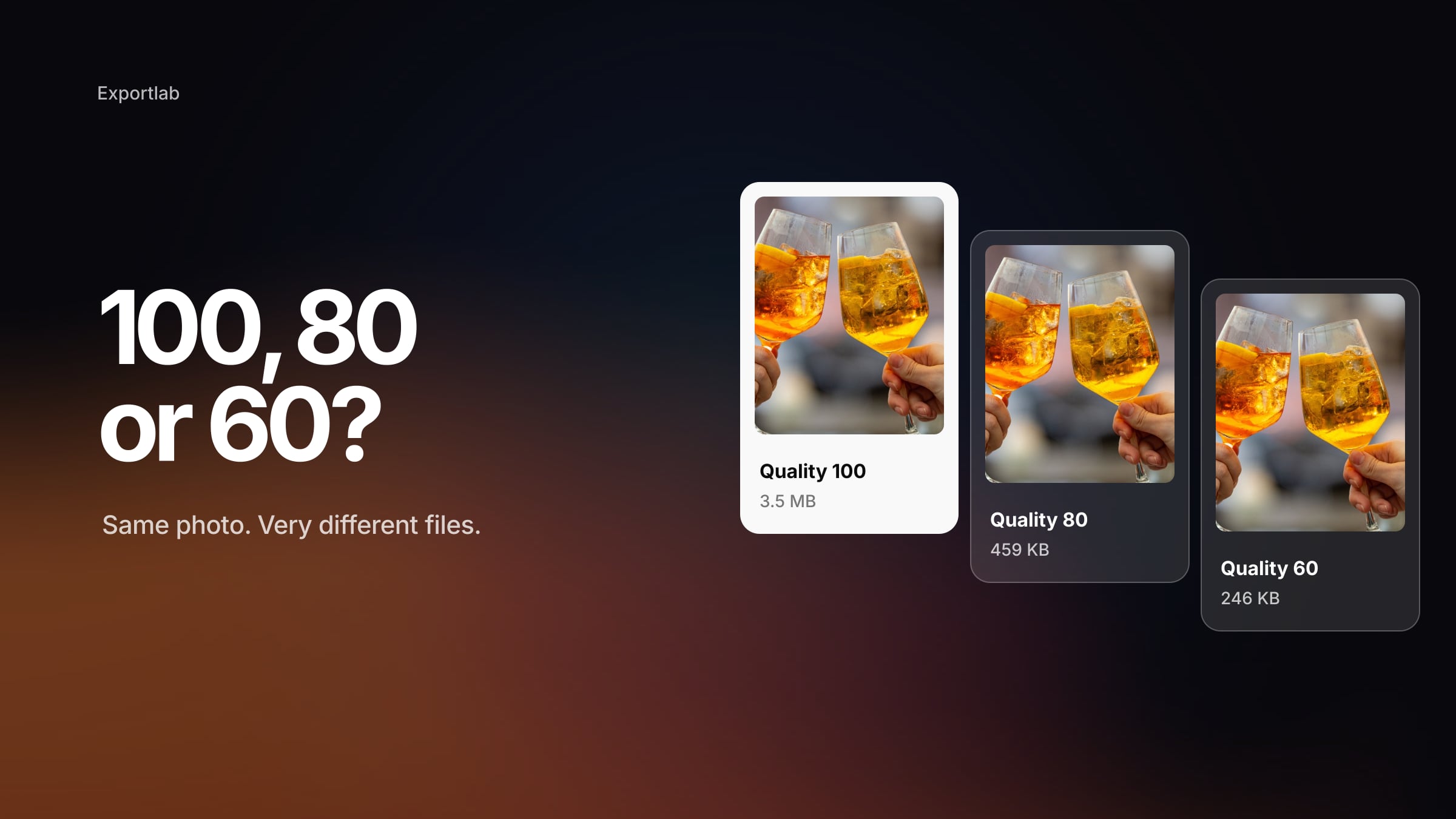
The workflow starts before the first frame. RAW gives you the most editing latitude; JPEG gives speed, longer bursts and smaller files; RAW + JPEG gives both at the cost of storage. Choose by deadline and editing needs, not habit — our guide to RAW vs JPEG sorts typical jobs.
Carry enough cards that you never need to format one during a job, and use dual-slot recording where your camera has it. Two cards protect against a card failing mid-shoot — not against losing the bag.
2. Ingest: copy, never move
Copy the card to your working drive — with Lightroom's *Copy* or *Copy as DNG*, or a dedicated ingest tool. Never *Move*, and do not delete anything on the card yet. Rename on import with a scheme that stays traceable, for example 2026-10-23ClientJob_0001, and add your copyright metadata at this point so every later file carries it.
3. Back up before you edit
Before the first slider moves, create an independent second copy on another physical drive, and get a copy off-site as soon as possible. Verify the files, then — and only then — the card is free again. The full routine based on the 3-2-1 rule, including the 3-2-1-1-0 upgrade and test restores, is in our 3-2-1 backup guide; when and how to format the card is in how to format an SD card.
4. Cull: from thousands to the keepers
Culling is a separate step from editing, and mixing the two is the most common time sink. Make a fast first pass that only rejects — closed eyes, missed focus, duplicates — then a second pass that picks. AI culling tools can take over much of the first pass on large events; review their decisions on key moments. Our comparison of photo culling software covers which tool suits which kind of work.
5. Edit: consistency over perfection
Edit a reference image for each lighting situation, then sync its settings to similar frames and fine-tune. Correct white balance and exposure first, the look second. Edit on a calibrated monitor — otherwise every later export inherits its colour cast. If photos look different after export, our troubleshooting guide on why photos look different after exporting helps you find the cause.
6. Let the client choose — in one place
For many jobs the client picks the final images: a portrait session, a product shoot, a selection of edits from a wedding. Doing this over email or messenger with filenames produces long threads and wrong picks. A selection gallery is faster: the client marks favourites and comments directly on the image, and you get one clear list. Our guide to client photo selection shows the process.
7. Export and deliver
Export each destination fresh from the RAW with a preset: full-resolution sRGB JPEG for the client, a sized version for your website, a 1080-pixel version for Instagram, the lab's specification for prints. The four presets are in the best Lightroom export settings; the format question is covered in JPEG vs TIFF vs PNG vs WebP, and website exports in the best image size for your website.
Then deliver in a way that keeps the quality you exported. Email attachments and messengers compress; transfer links expire. With Exportlab you can export from Lightroom straight into a client gallery with the Lightroom plugin, the client receives the images in original quality under your name, and you decide per gallery whether downloads are web-size or full-size. Large files such as TIFFs or RAWs go out as a transfer.
After delivery: archive
Once the job is delivered and paid, move it from the working drive to your archive — RAW files, catalog or sidecar files, final exports and the contract — and keep it covered by your backup. Decide how long you keep RAW files and write it into your contracts, so a request three years later has a clear answer. The difference between archive, backup and delivery storage is explained in cloud storage for photographers.
FAQ: photography workflow
What is a good photography workflow?
A fixed order that closes the gaps between steps: shoot in the right format, copy (never move) the card, back up before editing, cull separately from editing, edit for consistency, let the client choose in a gallery, export fresh per destination and deliver without recompression. Then archive.
Should I back up before or after culling?
Before. Back up the complete card first, then cull. Culling decisions can be wrong, and a rejected frame you deleted before the backup is gone for good.
How do professional photographers deliver photos to clients?
Usually through a client gallery that keeps the original quality, rather than email, messengers or expiring transfer links. The gallery lets clients view, select and download, and lets the photographer control download sizes.
Conclusion
A reliable photography workflow is less about the perfect tool than about a fixed order: shoot, ingest, back up, cull, edit, let the client choose, export, deliver, archive. Each stage has one job and one safeguard. Keep the order, and the evenings spent searching, re-exporting and answering "which ones did we pick?" disappear.
Ready to close the last gap? Start with Exportlab and deliver straight from Lightroom into a client gallery.