
Why Do My Photos Look Different After Exporting From Lightroom? 7 Causes and Fixes
The edit looks right in Lightroom. Then you open the exported JPEG — or the client opens it on their phone — and something is off. The colours are duller, the image is darker, the detail is softer. Why do my photos look different after exporting from Lightroom? is one of the most common questions in photography forums, and the answers there tend to be a single cause repeated with great confidence.
In reality there are several causes, and each one leaves a different fingerprint. This guide sorts them by symptom, so you can identify yours and fix it at the right point in the chain.
Find your symptom
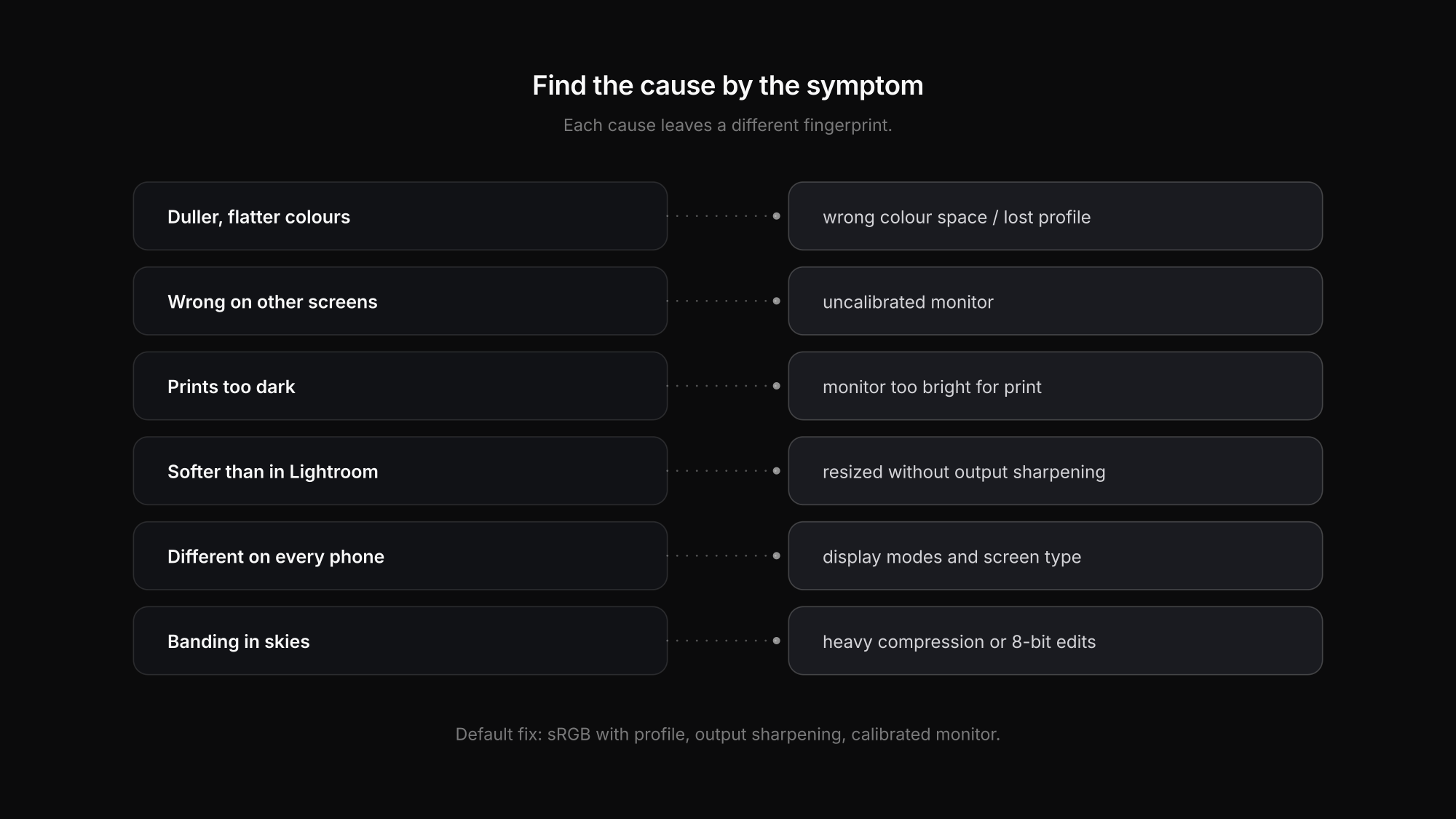
| What you see | Most likely cause | Where to fix it |
|---|---|---|
| Colours duller and flatter, mostly in the browser or other apps | wrong export colour space or a lost profile | export settings |
| Looks fine on your screen, too saturated or too dark elsewhere | your monitor is not calibrated | your monitor |
| Prints darker than the screen | screen far too bright for print editing | monitor brightness, soft proofing |
| Softer than in Lightroom | resized without output sharpening, or re-compressed | export settings, upload path |
| Different on every phone | display settings and screen technology | nothing in the file — test on several devices |
| Banding in skies and gradients | heavy compression or 8-bit after strong edits | quality setting, editing |
| HDR export looks odd or flat | display or app without HDR support | export format choice |
1. Duller colours: colour space or a lost profile
The classic: an image exported in Adobe RGB or ProPhoto RGB looks flat in a browser, a messenger or an office program. Modern browsers read the embedded ICC profile and display the colours correctly — but many steps along the way strip profiles: website builders, upload pipelines, compression tools, messenger apps. Once the profile is gone, the numbers are read as sRGB and the colours look washed out.
Fix: export everything that leaves your control in sRGB with the profile embedded. Lightroom edits in a very large colour space internally, so this conversion at export is expected. The details are in sRGB vs Adobe RGB.
2. Fine on your screen, wrong everywhere else: an uncalibrated monitor
If your own monitor is too saturated, too blue or too contrasty, you correct your edit against it — and the result looks wrong on every other screen. Wide-gamut monitors without a proper profile make this worse.
Fix: calibrate your monitor with a hardware calibrator, and check a few images on a phone and a normal laptop before delivering a large job.
3. Prints darker than the screen
A screen emits light; paper only reflects it. Editing on a monitor at full brightness makes every print look too dark by comparison.
Fix: turn your monitor down to a brightness that matches a print under normal room light, use Lightroom's soft proofing with the paper profile, and order a test print. Our guide to exporting photos for print walks through the whole process.
4. Softer than in Lightroom: resizing and re-compression
Downscaling a 24- or 45-megapixel file to 2000 pixels softens fine edges. Lightroom's preview hides this because it shows the full-resolution image. And if the file is then uploaded to a platform that resizes and compresses again, a second round of softening follows.
Fix: use output sharpening (Screen, Standard) for downsized exports, export at the size the destination actually displays, and keep JPEG quality at 80–90 or higher. For Instagram specifically, see why Instagram makes photos blurry — and for websites, the best image size for your website.
5. Different on every phone
The same file can look warmer, darker or more saturated depending on the phone. Automatic brightness, colour-adjusting display modes such as True Tone or Night Shift, and the difference between OLED and LCD screens all change what the viewer sees — none of which you control from Lightroom.
Fix: none in the file. Deliver a correctly exported sRGB JPEG, and when a client says the images look "too warm", check which device and display settings they use before re-editing anything.
6. Banding in skies and smooth gradients
Visible steps in a blue sky or a studio backdrop can come from strong JPEG compression, from 8-bit files after heavy tonal edits, or from the display itself. JPEG is not the only possible cause.
Fix: export at higher JPEG quality, avoid re-saving JPEGs repeatedly, and do heavy tonal work on the RAW or a 16-bit file. Our comparison of JPEG vs TIFF vs PNG vs WebP explains when a 16-bit format is worth it.
7. HDR exports that look wrong
Lightroom Classic can edit and export HDR images. On an HDR-capable display with a supporting app, they look bright and vivid; on a normal SDR screen or in an app without HDR support, they are tone-mapped and can look flat or different from your edit. Social platforms and browsers handle HDR files inconsistently.
Fix: export a standard SDR JPEG in sRGB for anything you deliver or post, unless you know the viewer's device and app support HDR. Keep HDR exports for controlled situations.
Export settings that prevent most of this
| Setting | Value |
|---|---|
| Format | JPEG, quality 80–100 depending on use |
| Colour space | sRGB, profile embedded |
| Size | the size the destination displays (or full resolution for clients) |
| Output sharpening | Screen for downsized files; matte/glossy for print |
| HDR | off, unless the viewer's setup supports it |
All four standard presets are in our guide to the best Lightroom export settings.
FAQ: photos look different after export
Why do my photos look washed out after exporting from Lightroom?
Usually because they were exported in Adobe RGB or ProPhoto RGB and the colour profile was ignored or removed along the way. Export in sRGB with the profile embedded for anything that leaves your control.
Why do my exported photos look darker than in Lightroom?
Often the image is not darker — your monitor is very bright, and prints or other screens look darker by comparison. Calibrate your monitor, reduce its brightness for print work and use soft proofing.
Why do my photos look less sharp after export?
Downscaling softens fine detail, and Lightroom's preview shows the full-resolution image. Use output sharpening for downsized exports and avoid letting platforms resize and re-compress oversized files.
Conclusion
Why do my photos look different after exporting from Lightroom? Because the file passes through several stages — colour space, monitor, resizing, compression, the viewer's display — and each one can change what people see. Identify the symptom, fix it at the right stage, and export sRGB JPEGs with sensible sharpening as your default. Most "Lightroom export problems" disappear with that alone.
Want the file you exported to reach your client unchanged? Start with Exportlab and deliver in original quality.