
Why Does Instagram Make My Photos Blurry? 8 Causes and How to Fix Them
You spend an hour on an edit, it looks crisp in Lightroom, and ten seconds after posting it looks like it was shot through a window. Why does Instagram make my photos blurry is one of the most common frustrations photographers have with the platform — and the internet is full of confident explanations about secret compression rates that nobody can actually verify.
Here is what can be said with certainty: Instagram does not publish its compression settings or a JPEG quality value. What it does publish is the target size and the supported aspect ratios. Almost every blurry upload traces back to a gap between what you sent and what Instagram expects — and that gap is yours to close.
What Instagram does to every photo
According to Instagram's help centre, feed photos are shown at a width of up to 1080 pixels, in aspect ratios between 1.91:1 and 3:4. Larger images are scaled down, smaller ones scaled up, and anything outside the ratio range is cropped. On top of that, every upload is re-processed and re-compressed.
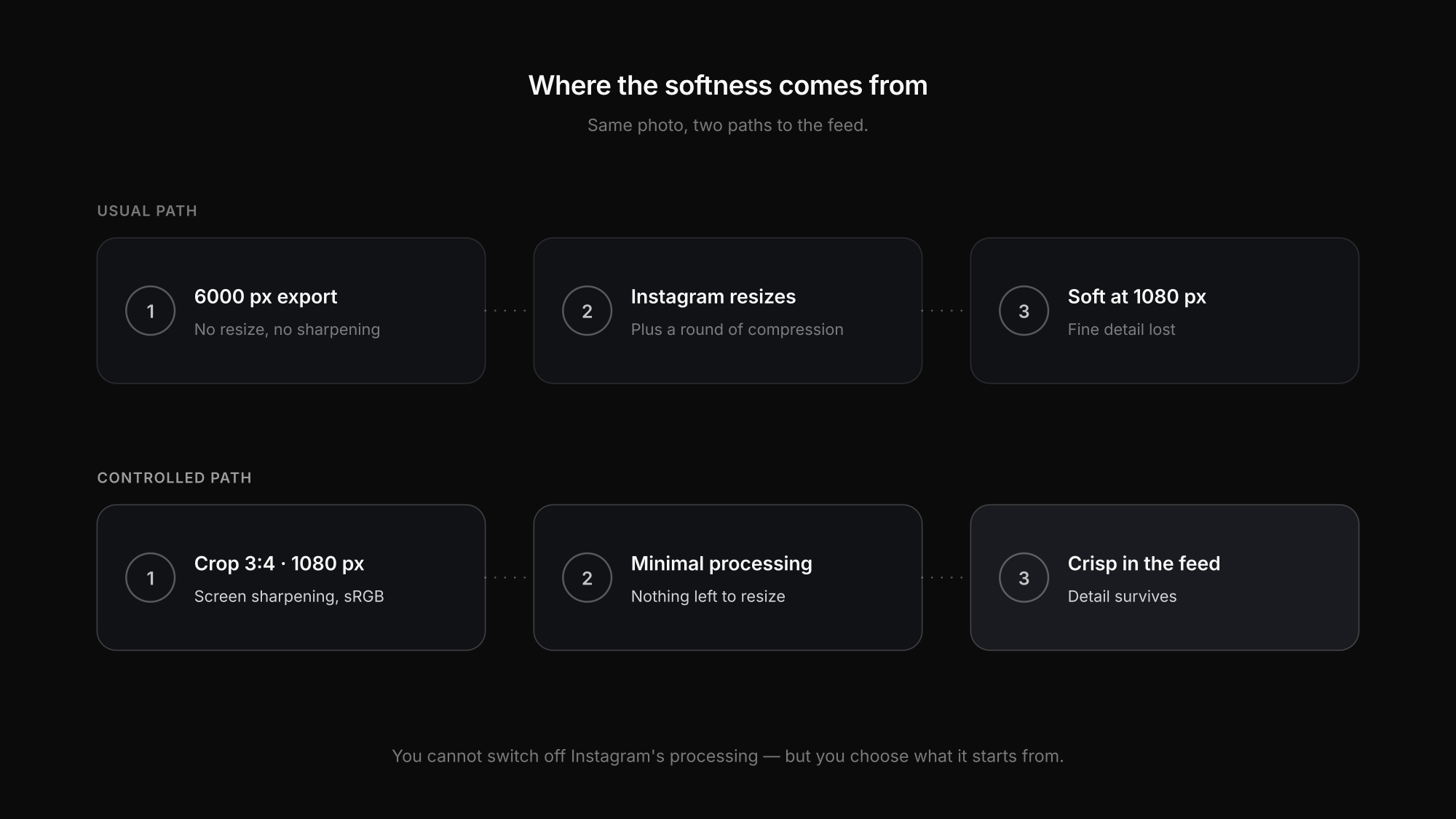
You cannot switch that off. What you can control is the file Instagram starts from. The closer it already is to the final size, ratio and quality, the less Instagram has to change — and the less it can get wrong.
Eight reasons your photos look blurry on Instagram
You upload the full-size file
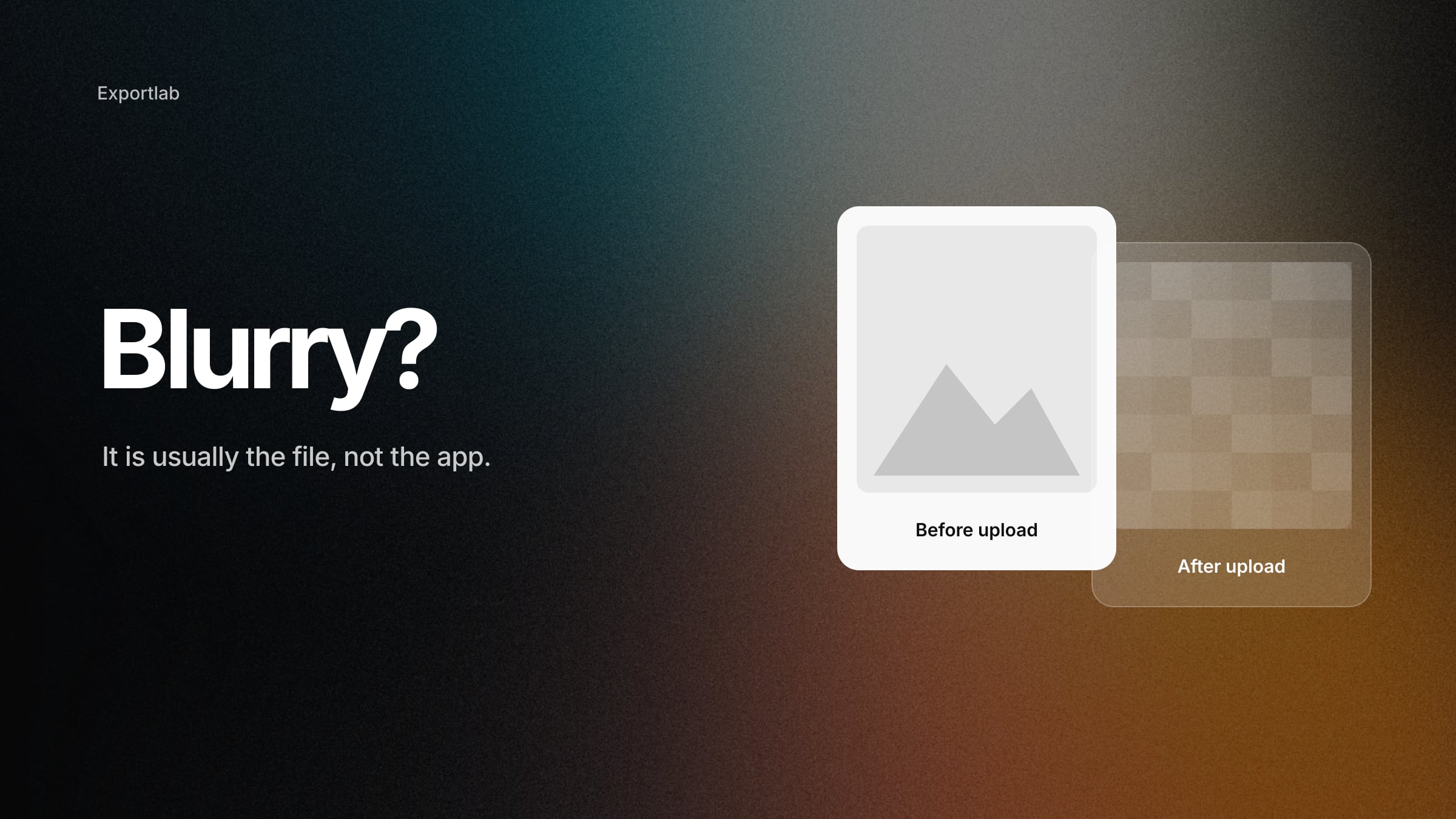
A 6000-pixel-wide camera file has to be scaled down to 1080 pixels by Instagram's own pipeline. That resizing is optimised for speed across millions of uploads, not for your fine textures — and it adds no output sharpening. Do the resize yourself.
You upload a file that is too small
The opposite problem. A heavy crop or a 720-pixel export gets enlarged to fill the screen, and enlarged pixels look soft. Instagram's help recommends at least 1080 pixels of width so the full resolution can be used.
The aspect ratio is outside 1.91:1 to 3:4
If your image is taller than 3:4 or wider than 1.91:1, the app crops it. If you then pinch to zoom in the upload screen, you are enlarging a smaller section of the image. Crop to a supported ratio in Lightroom before export.
No output sharpening after resizing
Downsizing softens edges. Lightroom's output sharpening for Screen exists precisely to compensate after the resize, in addition to the sharpening you did in Develop. Without it, a perfectly sharp image looks slightly soft at 1080 pixels.
The file was already heavily compressed
Exporting at a low JPEG quality "to get ahead of Instagram's compression" backfires. The detail you discard before upload is gone, and Instagram compresses again on top. Start from a high-quality JPEG instead.
The file travelled through a messenger or cloud preview
Sending your export to your phone via a messenger app or saving it from a cloud preview often means a recompressed, sometimes downscaled copy. Transfer the original file — AirDrop, a cable, or the full-resolution download from your cloud.
It is a colour problem, not a sharpness problem
An Adobe RGB or ProPhoto file whose colour profile gets lost looks flat and dull, and dull often reads as "soft". Export in sRGB. Our guide to sRGB vs Adobe RGB explains why.
Your app is saving data
If data-saving options are enabled in the app's media quality settings, Instagram may load lower-quality versions on your screen. That affects what you see, not necessarily what others see — check it before you blame the upload.
The fix: a five-point checklist
- Crop in Lightroom to 3:4, 4:5, 1:1 or a landscape no wider than 1.91:1. Keep all images in a carousel at the same ratio — the first one sets it for the post.
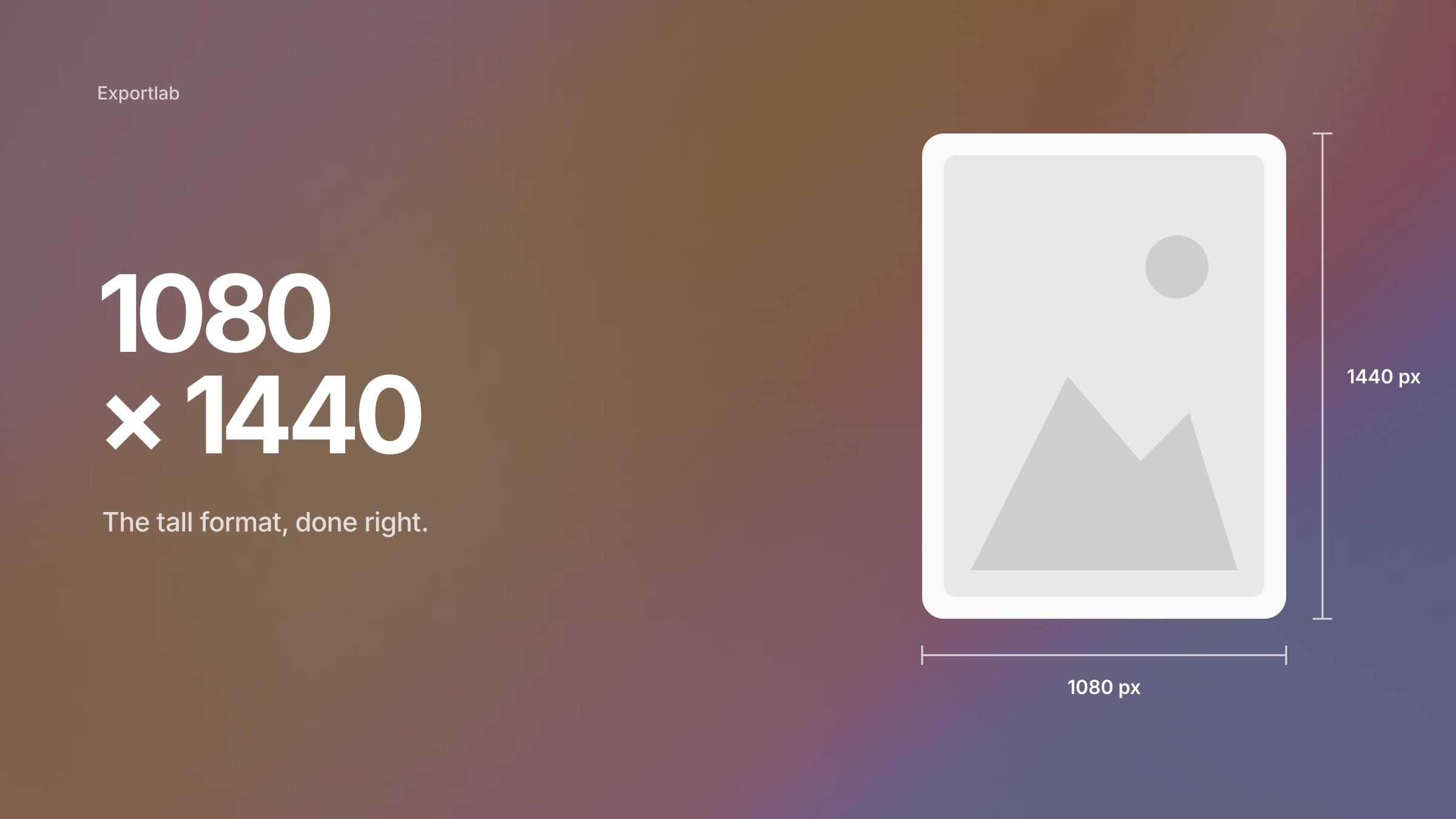
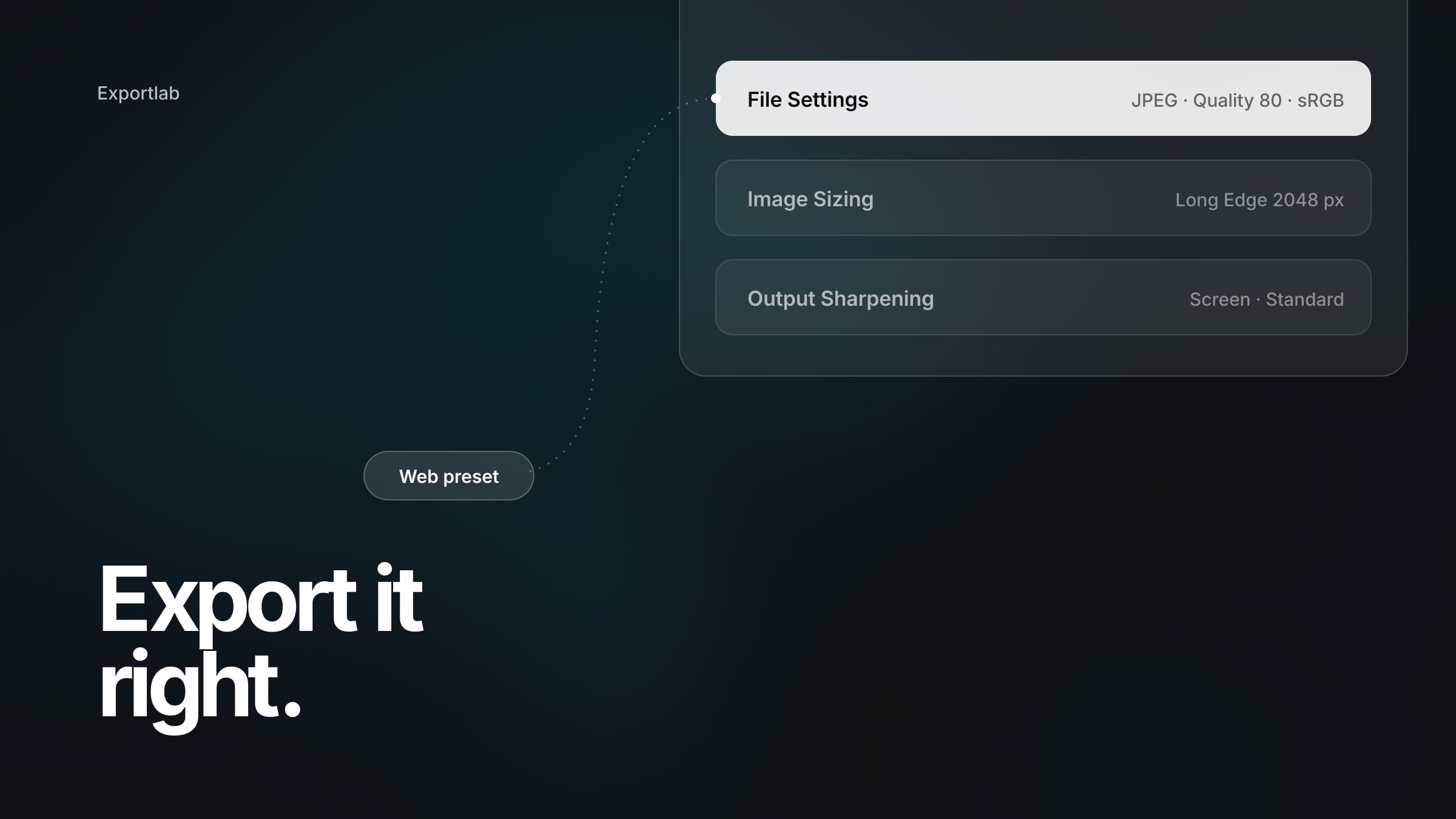
- Export at Instagram's size: fit inside Width & Height 1080 × 1440 px with Don't Enlarge ticked, so every ratio comes out at 1080 pixels wide.
- Use JPEG, sRGB, quality 80–90. High enough to keep detail, without the size jump of 100.
- Add output sharpening: Screen, Standard.
- Upload the original export, and if your app version offers "Upload at highest quality" in its media quality settings, turn it on. Its menu location changes between versions.
Each setting is explained in detail in our guide to Lightroom export settings for Instagram, and the full set of presets for web, clients and print is in the best Lightroom export settings.
Myths that do not help
Some popular fixes are repeated so often they sound like facts. Based on what Instagram actually documents, these do not hold up:
- "Export at 300 dpi." The dpi value is ignored on screen; only pixel dimensions count. See DPI vs PPI.
- "Export 1440 pixels wide for more detail." Instagram scales feed photos to 1080 pixels wide. 1440 is the height of a 3:4 portrait.
- "Upload PNG to avoid compression." Instagram converts uploads. A PNG is processed like everything else; it just takes longer to upload.
- "iPhones upload sharper than Android phones." Instagram publishes no device-specific resolution rules. Differences reported online come from specific app versions and devices, not from a documented rule.
- "Upload at highest quality turns compression off." If the option exists in your app, it may help, but there is no documentation that it disables processing.
Instagram is for reach, not for delivery
Even with a perfect export, Instagram shows a 1080-pixel, re-compressed version of your work. That is fine for discovery. It is not how clients should receive their images. For delivery, give clients full-resolution files — with Exportlab for photographers in a gallery under your name, in original quality, with you deciding which resolution can be downloaded.
FAQ: blurry photos on Instagram
Why do my photos look sharp in Lightroom but blurry on Instagram?
Usually because Instagram resized a much larger file without output sharpening, or because the image was cropped or enlarged in the app. Export at 1080 pixels wide in a supported ratio, with Screen output sharpening, and upload that exact file.
How do I upload photos to Instagram without losing quality?
You cannot avoid Instagram's processing entirely, but you can minimise it: JPEG, sRGB, quality 80–90, 1080 pixels wide, aspect ratio between 1.91:1 and 3:4, output sharpening for Screen, and upload the original export rather than a forwarded copy.
Does Instagram compress photos?
Yes. Instagram re-processes every upload and scales feed photos to a width of up to 1080 pixels. It does not publish a compression level, so claims about a fixed quality value are guesses.
Conclusion
Why does Instagram make my photos blurry? Rarely because of a single setting. It is the combination of an oversized or undersized file, a ratio the app has to crop, missing output sharpening and an extra round of compression. Export at 1080 pixels wide in a supported ratio, sharpen for screen, keep it sRGB and upload the original — and Instagram has very little left to make worse.
Delivering the full-resolution versions to clients? Start with Exportlab and hand them over in original quality.