
Best Image Size for Your Website: How Photographers Export Photos Without Slowing the Site Down
Photographers have a particular problem with websites: the images are the product, so they have to look sharp — and they are also the heaviest thing on the page. Search for the best image size for a website and you get confident numbers: 1200 pixels, 2000 pixels, "under 200 KB". None of them is wrong everywhere, and none of them is right everywhere.
This guide shows how to work out the right size for your own site, which format to export, what WordPress, Squarespace, Wix and Shopify do with your uploads, and why the biggest image on your homepage decides how fast Google thinks your site is.
Start from the layout, not from a magic number
The right question is not "2000 or 2500 pixels?" but: how wide is the image displayed, and on which screens?
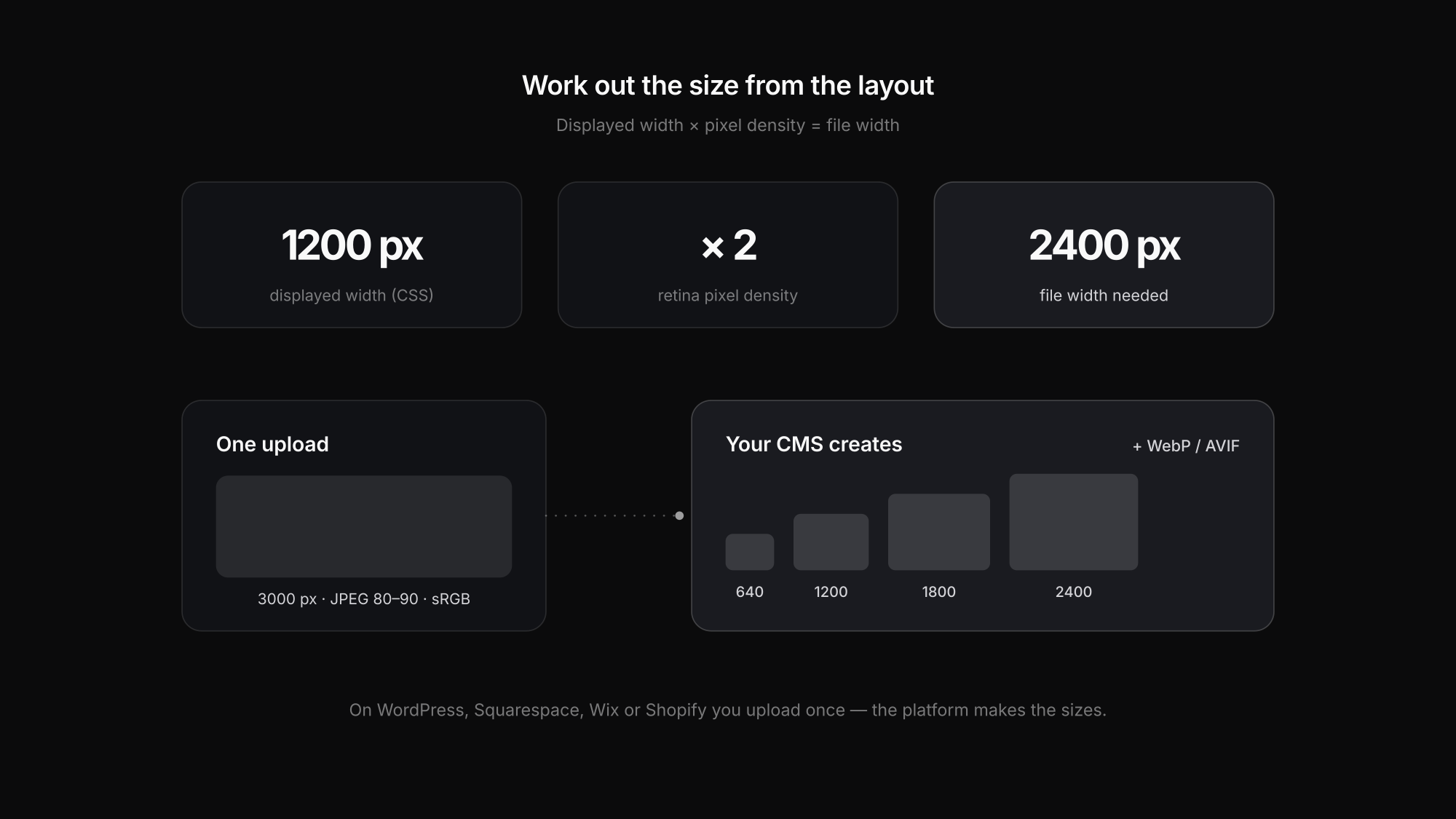
Websites measure layout in CSS pixels. Modern phones and laptops have two or three physical pixels per CSS pixel (the device pixel ratio). So the calculation is:
image width needed = displayed width in CSS pixels × device pixel ratio
| Where the image sits | Displayed width | Needed at 2× | Needed at 3× (phones) |
|---|---|---|---|
| Full-width hero on a laptop | 1440 px | 2880 px | — |
| Content column / blog image | 800 px | 1600 px | — |
| Two-column gallery tile | 600 px | 1200 px | — |
| Full-width on a phone | 390 px | 780 px | 1170 px |
That does not mean every image should be shipped at 2880 pixels. Websites can offer several sizes and let the browser pick — and most website builders do exactly that for you.
Let the browser choose: responsive images
The mechanism is called responsive images. The page lists several versions of an image with srcset, describes the displayed width with sizes, and the browser downloads the smallest file that still looks sharp on the current screen. MDN's guide to responsive images explains it in detail; in practice it looks like this:
<img
  src="portrait-1200.jpg"
  srcset="portrait-640.jpg 640w, portrait-1200.jpg 1200w, portrait-2400.jpg 2400w"
  sizes="(max-width: 800px) 100vw, 1200px"
  width="1200" height="800"
  alt="Portrait of a couple at sunset">
A phone then loads the 640-pixel file, a retina laptop the 2400-pixel one. Width and height attributes reserve the space, so the layout does not jump while images load.
What your website builder does with your upload
On most platforms, the file you upload is not the file visitors receive. The system creates several sizes and often modern formats from it.
| Platform | What happens | What it means for your export |
|---|---|---|
| WordPress | creates several image sizes and outputs srcset automatically; since 5.3 very large uploads are scaled down (historically to 2560 px, but themes and plugins can change this) | upload a high-quality file large enough for your biggest layout — no need to export every size yourself |
| Squarespace | serves responsive versions through its own image pipeline | upload a clean, high-resolution file, not one already squeezed by a web optimiser |
| Wix | scales and optimises images on its servers | do not add your own compression cascade before uploading |
| Shopify | its image CDN delivers resized variants; the theme decides how | upload a large original and check the theme's responsive output |
WordPress documents this in its responsive images reference, and has supported AVIF since version 6.5 if the server's image library can handle it. For the hosted platforms, check the current help pages: their internal compression settings change and are not reliably published.
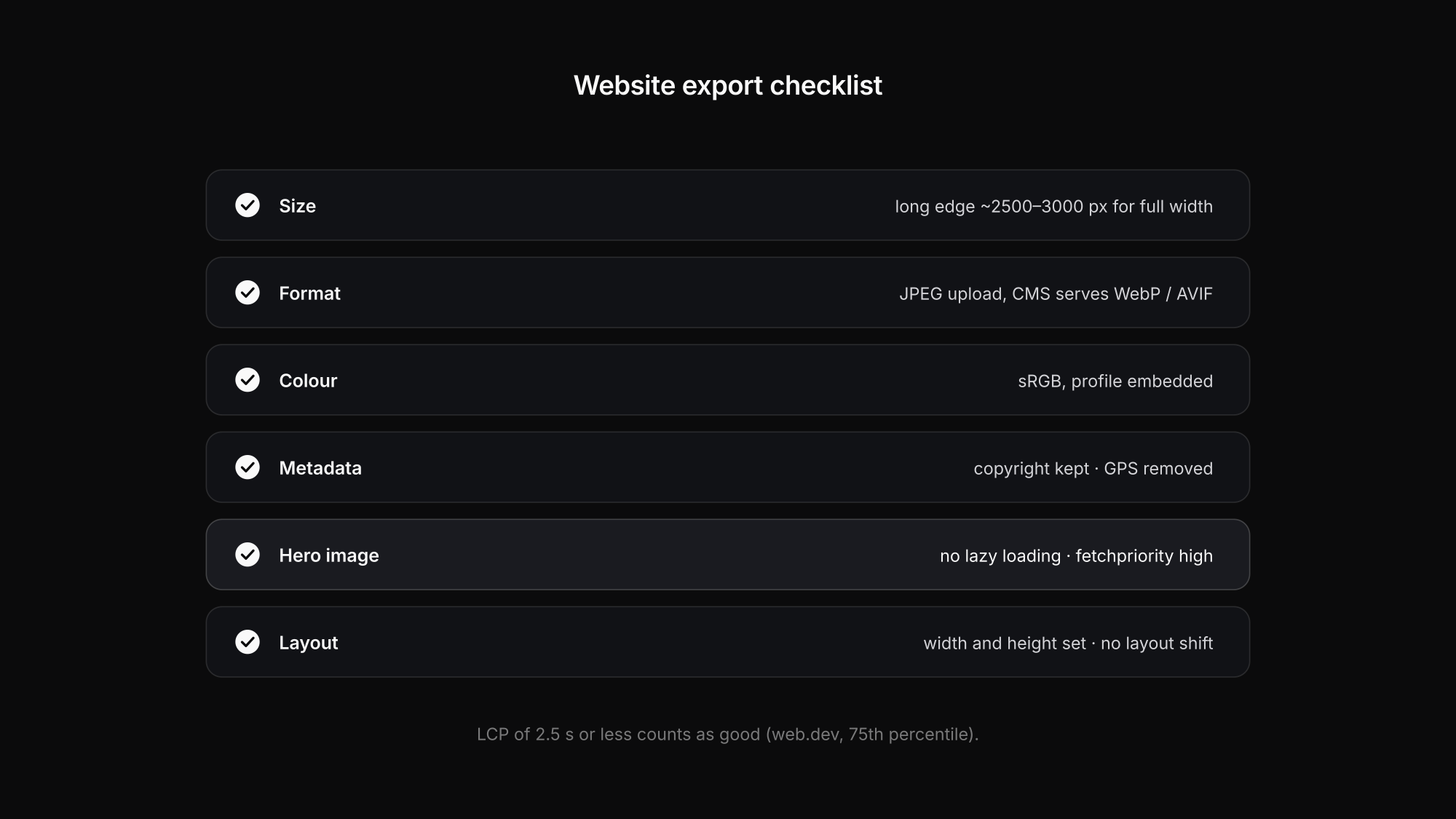
The practical consequence: on a CMS, export one high-quality file per image — around 2500–3000 pixels on the long edge for full-width use, JPEG quality 80–90, sRGB — and let the platform do the rest. Exporting to "1580 pixels at quality 73" before uploading is false precision when the system re-encodes it anyway.
Which format: JPEG, WebP or AVIF?
If you control the HTML yourself, serve AVIF or WebP with a JPEG fallback. Around 95 % of browsers support AVIF and around 97 % support WebP in 2026, and both usually produce smaller files at similar visual quality. If you use a CMS, it often converts for you. Our comparison of JPEG vs TIFF vs PNG vs WebP covers the formats in detail.
Why the biggest image decides your speed score
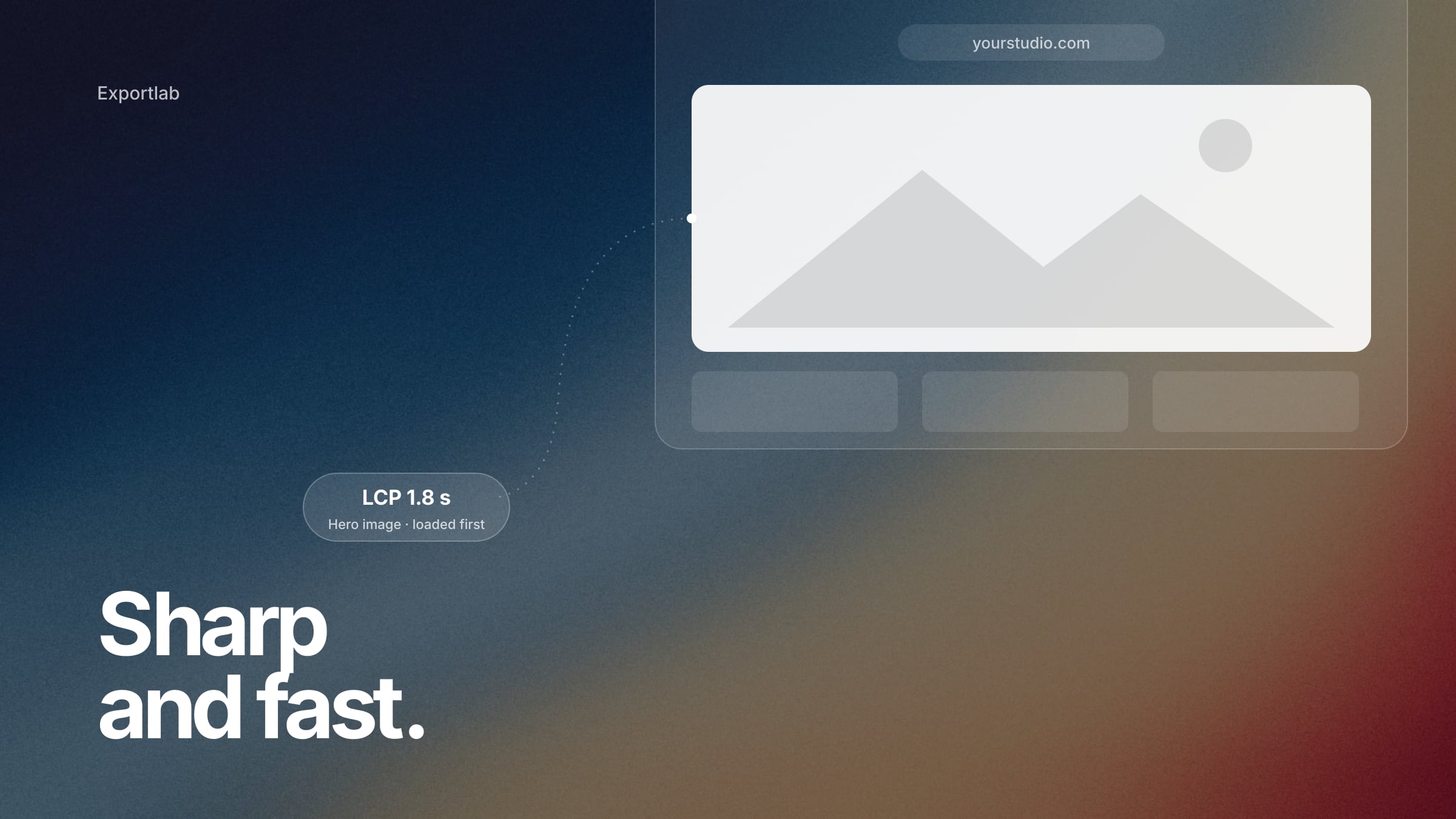
Google's Core Web Vitals measure, among other things, Largest Contentful Paint (LCP): how long it takes until the largest visible element has loaded. On a photographer's homepage that is almost always the hero image. According to web.dev, an LCP of 2.5 seconds or less counts as good, measured at the 75th percentile of visits.
Three rules matter more than any compression setting:
- Never lazy-load the hero image. Lazy loading is great for images further down the page; on the first visible image it delays LCP.
- Put the hero image in the HTML early — not as a background image added later by JavaScript or a slider script.
- Mark it as important with
fetchpriority="high"if your theme or builder lets you. It is a hint to the browser, not a guarantee.
Everything below the fold can use loading="lazy". And always give images width and height, so the page does not shift while they load.
Colour profile and metadata
- Colour: convert to sRGB and keep the sRGB profile embedded. Modern browsers can show wider colour spaces, but sRGB is the safe common ground — see sRGB vs Adobe RGB.
- Metadata: keep copyright and credit; remove GPS. Location data in a published photo can reveal a client's home. Lightroom's export can remove it, and our free EXIF remover does it for files you export elsewhere.
The web export preset
| Setting | Value |
|---|---|
| Format | JPEG (your CMS creates WebP/AVIF) |
| Quality | 80–90 |
| Colour space | sRGB, profile embedded |
| Size | long edge ~2500–3000 px for full-width, ~1600–2000 px for content images |
| Output sharpening | Screen, Standard |
| Metadata | copyright and contact; location removed |
It is one of the four presets in our guide to the best Lightroom export settings. Want to see how far you can compress a specific photo? Try our free image compressor. For the bigger picture — Google Business Profile, page structure, alt text — read SEO for photographers.
FAQ: image size for websites
What is the best image size for a website?
It depends on the displayed width: multiply it by 2 for high-density screens. For full-width images that means roughly 2500–3000 pixels on the long edge, for content images 1600–2000 pixels. On a CMS, upload one large version and let the platform create smaller ones.
How many KB should images on my website be?
There is no fixed limit. What matters is that the largest visible image loads quickly enough for an LCP under 2.5 seconds. Responsive images, modern formats and not lazy-loading the hero usually matter more than squeezing every file under a fixed KB number.
Should I upload JPEG or WebP to WordPress?
Upload a high-quality JPEG unless your workflow already produces WebP or AVIF. WordPress creates the smaller sizes itself and, depending on the server, can generate modern formats.
Conclusion
The best image size for a website is the displayed width times the screen's pixel density — and on most platforms you only need to upload one generous, high-quality version. Export in sRGB, strip GPS, let your CMS create the smaller sizes and modern formats, and give the hero image priority instead of lazy-loading it. Your portfolio stays sharp and fast.
Your website is the shop window; the client's full-resolution files belong in a gallery. Exportlab delivers them in original quality.