
JPEG Quality 100 vs 80 vs 60: Can You Actually See the Difference? (We Tested It)
Every export dialog has a JPEG quality slider, and every photographer has an opinion about it. "Always 100." "80 is plenty." "Anything below 90 ruins skin tones." Most of these opinions are never tested. So we tested one: JPEG quality 100 vs 80 vs 60 — plus 90 and 70 — on the same real photo, measuring file size and image error and looking at the pixels up close.
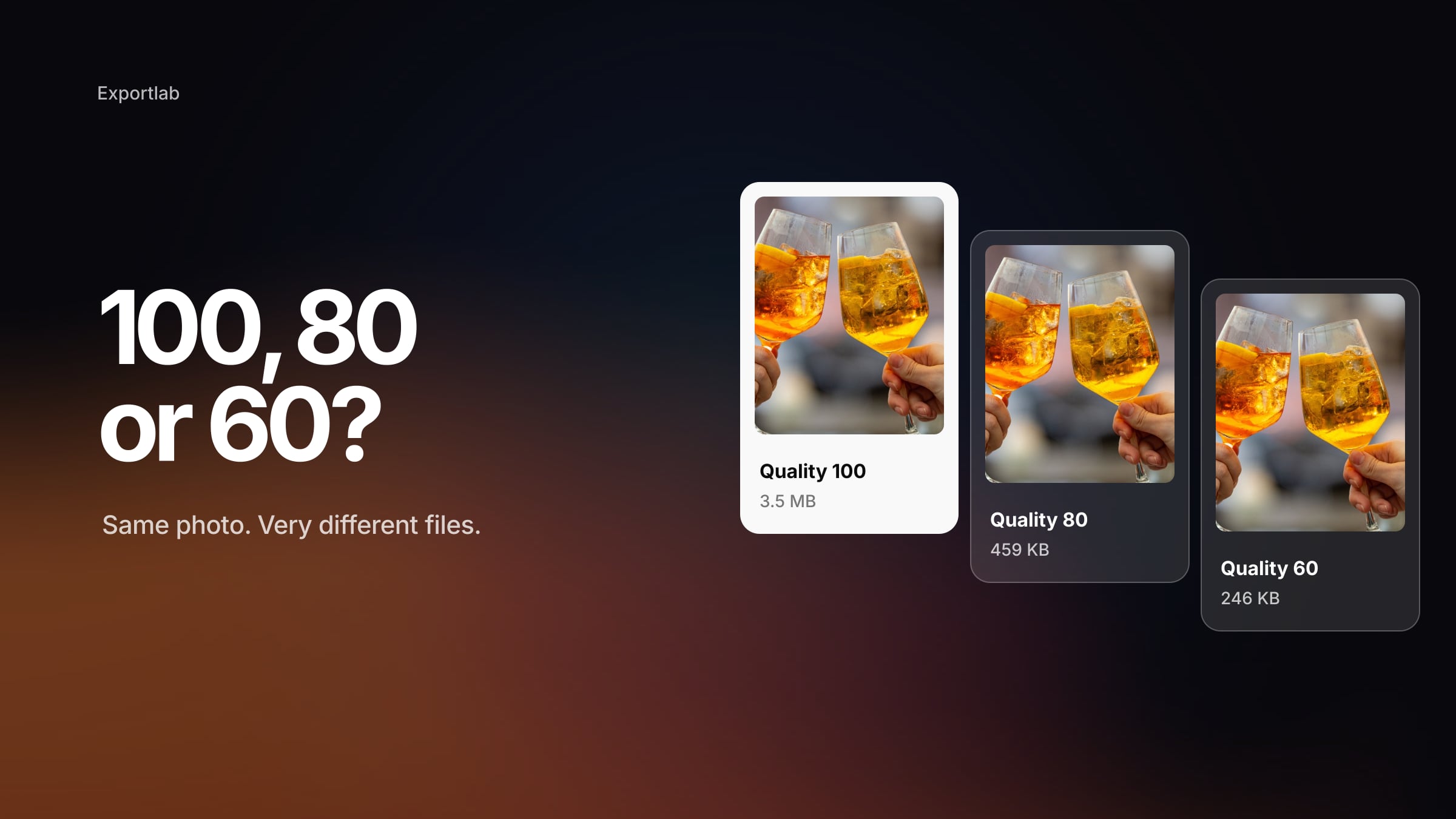
The short answer: on a normal screen at normal size, you will struggle to tell quality 60 from 100 in this photo. Zoom in to 400 % and the differences appear exactly where theory says they should. And the file size between 100 and 90 differs by a factor of four.
What the quality slider actually controls
A JPEG encoder splits the image into small blocks, converts each into frequency components and then quantises them — stores fine detail more coarsely or drops it. That quantisation is the irreversible step, and the quality slider controls how aggressive it is.
Three facts that most export advice gets wrong:
- There is no standard 0–100 scale. Quality 80 in Lightroom, Photoshop, a website builder and a command-line tool do not produce the same file. Each encoder maps the number to its own quantisation tables.
- Quality 100 is not lossless. It is the least lossy setting. JPEG at 100 still rounds and quantises.
- Chroma subsampling is a separate setting. Many encoders store colour at lower resolution than brightness (4:2:0) to save space. That is a different decision from the quality value, even if some programs tie the two together.
The test setup
To make the comparison fair, everything except the quality setting stayed the same:
| Photo | a 24-megapixel camera photo: two glasses, ice, bokeh, hands |
| Size | scaled to 1600 × 2400 px — a typical delivery size for web and screen |
| Reference | the scaled image saved losslessly as PNG (8.7 MB) |
| Encoder | libvips via sharp, standard JPEG settings, chroma subsampling 4:4:4 for the quality ladder |
| Colour | sRGB, no output sharpening, no metadata |
| Measured | file size, and PSNR — the average pixel error against the reference (higher = closer) |
One honest limitation: this is not Lightroom's encoder. The absolute numbers will differ in Lightroom, Capture One or your CMS. The pattern — how size and visible quality change along the slider — is what carries over.
The results
| Quality | File size | vs quality 100 | PSNR |
|---|---|---|---|
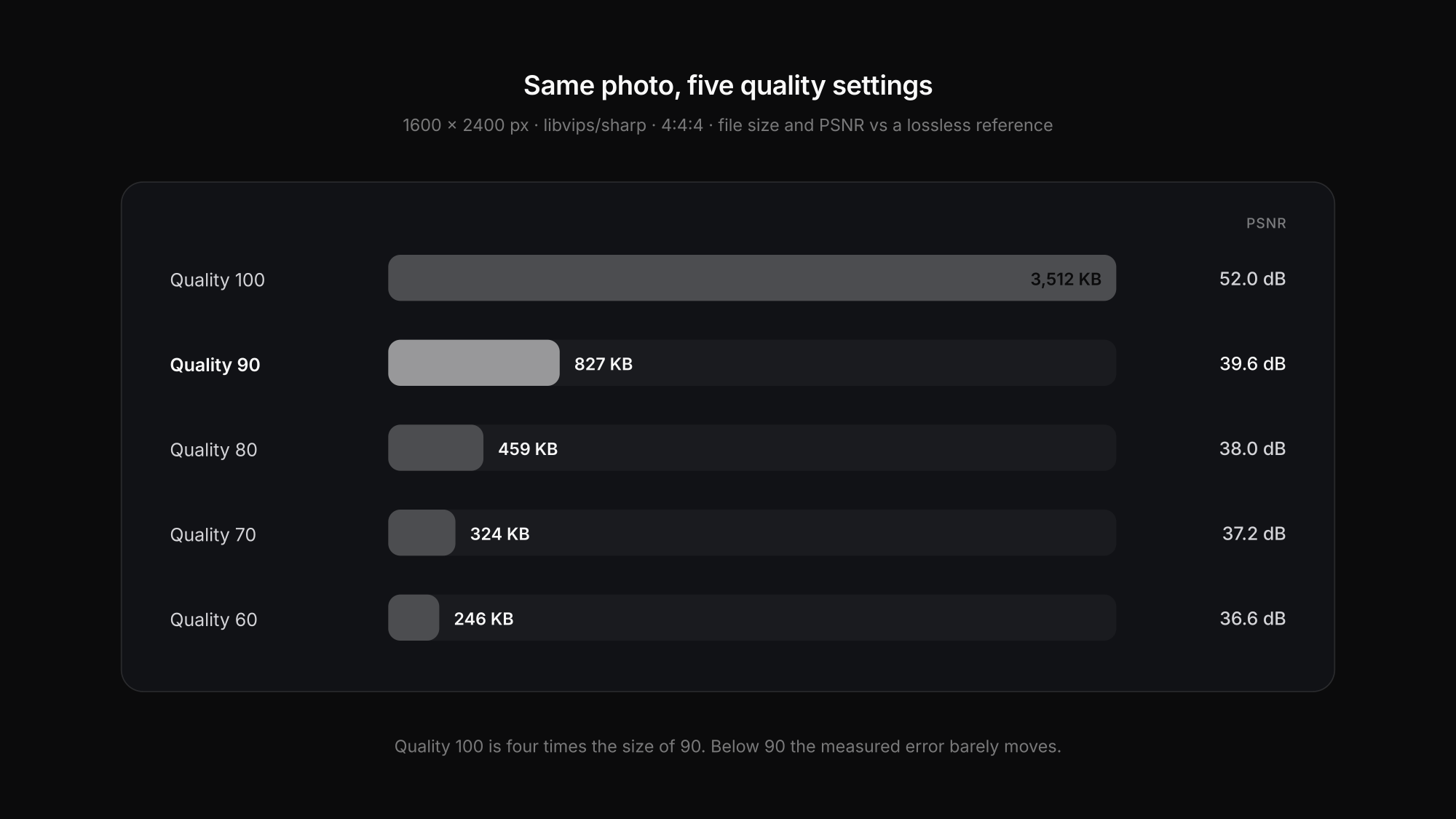
| 100 | 3,512 KB | — | 52.0 dB |
| 90 | 827 KB | −76 % | 39.6 dB |
| 80 | 459 KB | −87 % | 38.0 dB |
| 70 | 324 KB | −91 % | 37.2 dB |
| 60 | 246 KB | −93 % | 36.6 dB |
Two things stand out:
- The jump from 100 to 90 is enormous. Quality 100 is more than four times the size of quality 90. Below 90, each step of ten saves less — about 45 % from 90 to 80, and roughly the same again from 80 to 60.
- The measured error barely moves below 90. PSNR falls from 39.6 to 36.6 dB between 90 and 60 — a small change compared with the drop from 100 to 90. Most of what quality 100 keeps is fine noise and grain, not visible detail.
What you can actually see
At normal viewing size — the whole photo on a laptop or phone — we could not reliably tell 60 from 100. So we looked closer.
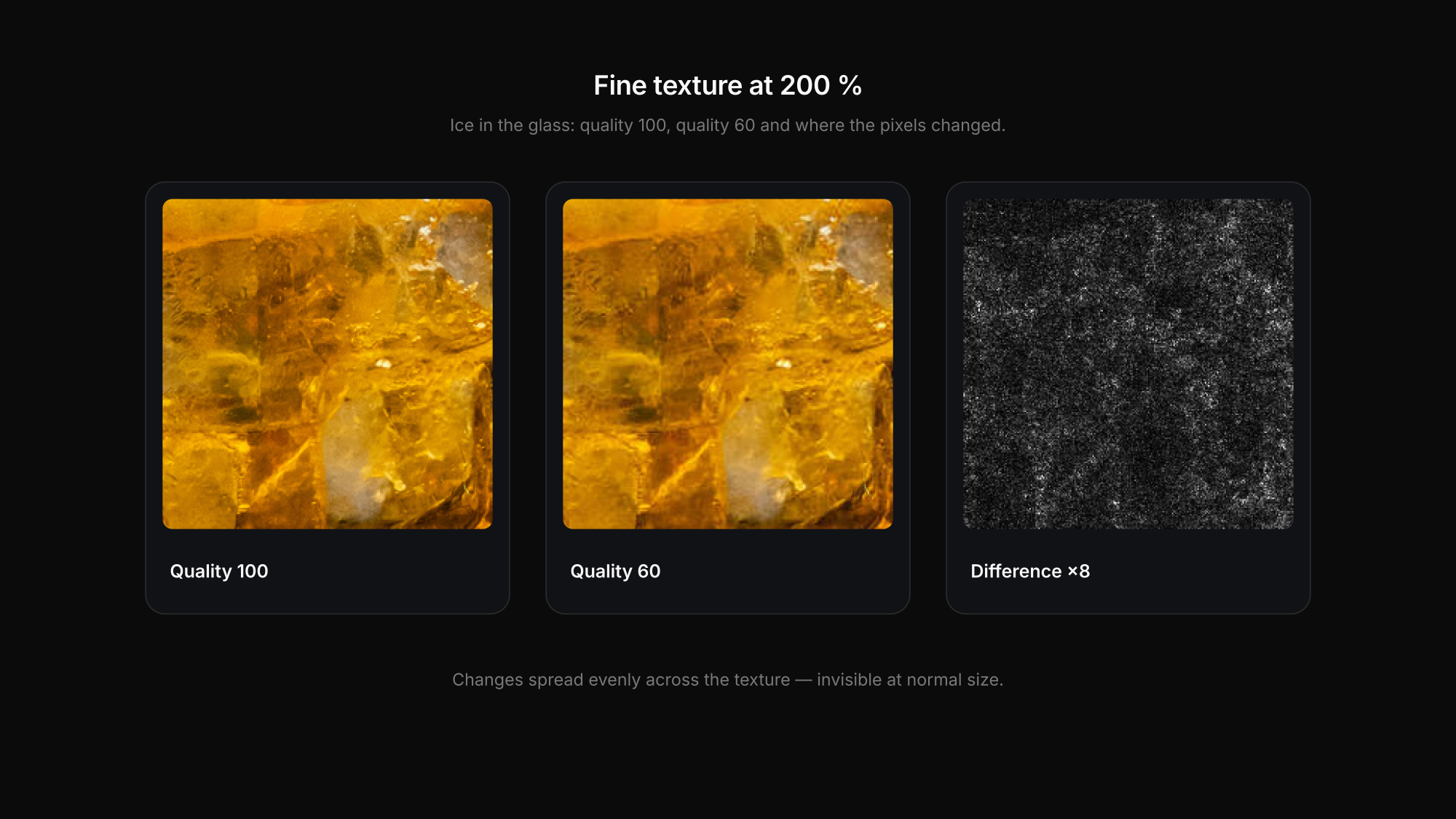
Fine texture (ice in the glass, 200 %): quality 100, 80 and 60 look almost identical. Only a difference image, amplified eight times, shows where quality 60 changed pixels — spread evenly across the texture, without a visible pattern in the photo itself.
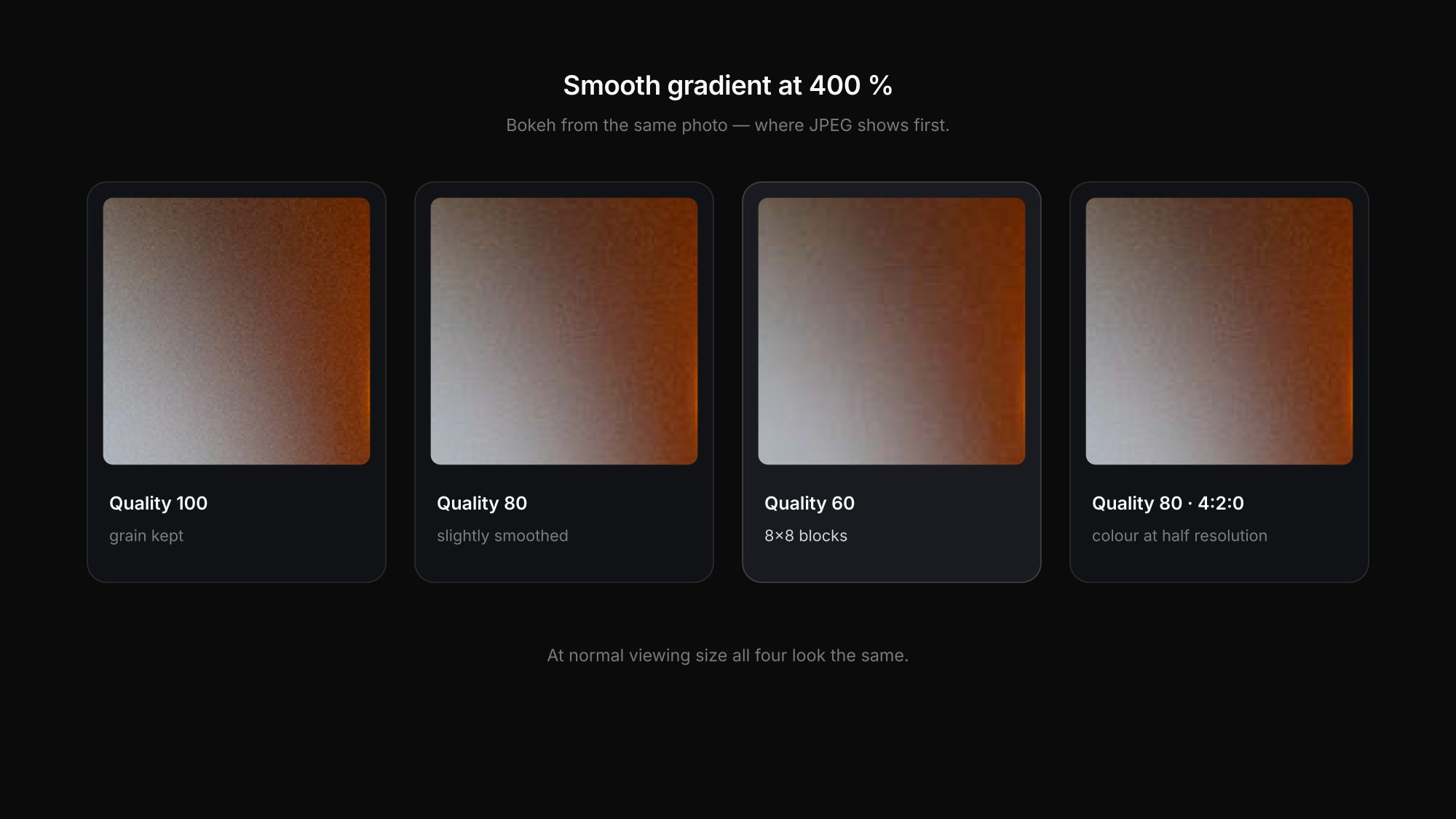
Smooth gradient (bokeh, 400 %): this is where JPEG shows its hand. Quality 100 keeps the sensor's fine grain. Quality 80 smooths it slightly. Quality 60 shows the typical 8 × 8 blocks in the gradient. Smooth skies, studio backdrops and out-of-focus backgrounds are therefore where low quality settings show first.
Two settings that matter as much as quality
At the same quality 80, two other choices changed the file size noticeably:
| Variant at quality 80 | File size | PSNR |
|---|---|---|
| 4:4:4 (full colour resolution) | 459 KB | 38.0 dB |
| 4:2:0 (colour at reduced resolution) | 388 KB | 37.2 dB |
| 4:4:4 with MozJPEG optimisations | 343 KB | 37.7 dB |
Chroma subsampling saved 15 % here. In photos it is hard to see; on sharp coloured edges and text it shows earlier. The encoder matters even more: MozJPEG's extra techniques produced a 25 % smaller file at almost the same error. The libjpeg-turbo project reports an average of around 8 % for these techniques on its own test set — the exact saving depends on the image. The lesson: "quality 80" from two programs is not the same file.
What about Lightroom's quality slider?
Adobe does not publish how Lightroom maps its 0–100 slider internally. A widely cited independent analysis by Jeffrey Friedl found that Lightroom only uses 13 effective levels — for example, everything from 77 to 84 produced identical files, as did 85 to 92 and 93 to 100. That analysis dates from 2010; Adobe has never confirmed it, so treat it as a likely pattern rather than a guarantee for today's version. If you want to know, export the same image at 80 and 84 and compare the file sizes.
Which quality to use
| Destination | Quality | Why |
|---|---|---|
| Website and portfolio | 75–85 | small files, fast pages; your CMS often recompresses anyway — see the best image size for your website |
| 80–90 | enough detail before Instagram compresses again — see why Instagram makes photos blurry | |
| Client full resolution | 90–100 | clients print and crop; 90 is usually indistinguishable from 100 at a quarter of the size |
| Print lab | 100, or what the lab specifies | no reason to save bytes on a print file |
| Archive | not JPEG | keep the RAW — see JPEG vs TIFF vs PNG vs WebP |
All four export presets are in the best Lightroom export settings.
Run the test on your own photos
Pick one image with a smooth gradient and fine texture. Export it at quality 100, 90, 80, 70 and 60 at the same pixel size, colour space and sharpening. Compare first at the size people will actually see it, then at 100–400 % in the spots that matter: skies, skin, backgrounds. Our free image compressor lets you try different compression levels in the browser.
FAQ: JPEG quality
Is JPEG quality 100 lossless?
No. Quality 100 is the least lossy JPEG setting, but it still quantises the image. In our test it was more than four times larger than quality 90 while looking the same at normal size.
Is there a visible difference between JPEG quality 80 and 100?
At normal viewing size, usually not. At 400 % magnification, quality 80 smooths fine grain in smooth gradients slightly. Quality 60 shows blocks in gradients at high magnification.
What JPEG quality should I export for clients?
90–100 for full-resolution client files. Quality 90 is typically indistinguishable from 100 and a fraction of the size; use 100 for print files if the lab expects it.
Why are my JPEGs different sizes at the same quality setting?
Because file size depends on the content — noise, detail, smooth areas — and on the encoder. The same quality value in two programs can produce different files, and chroma subsampling changes the size too.
Conclusion
JPEG quality 100 vs 80 vs 60 is less dramatic than the forums suggest. In our test, quality 100 was four times the size of 90 for no visible gain at normal size; 80 and 60 differed mainly in smooth gradients at high magnification. Use 75–85 for the web, 80–90 for Instagram, 90–100 for clients and print — and remember that the encoder and chroma subsampling matter as much as the number.
Delivering full-resolution files? Start with Exportlab — your exports reach clients in original quality, without another round of compression.