
How to Export Photos for Print Without Losing Quality (Lightroom Print Export Settings)
Most advice on Lightroom export settings for print gives you a preset: TIFF, Adobe RGB, 300 dpi, done. It works sometimes. More often it produces files the lab converts anyway, colours that shift on the way, or prints that come back darker than the screen promised.
There is no universal print preset, because the right file depends on the lab's machine and paper. What there is, is a reliable process: ask five questions, export to the answers, check with soft proofing, and sharpen for the paper. This guide walks through it.
First: five questions for your lab
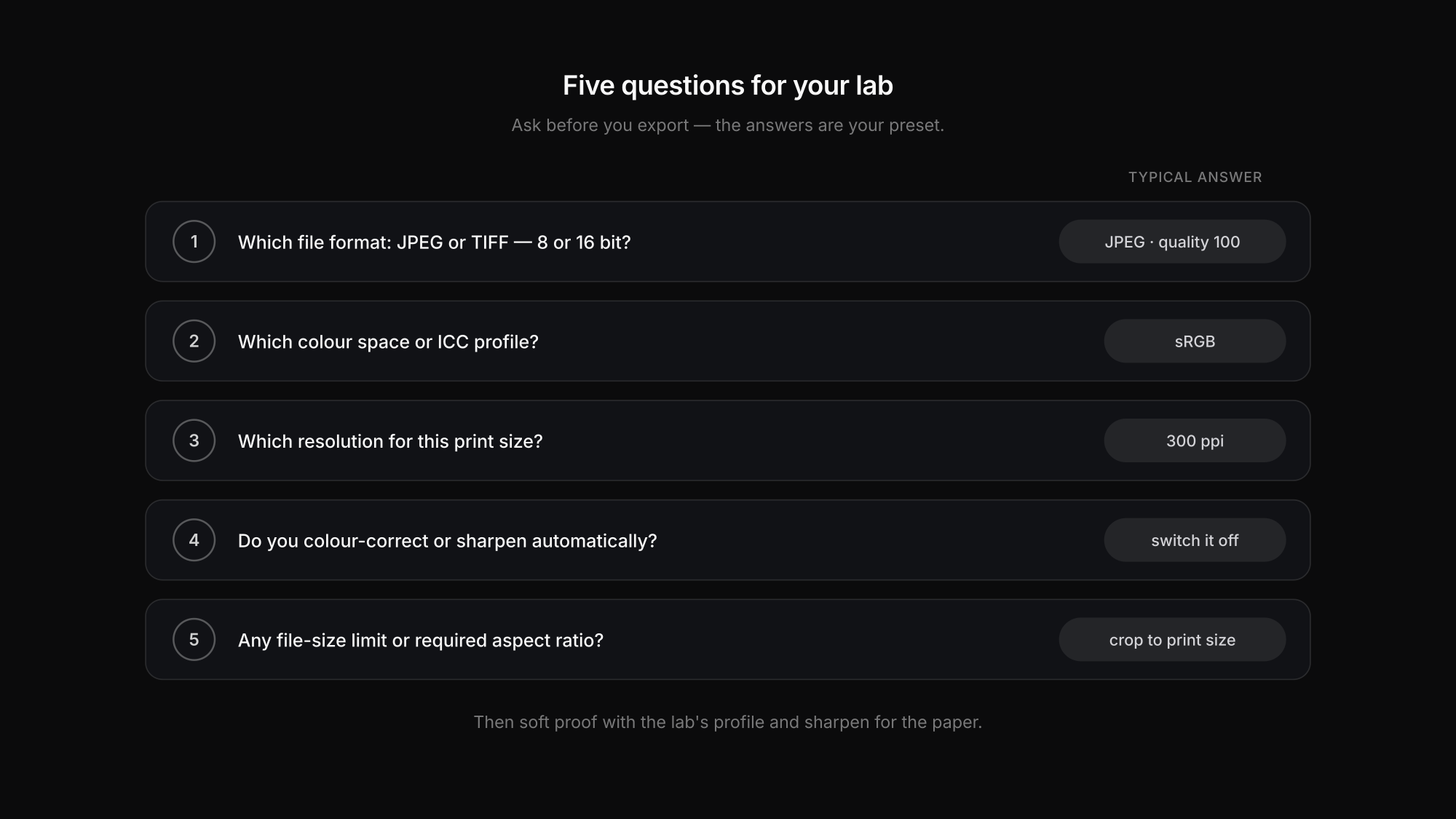
Before you touch the export dialog, find the lab's file specifications. Most publish them; if not, ask:
- Which file format do you accept? JPEG only, or TIFF too — and if TIFF, 8 or 16 bit?
- Which colour space or ICC profile? sRGB, Adobe RGB, or a specific printer/paper profile for soft proofing?
- Which resolution or pixel dimensions for the print size I am ordering?
- Do you colour-correct or sharpen automatically? And can I switch it off?
- Is there a maximum file size or a required crop/aspect ratio?
The answers decide every setting below. Adobe's own guidance for Lightroom Classic says the same for lab and offset output: check your print service's requirements.
Lab or your own printer?
| Photo lab | Your own inkjet printer | |
|---|---|---|
| File format | what the lab specifies — usually JPEG, sometimes TIFF | not relevant: you print from Lightroom's Print module |
| Colour | usually sRGB; some pro labs Adobe RGB or their own profile | the ICC profile for your printer and paper |
| Resolution | lab's specification, often 300 ppi at print size | Lightroom handles it; roughly 180–480 ppi is useful for inkjet according to Adobe |
| Soft proofing | with the lab's profile, if they provide one | with your printer/paper profile |
| Output sharpening | Matte or Glossy, unless the lab sharpens | Matte or Glossy in the Print module |
The export settings, step by step
File format: JPEG or TIFF?
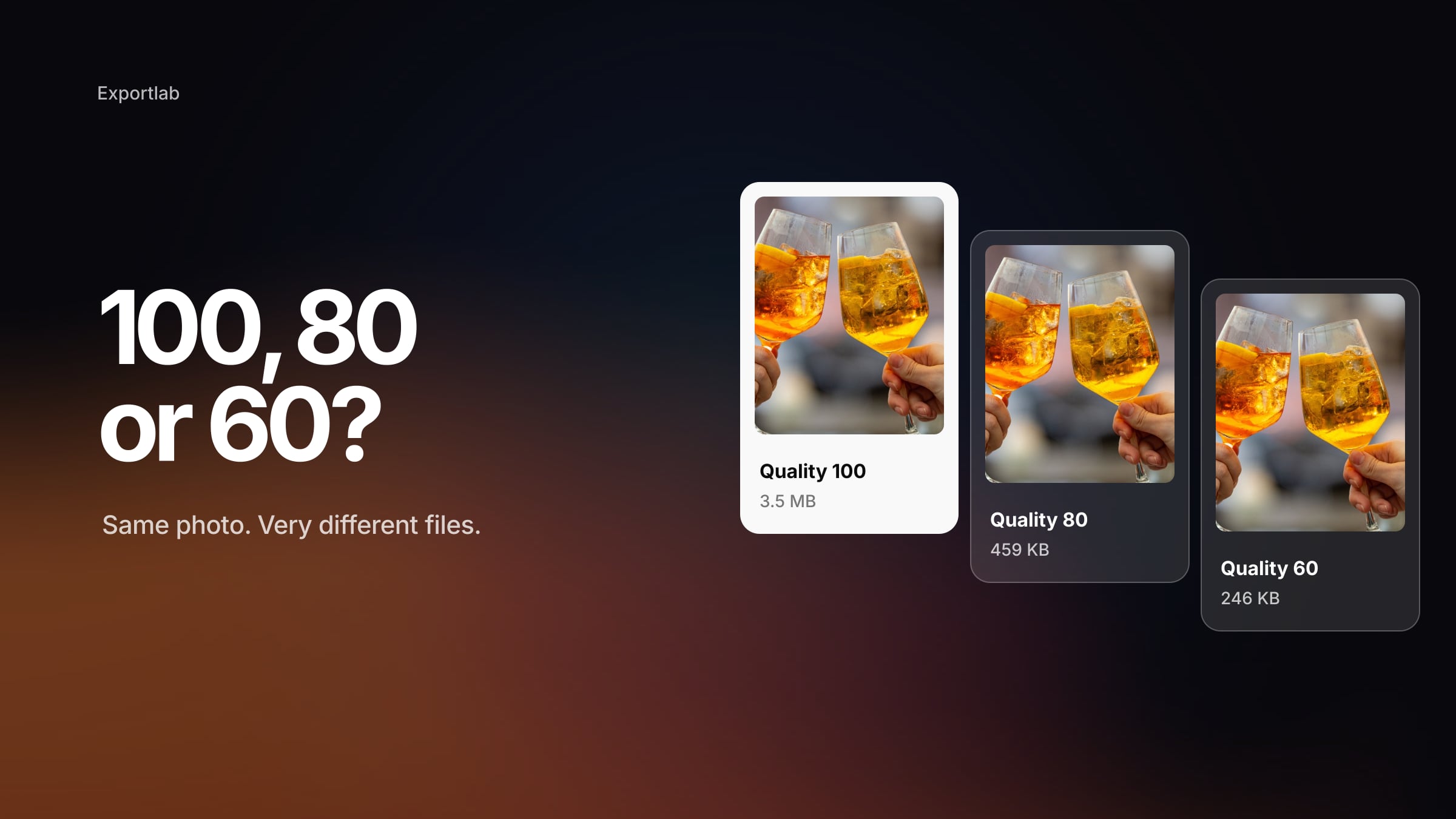
Send what the lab asks for. A JPEG at quality 100 is a perfectly professional print file — "JPEG is unsuitable for prints" is a myth. A 16-bit TIFF makes sense when the lab accepts it and you have done heavy tonal work, because it avoids an extra round of compression. Our comparison of JPEG vs TIFF vs PNG vs WebP explains the trade-offs.
Colour space
Most consumer and many professional labs expect sRGB and convert everything else — sometimes badly. Export Adobe RGB only when the lab explicitly asks for it. If the lab provides an ICC profile, use it for soft proofing in Lightroom; export the final file in the colour space the lab names. The reasoning is in sRGB vs Adobe RGB.
Resolution and size
Print size in inches is pixels ÷ ppi. A 6000 × 4000 pixel file gives 20 × 13.3 inches at 300 ppi without any resampling. If the lab asks for exact pixel dimensions, export them; otherwise do not resize and set the resolution field to the lab's value. Why 300 is a reference and not a law is explained in DPI vs PPI.
Output sharpening
Prints need more sharpening than screens, and matte paper more than glossy. In Lightroom's export, choose Sharpen For: Matte Paper or Glossy Paper, amount Standard as a starting point. According to Adobe's export documentation, output sharpening is applied in addition to Develop sharpening and adapts to medium and resolution. If the lab sharpens automatically, turn yours down or ask them to switch theirs off — double sharpening produces halos.
Why prints come back too dark
It is the most common complaint, and the file is rarely to blame. A screen is lit from behind; paper only reflects light. If you edit on a monitor at full brightness, your images look brighter on screen than any print can. Two fixes help:
- Calibrate and turn down your monitor to a brightness closer to a print viewed under normal room light. A hardware calibrator is the reliable way.
- Order one test print before a large run, compare it with your screen in good light, and adjust the edit — not the lab.
Glossy paper also shows deeper blacks than matte paper. Soft proofing with the right paper profile previews much of this difference before you order.
The print export preset
| Setting | Value |
|---|---|
| Format | as specified by the lab — JPEG quality 100, or 16-bit TIFF if accepted |
| Colour space | sRGB unless the lab names another; soft proof with the lab profile |
| Resize | none, unless the lab requires exact pixel dimensions |
| Resolution | lab's value, often 300 ppi |
| Output sharpening | Matte or Glossy Paper, Standard (less if the lab sharpens) |
| Metadata | as needed; remove location for client work |
It is one of four presets in our guide to the best Lightroom export settings.
When clients print themselves
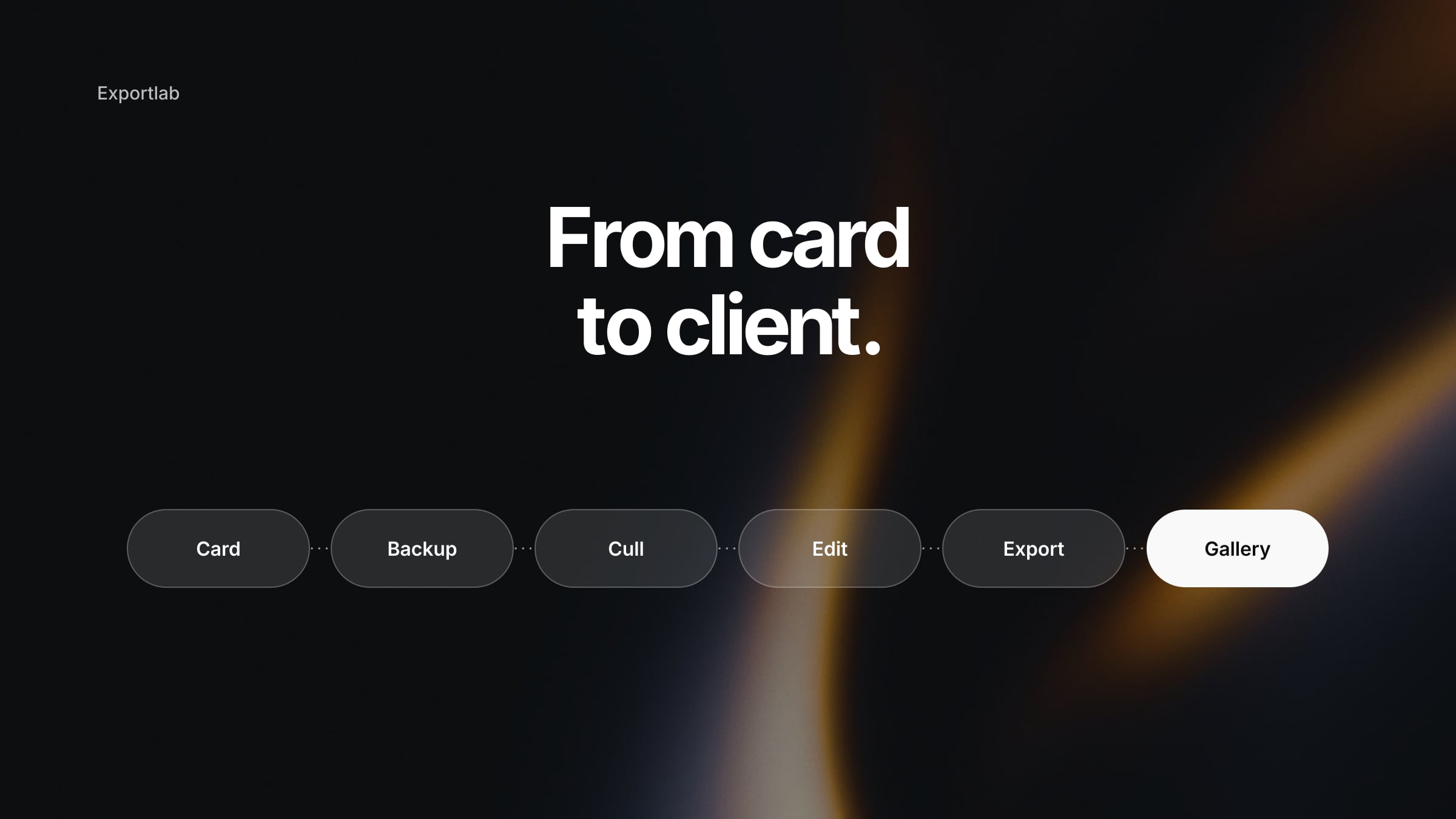
Many clients order their own prints from the files you deliver. Give them full-resolution JPEGs in sRGB — the format every print shop accepts — and avoid strong output sharpening on those files, since you do not know the paper or size. With Exportlab, clients download full-resolution files from their gallery, and you decide per gallery whether they get web-size or full-size downloads. More in our guide to delivering photos to clients.
FAQ: exporting photos for print
What are the best Lightroom export settings for print?
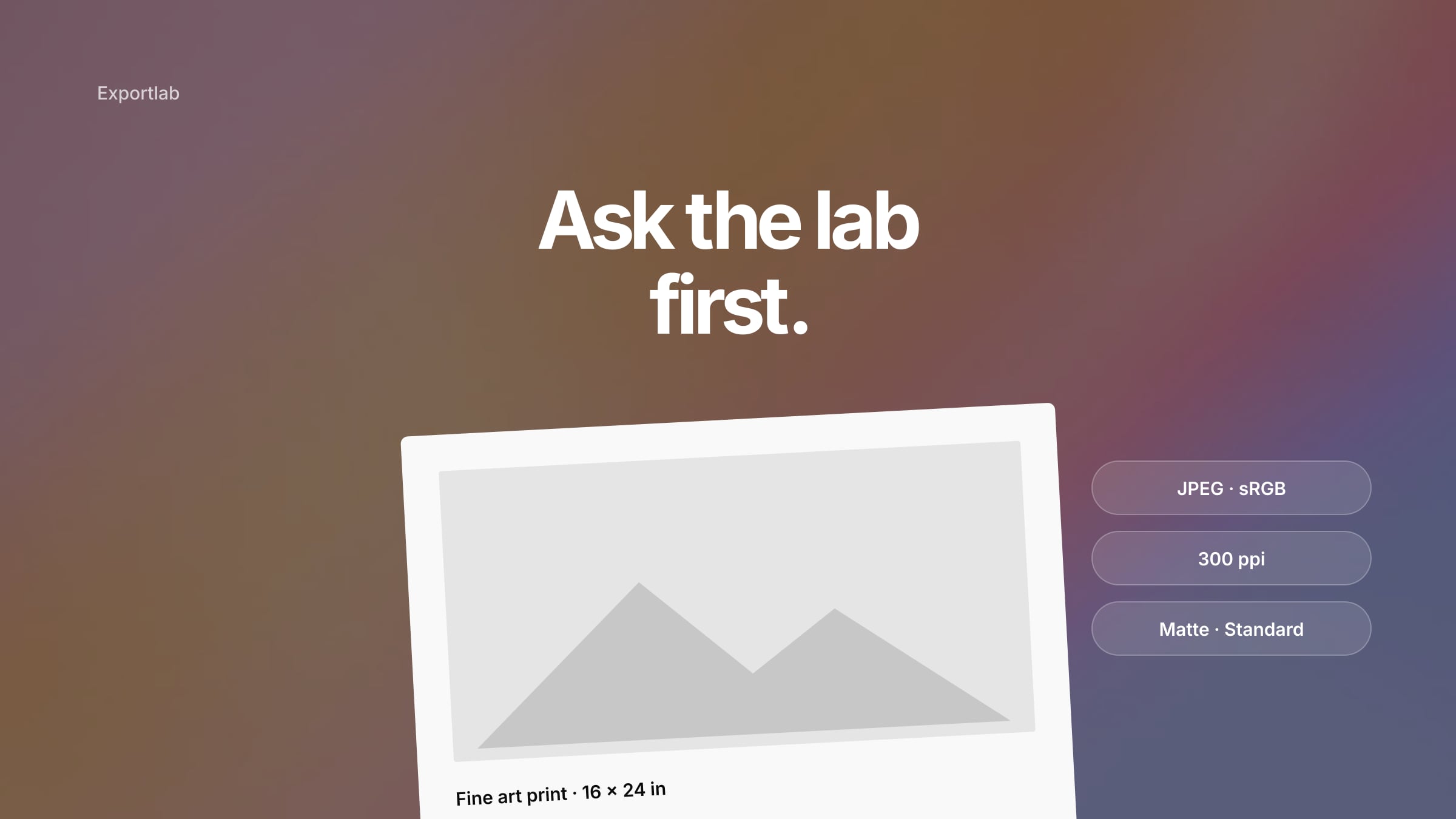
There is no universal preset. Start with the lab's specification: typically JPEG at quality 100 in sRGB, no resizing, resolution set to the lab's value (often 300 ppi) and output sharpening for Matte or Glossy Paper at Standard. Use 16-bit TIFF or Adobe RGB only when the lab asks for it.
Should I export JPEG or TIFF for printing?
Whatever the lab accepts. A maximum-quality JPEG prints excellently; a 16-bit TIFF can help after heavy editing if the lab accepts it. TIFF is not automatically better.
Why do my prints look darker than on screen?
Because a monitor is backlit and usually too bright for print editing, while paper only reflects light. Calibrate and dim your monitor, use soft proofing and order a test print before a large run.
Conclusion
The right Lightroom print export settings come from the lab, not from a forum: ask about format, colour space, resolution, sharpening and file limits, export exactly to that, soft proof with the right profile, and sharpen for the paper. Calibrate your monitor once and your prints stop coming back darker than your screen.
Delivering the files your clients will print? Start with Exportlab and hand them over in original quality.