

How to Send Large Files: Every Method Compared
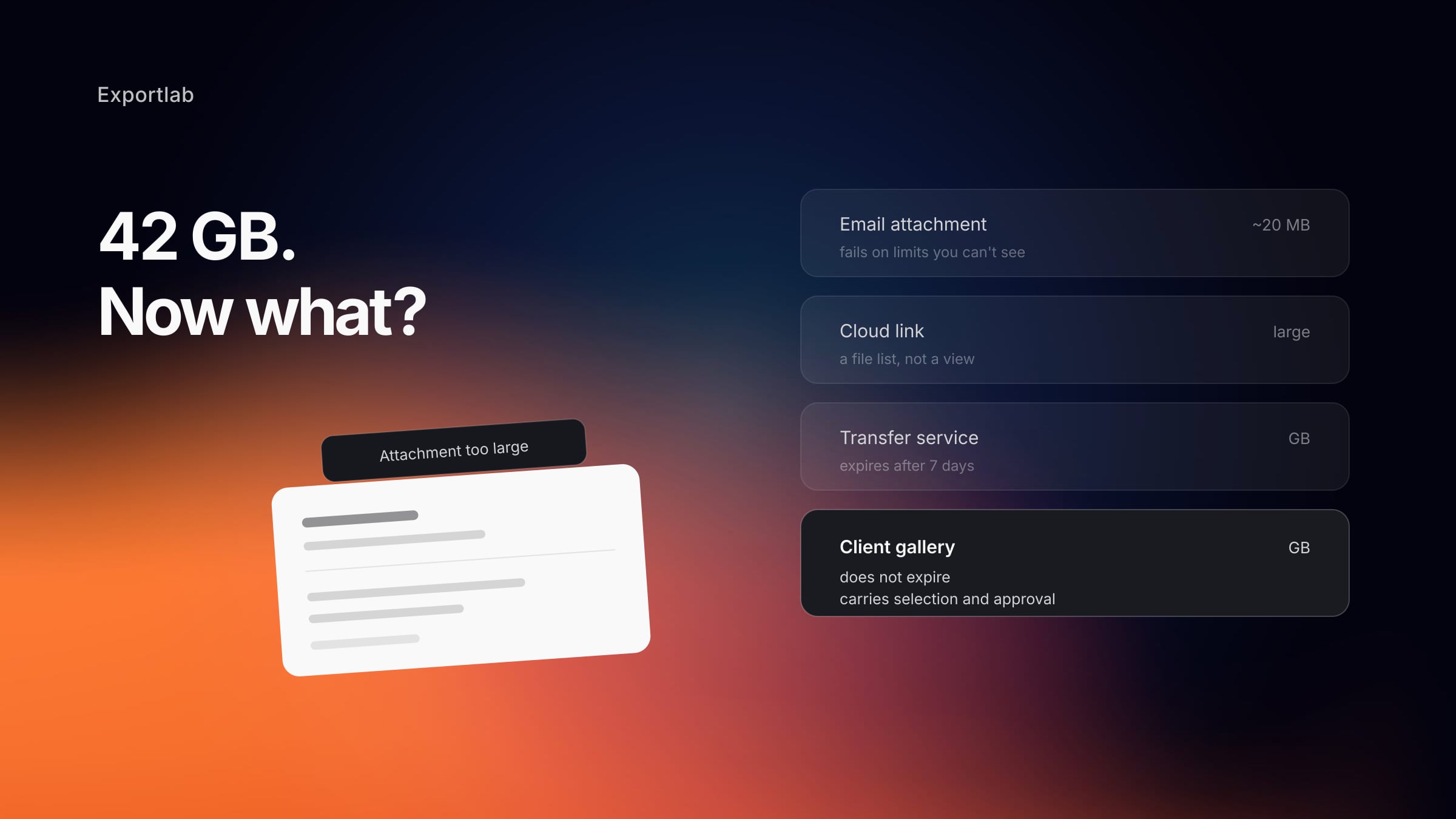
Knowing how to send large files sounds like a solved problem — until the email bounces because the attachment is too big, the link expires after seven days, or the client is asked to download 40 GB over hotel wifi.
This article covers why email fails on large attachments, what the real limits are, and which method fits which situation. The short version up front: the decision depends less on file size than on what is supposed to happen after the download.
Why email fails on large files
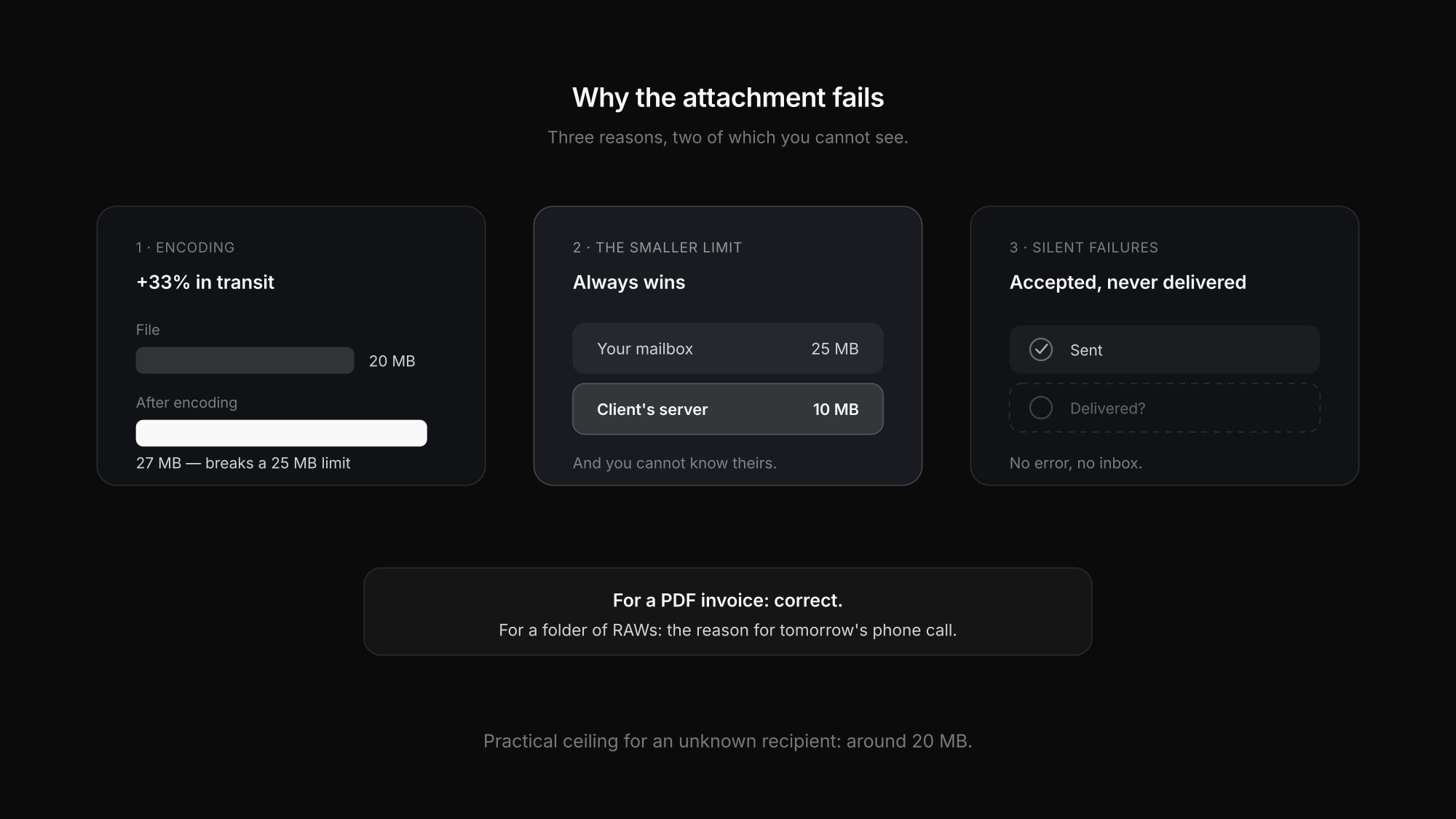
The attachment is the obvious route and the least reliable one. Three reasons:
- Hard limits on both ends. Gmail allows 25 MB, Outlook.com 20 MB, many corporate servers considerably less. What counts is always the smaller limit of sender and recipient — and you do not know theirs in advance.
- Encoding inflates the file. Attachments are encoded as text and grow by roughly a third in the process. A 20 MB file arrives as about 27 MB, which breaks a 25 MB limit.
- Silent failures. Some servers accept the message and never deliver it. The sender sees no error, the recipient sees nothing in their inbox.
For a single PDF invoice, the attachment is right. For a folder of RAW files it is the reason you get a phone call the next day.
The methods compared
| Method | Practical size | Recipient needs | Expires | Carries the next step |
|---|---|---|---|---|
| Email attachment | up to ~20 MB | nothing | no | no |
| Cloud link (Drive, Dropbox) | very large | often an account | no | no |
| Transfer service (WeTransfer etc.) | gigabytes | nothing | usually 7 days | no |
| Client gallery | gigabytes | nothing | no | yes |
| External drive / USB | anything | a handover | no | no |
Cloud link
Technically fine and often already paid for. Two catches: the recipient lands in a file listing rather than a view, and with corporate clients access regularly fails on sharing settings or a demand to sign in. Setting the link to "anyone with the link" solves that and leaves an unprotected archive on the internet — particularly when the folder holds more than the one job.
Transfer service
The fastest route for a one-off handover. The expiry date is both feature and flaw: it keeps the service cheap, and it generates the "could you send that link again?" message in month four. That message always arrives while you are on a shoot.
Physical handover
Underrated. For 2 TB of rushes, a drive by courier beats any connection — the arithmetic is simple: 2 TB over a 50 Mbit line takes roughly four days. What you give up is delivery confirmation and a second copy if the drive dies in transit.
What helps before you send anything
Before picking a method, look at the volume itself:
- Cull. The cheapest way to speed up a transfer is to transfer less. Three hundred rejected frames do not need to travel.
- Pick the right format. For the client to review, web resolution is usually enough; originals only when they are genuinely needed. For video the codec drives a multiple of the size — more on that in video export settings.
- Do not split into multi-part archives. Split ZIPs (".z01, .z02…") reliably fail because one part is missing or the recipient cannot open the format.
- Do not double-compress. JPEGs and H.264 video are already compressed; a ZIP around them saves almost nothing and costs the client a step.
The thing every method has in common
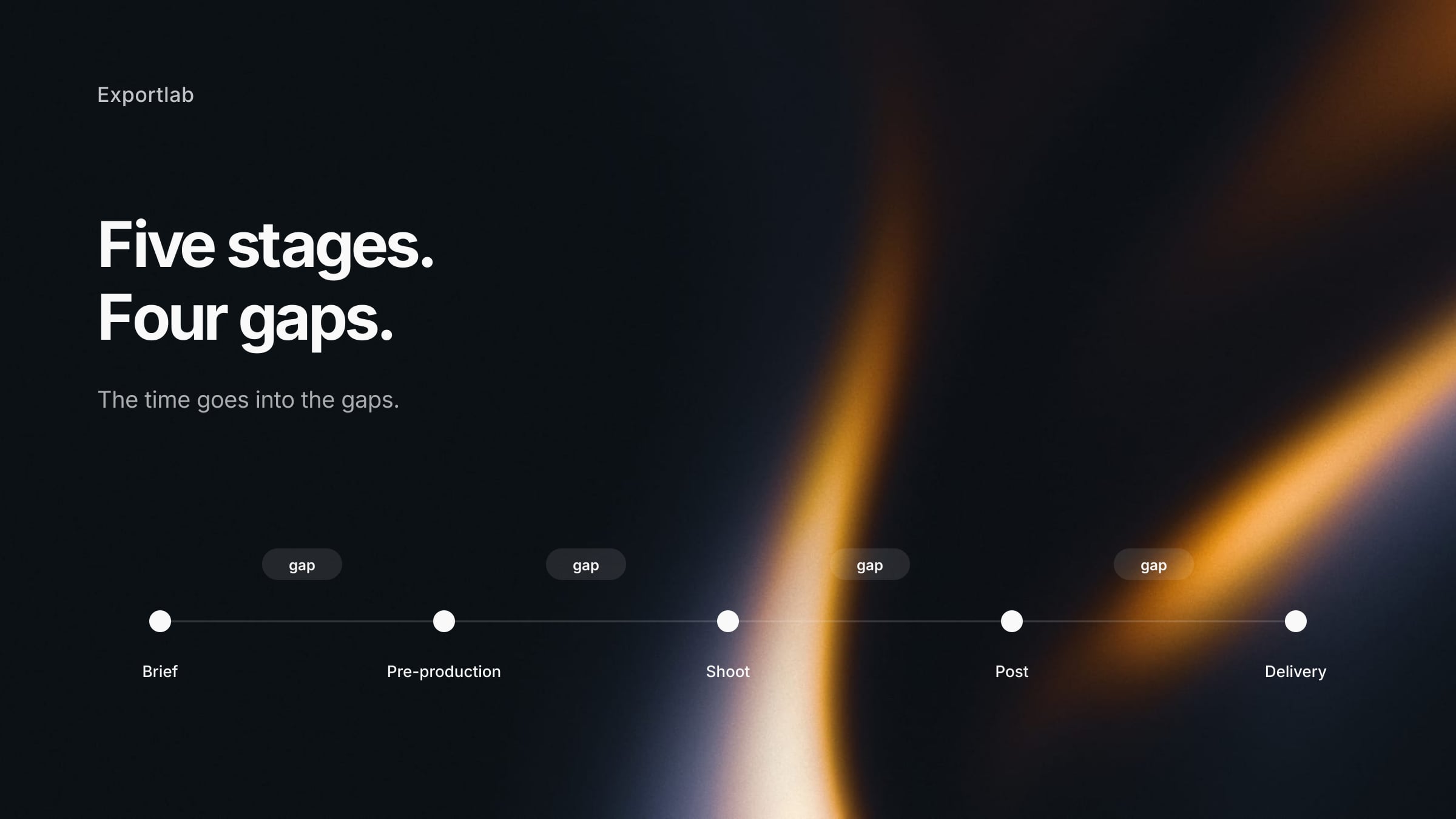
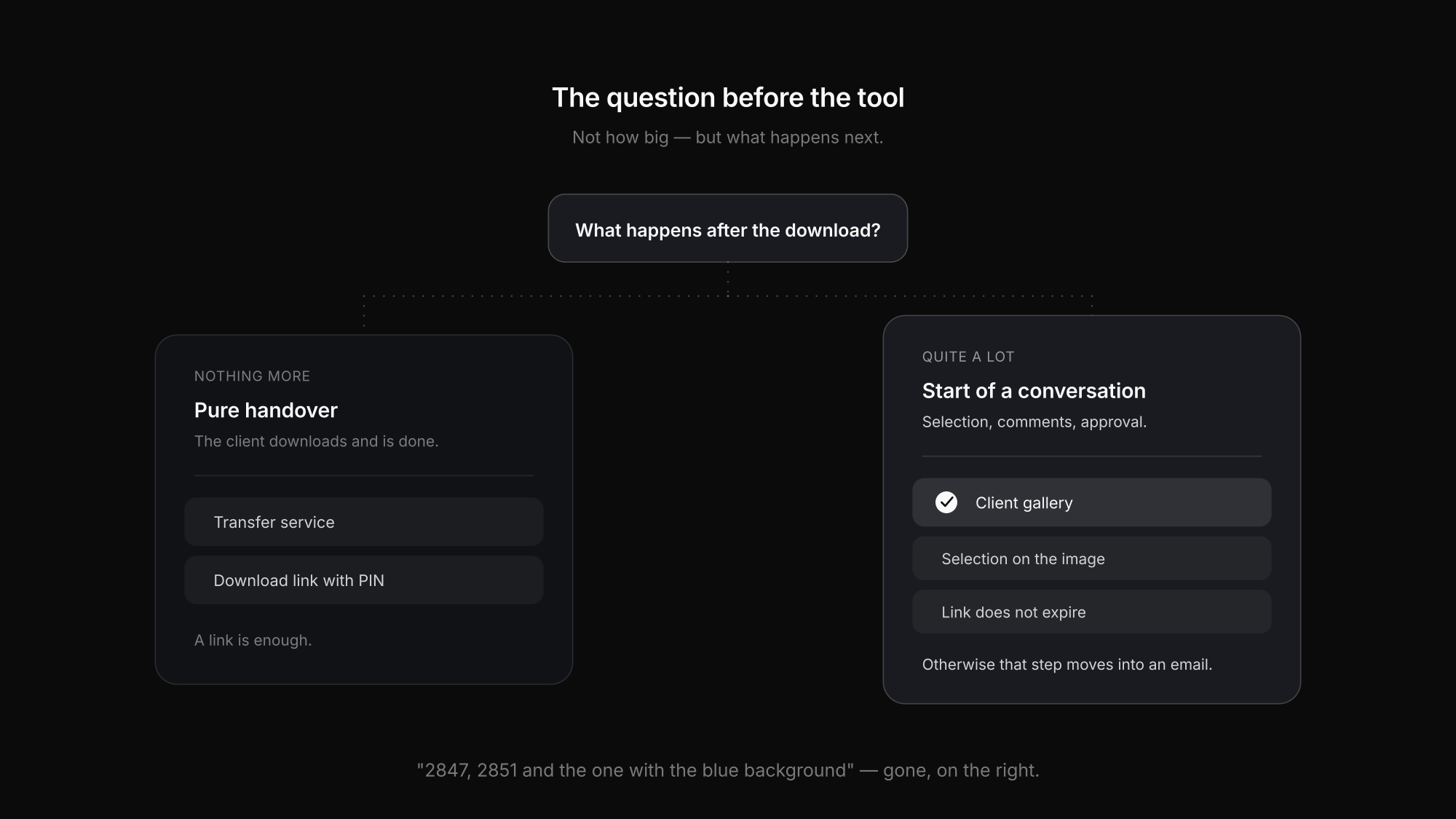
All the methods above solve the same task: moving data from A to B. None of them solves what comes next.
After the handover there is almost always another step — a selection, a round of feedback, an approval. When the transfer does not carry that, the step moves into an email. And there it reads: "2847, 2851 and the one with the blue background, please."
So the question worth asking before choosing a tool is: is this a pure handover, or the start of a conversation?
- Pure handover — the client downloads and that is it: a transfer service or cloud link is fine.
- Start of a conversation — selection, comments, approval: then the file belongs where those steps happen.
How Exportlab handles both
Exportlab covers both cases, with different tools.
For a pure handover there is Easy Transfer: a PIN-protected download link, like a transfer service — but on EU servers and with an expiry you choose (7, 30, 60 or 365 days) rather than a fixed week. The recipient needs no account, and you can see whether and when they downloaded, which removes the "did that arrive?" exchange.
The limits are stated plainly: per transfer, 1 GB on Rookie up to 100 GB on Team, with a plan-dependent file count. Transfer storage is separate and does not eat into your gallery quota. The PIN is six digits, and it is worth sending the link and the PIN through different channels — then an intercepted email alone is not enough.
When something should happen after the handover, the gallery is the right place: the client sees images rather than a file listing, marks a selection, comments on individual photos, and downloads what they are entitled to — web resolution immediately, originals once the invoice is settled, for instance. That link does not expire, because it belongs to the job rather than to a countdown.
Both sit on the same client and project, so the selection never ends up in an email thread. For the delivery question more broadly, delivering photos to clients compares the routes, and if you are specifically moving off a transfer service, WeTransfer alternatives for photographers goes into detail.
Common mistakes when sending large files
Checking only your own limit
What counts is the smaller limit of both sides. That it left your outbox does not mean it arrived.
Sharing the folder instead of the selection
A cloud link to the project folder often shows the client more than they should see, rushes included.
Ignoring the expiry date
Seven days sounds sufficient until the client is on holiday. The follow-up request is guaranteed.
Multi-part ZIP archives
If one part is missing or the recipient cannot open the format, the whole transfer is worthless.
Sending originals by default
For review and approval, web resolution is enough. Originals only increase transfer time and risk.
No delivery confirmation
Without a read-back you do not know whether the data arrived — until someone asks.
FAQ: Sending large files
How large can an email attachment be?
In practice around 20 MB when you do not know the recipient's setup. Gmail allows 25 MB, Outlook.com 20 MB, corporate servers often less — and the smaller limit of the two ends always wins. On top of that, encoding inflates the attachment by roughly a third.
How do I send 50 GB to a client?
Through a transfer service or a gallery with a download link, not by email. For very large volumes, first ask whether the client needs all of it: a selection at web resolution is often a fraction of the data. Beyond a terabyte or so, a drive by courier can genuinely be faster.
Are transfer services GDPR-compliant?
That depends on the provider and where the servers are, not on the concept. Photos of people are personal data, so for EU clients you regularly need EU hosting and a data processing agreement. Confirm both before a corporate procurement team asks.
Should I zip files before sending?
For many individual files, yes — an archive makes the download simpler for the recipient. To save space, no: JPEGs and H.264 video are already compressed, so a ZIP around them achieves little. Avoid multi-part archives entirely.
How long should a download link stay valid?
Longer than you expect. Follow-up requests cluster in months three to twelve, well past the usual seven-day window. And if selection or approval follows the handover, the file belongs in a gallery whose link does not expire at all.
Conclusion
Knowing how to send large files is less a technical question than a question of intent. Email fails on limits you cannot see. Cloud links work but present a file listing, and sometimes more than the client should see. Transfer services are fast and they expire.
So the more useful question is not "how do I move 40 GB" but "what should happen next". For a pure handover a link is enough — Easy Transfer covers that with EU servers, a chosen expiry and download tracking. If a selection or approval follows, the file belongs in a gallery where that step happens, rather than in an email thread full of filenames.