

How to Compress a Video File Without Wrecking It
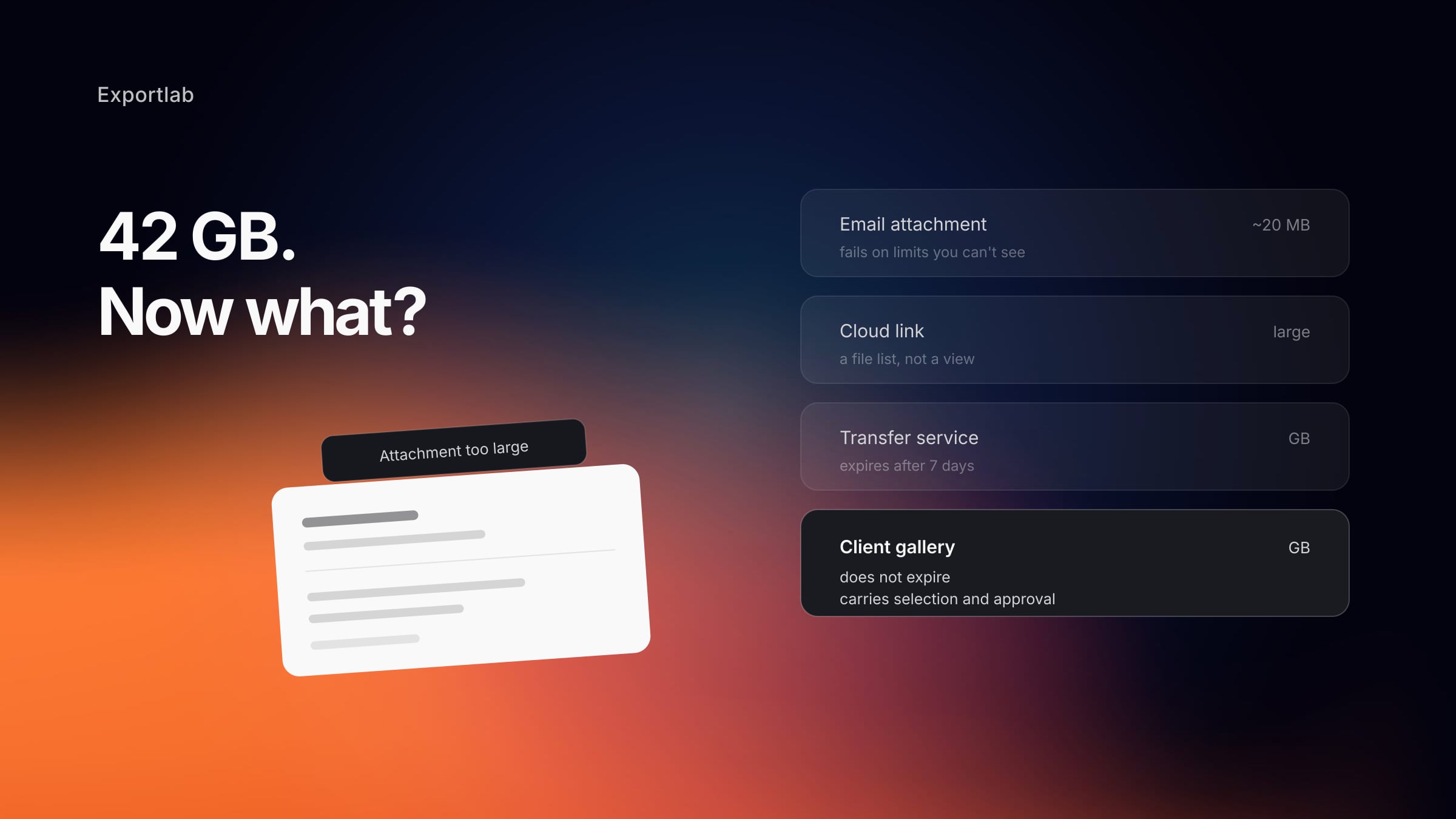
Most advice on how to compress a video file amounts to "drag it into this tool". That works until the result looks like a smeared mess in dark scenes, or the file is still too big for wherever it needs to go.
Compression is not one setting. Four things determine the size of a video, they interact, and only one of them is usually the right thing to change. This article covers which one, in what order, and where the honest limits are.
What actually controls file size
| Control | What it does | Effect on quality |
|---|---|---|
| Codec | How efficiently the picture is encoded | None by itself — a better codec is free size |
| Bitrate | How much data per second | Direct. This is the real quality dial |
| Resolution | Pixel dimensions | Only visible if displayed larger than encoded |
| Frame rate | Frames per second | Changes the look; never a size-only decision |
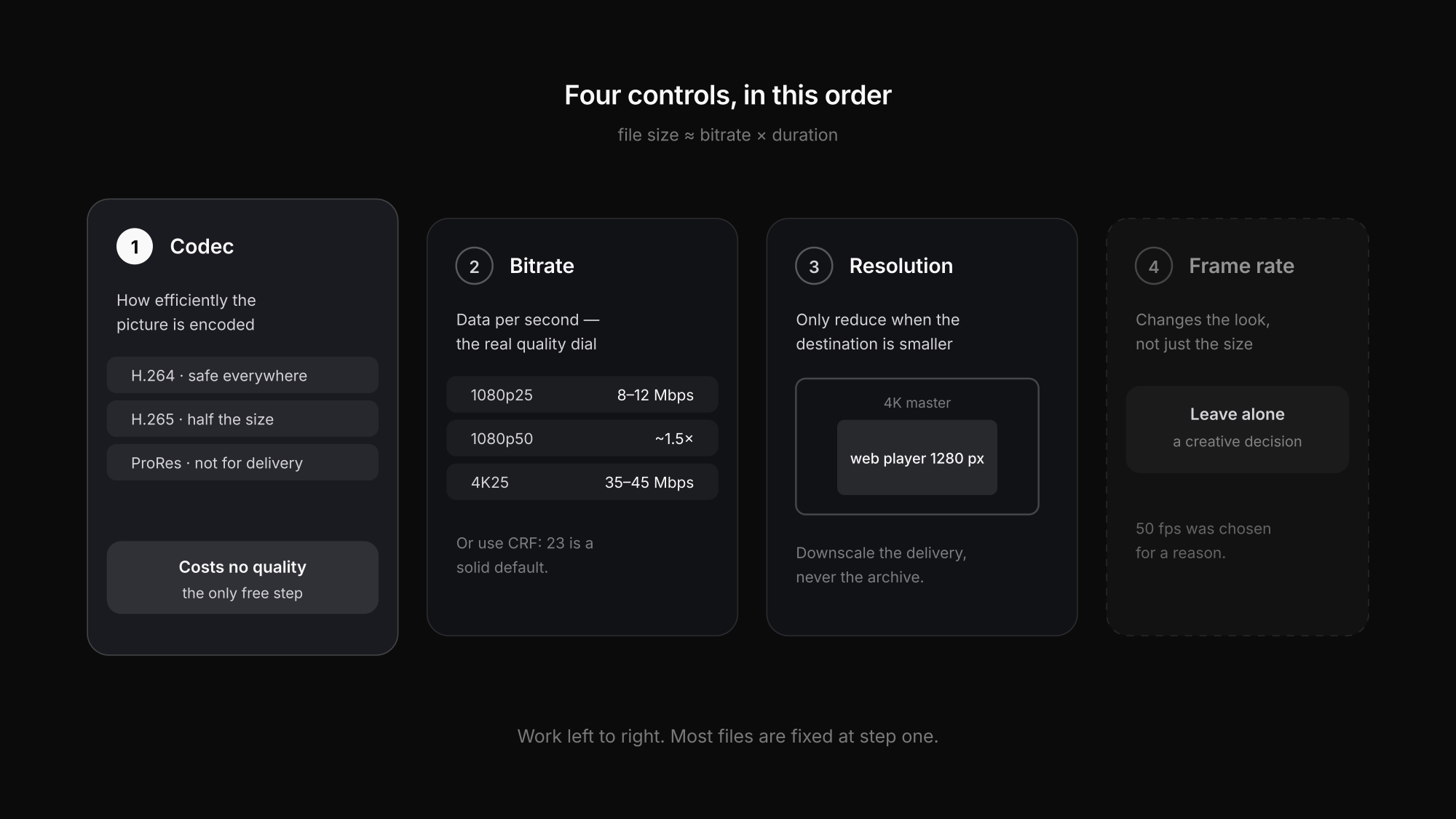
There is a rough formula underneath: file size ≈ bitrate × duration. Resolution and frame rate matter because they determine how much bitrate you need to look acceptable — not because they shrink the file directly.
Start with the codec
Changing the codec is the only compression step that costs nothing in quality — you are encoding the same picture more cleverly.
- H.264 — the safe default. Plays everywhere, on everything, including whatever the client's IT department locked down in 2015.
- H.265 / HEVC — roughly half the size of H.264 at similar quality. The catch is playback support, which is good on modern devices and patchy elsewhere.
- AV1 — more efficient again, and slower to encode. Good for streaming platforms, not for a file you email a client today.
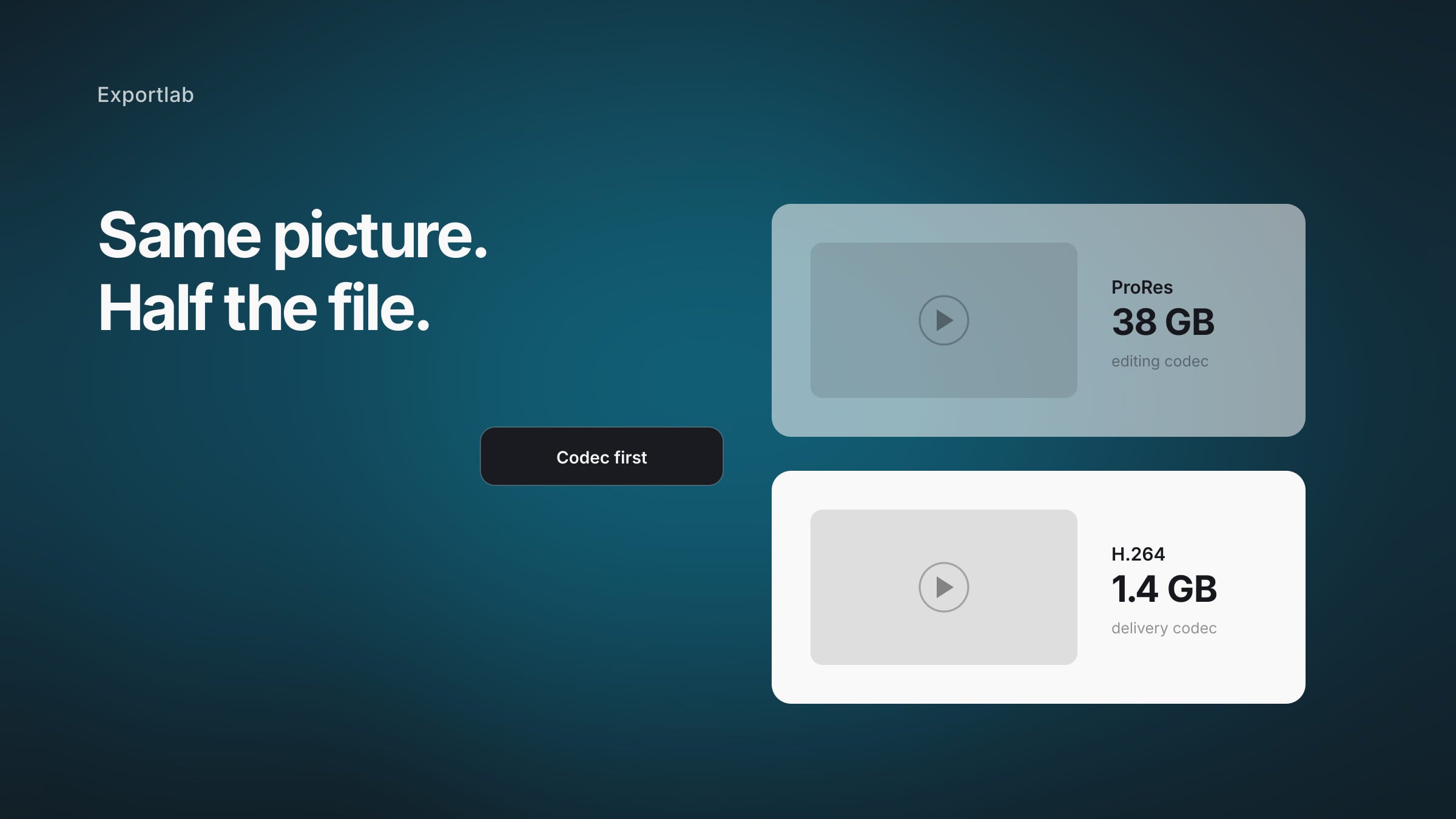
- ProRes / DNxHR — the opposite of compression. These are editing codecs: enormous files, designed to be worked on rather than delivered. If your export is 40 GB, this is almost certainly why.
For a file going to a client, H.264 is usually right even though H.265 is smaller. A file that does not play is not a small file, it is a support ticket. The tradeoffs between the two are covered in more depth in ProRes vs H.264.
Then set the bitrate
Bitrate is the actual quality control. Rules of thumb for H.264, for delivery rather than editing:
- 1080p at 25–30 fps — 8–12 Mbps looks good, 5 Mbps is acceptable for talking heads
- 1080p at 50–60 fps — roughly 1.5× the above
- 4K at 25–30 fps — 35–45 Mbps
- Vertical social cuts — 6–10 Mbps is plenty, since it is watched on a phone
Two things worth knowing about how the encoder spends that budget:
Two-pass beats one-pass. In a two-pass encode the encoder analyses the footage first, then allocates bits where they are needed. Same size, better result — it just takes twice as long.
CRF is usually the better tool. Instead of naming a bitrate, constant-rate-factor encoding names a quality target and lets the file size fall where it may. For H.264, CRF 18 is visually near-lossless, 23 is a solid default, 28 is visibly soft. Use CRF when quality matters more than hitting an exact file size, and a target bitrate when there is a hard size cap.
Only then touch resolution
Resolution is worth reducing when the video will never be displayed at full size. A 4K master for a website player that renders at 1280 px wide is carrying pixels nobody sees.
What matters is honesty about the destination: downscaling 4K to 1080p for web delivery is sensible; downscaling the archive master is not, because you cannot get it back.
Leave frame rate alone
Frame rate is a creative decision, not a compression one. Halving 50 fps to 25 fps does reduce the required bitrate — and it visibly changes the motion. If footage was shot at 50 fps for a reason, that reason does not disappear because the file is large.
The one legitimate case: footage shot at a high frame rate purely for slow motion, already conformed to its final speed.
Compression mistakes that show
Re-encoding an already compressed file
Every generation loses something. Go back to the master rather than compressing the export of an export.
Compressing before editing
Editing a heavily compressed file makes grading and keying harder. Compress on the way out, never on the way in.
One bitrate for every destination
An archive master, a web cut and a social version have different requirements. One export cannot serve all three well.
Judging quality on a phone
Compression artefacts hide on a small bright screen and appear on a large one. Check dark, detailed scenes at full size.
Shipping H.265 to an unknown client
Smaller, and it may not play on their machine. For an unknown recipient, H.264 remains the safe choice.
Assuming ZIP will help
Video is already compressed. Zipping an MP4 saves almost nothing and adds a step for the recipient.
Where compression is the wrong answer
Sometimes the file is the wrong tool entirely.
If a client needs to watch and comment, sending a file at all is the problem. They download several gigabytes, open it in whatever player they have, and then describe what they saw in an email — "around 2:15 the cut feels early". Streaming removes the download, and comments anchored to a timecode remove the ambiguity. That is covered in video feedback from clients.
If a client needs the master for their own edit, compression is actively wrong. Send the high-bitrate or ProRes file and solve the transfer problem instead of degrading the picture.
In Exportlab, video uploaded to a project is transcoded and delivered by HLS streaming, so the client watches in the browser instead of downloading a file, with frame-accurate comments tied to the version they are watching. Where a genuine file handover is needed, Easy Transfer sends the original as a PIN-protected link with download tracking, so the full-quality file moves without being squeezed through an email limit.
FAQ: Compressing video files
How do I make a video file smaller without losing quality?
Switch to a more efficient codec first — that is the only genuinely free step. H.265 is roughly half the size of H.264 at comparable quality, at the cost of playback compatibility. After that, any further reduction trades quality for size; two-pass or CRF encoding just spends the budget more intelligently.
What bitrate should I use for 1080p?
For H.264 delivery at 25–30 fps, 8–12 Mbps looks good and 5 Mbps is acceptable for interviews and talking heads. Double it for 50–60 fps. If you are not aiming at a fixed file size, CRF 23 is a better starting point than any bitrate number.
Why is my exported video so large?
Usually the codec. ProRes and DNxHR are editing formats and produce enormous files by design — a few minutes can run to tens of gigabytes. Exporting to H.264 instead typically reduces that by an order of magnitude with no visible difference for delivery.
Is H.265 better than H.264?
More efficient, yes — about half the size at similar quality. Better for a given job, not always: playback support is still inconsistent, particularly on older machines and locked-down corporate laptops. For an unknown recipient, H.264 is the safer choice.
Does zipping a video make it smaller?
Effectively no. Video codecs already compress heavily, so a ZIP around an MP4 saves a negligible amount and adds a step for the recipient. Zip only when bundling several files for convenience.
Conclusion
Compressing a video file well is a matter of order. Change the codec first, because efficiency is free. Set the bitrate next, since that is the real quality dial — and use CRF unless you are hitting a hard size limit. Reduce resolution only when the destination genuinely does not need it, and leave frame rate alone, because that is a creative choice wearing a technical disguise.
And before compressing at all, check whether the file is the point. If the client is going to watch and comment, streaming with frame-accurate feedback removes the download entirely — no compression required. For choosing export settings per destination, video export settings goes further.